
AysOps AI: what it does, the free trial and your allowance
What this does
Section titled “What this does”AysOps AI reads things for you so you don’t have to type them:
- Receipts: snap a photo and the expense is filled in, with each tax matched to your own tax rates and any tip kept separate. A vendor you usually pay in US dollars is suggested in USD. You can add a folder of up to 50 at once. See Scan a receipt with AI.
- Statements and supplier invoices: read and matched against your expenses, showing what’s missing or entered twice. See Accounting documents.
- Worksheets into estimates: upload an Excel, CSV or Word price sheet and the AI drafts the estimate’s lines and sections. Before any AI runs, a free check lists likely mistakes in your worksheet (totals that skip rows, a tax worked out at two rates). The draft is compared with your worksheet’s own totals, the AI asks about anything unclear, and you can ask it for changes up to 15 times, then accept it. Prices are always read from your file, never made up.
- Conversations into estimates: start from a meeting transcript, an email thread, a PDF or notes you paste instead of a worksheet. The AI uses the latest price both sides agreed, flags budgets and “what if” prices instead of using them, and shows the words each price came from. With AysOps for Zoom or AysOps for Google Meet and Microsoft Teams, you can pick a meeting whose transcript you saved.
- The review history of every estimate made this way stays with the estimate, its work order and its invoice: Made with AI from [your file]: View the review history · Download review (PDF). See Create an estimate from a worksheet.
- Odometer photos: the reading goes into your mileage log.
- Meeting transcripts: a summary and suggested follow-ups you choose to keep.
- QuickBooks: suggested matches for customers, vendors and items, and account mappings.
- Working hours: suggests your region’s statutory holidays.
AI never saves anything on its own: you check what it read and confirm.
The free trial
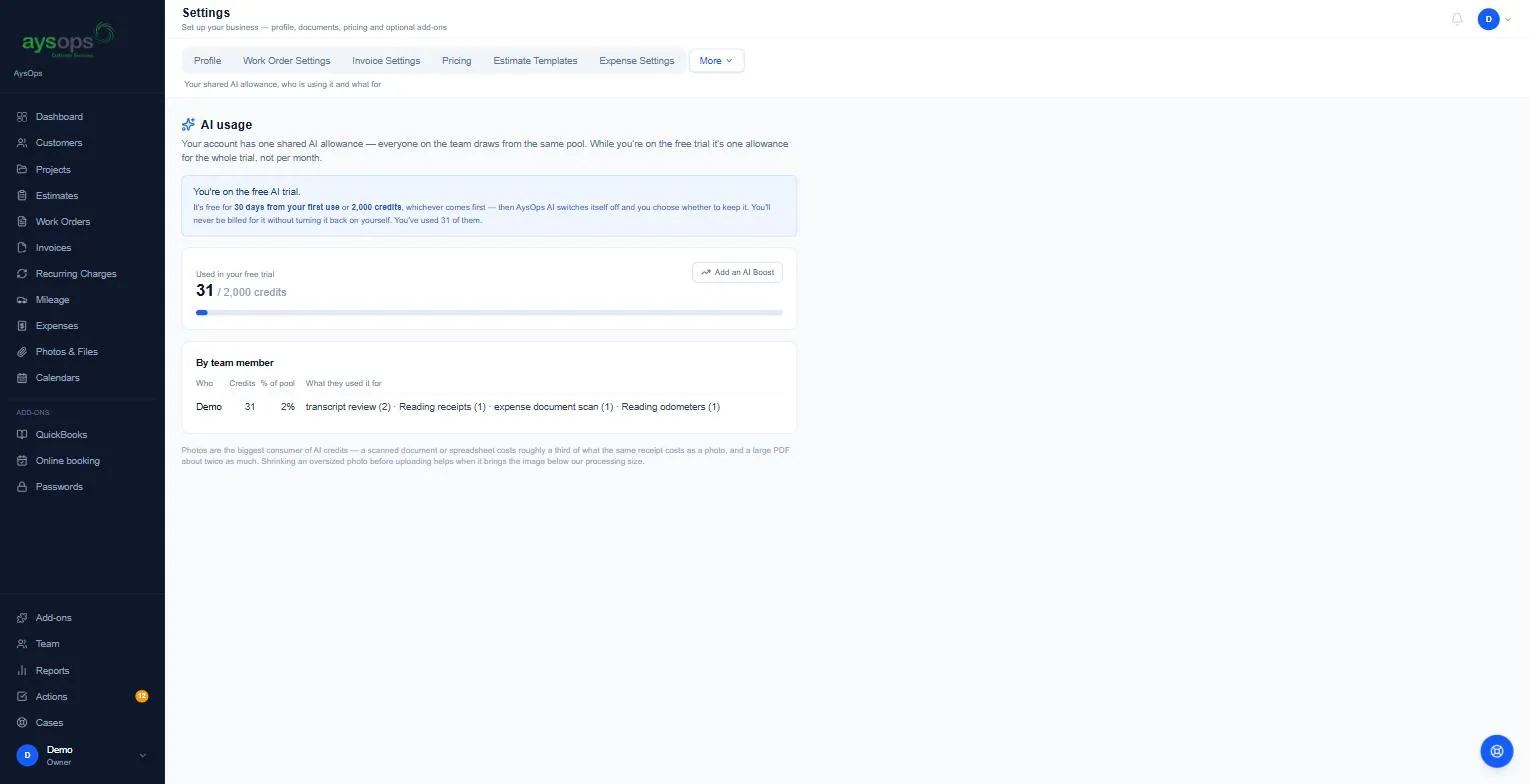
Section titled “The free trial”- AysOps AI is on from the start and free for 30 days from your first use, or 2,000 credits, whichever comes first. It’s one allowance for the whole trial, not per month.
- When the trial ends, AI switches itself off and you’re told why. You choose whether to turn it back on; you’re never billed for it until you do.
- Only the account owner can turn AysOps AI back on (on the Add-ons page). Administrators can’t. Anyone else can click Request on the AysOps AI card to let the owner know.
- Once you turn it back on, it’s billed with your plan ($13.49 CAD/mo), even during your 90-day AysOps trial.
Your allowance
Section titled “Your allowance”- The whole team shares one allowance. After the trial it follows your billing period, is prorated for the first one, and unused credits don’t carry over.
- You get warnings at 80% and 100%.
- Need more? Add an AI Boost on the Add-ons page under Extra Capacity: Storage and AI: small adds 5,000 credits, medium 15,000 and large 32,000 each billing period. Boosts stack, are billed from the day you add them, and are only available once your paid AI subscription has started. Only the account owner can add one.
Complimentary AI from AysOps
Section titled “Complimentary AI from AysOps”Sometimes AysOps gives a business AI at no charge. There are two kinds:
- Complimentary AI: you can use AysOps AI without turning on the add-on, up to the usual allowance each billing period.
- Complimentary AI credits: a set number of credits to use once. They’re used before anything else. When they run out, AI stops unless you turn on AysOps AI under Add-ons.
While either is in place, your free trial isn’t used up. Settings → AI usage shows which one you have. If you already pay for AysOps AI, complimentary AI doesn’t stop that charge on its own: contact us and we’ll sort it out.
See who’s using it
Section titled “See who’s using it”The owner and administrators can see this page.
- Click Settings, then More, then AI usage.
- You see credits used so far, and By team member: who used how many credits and what for (for example “Reading receipts (1)”).
- If AysOps AI is off, the page says so and shows only what was used earlier in the period, with no allowance and no Add an AI Boost button.
Tip: photos use the most credits. A scanned document or spreadsheet costs about a third of the same receipt as a photo, and a large PDF about twice as much.
Related articles
Section titled “Related articles”ai, artificial intelligence, worksheet to estimate, spreadsheet to estimate, excel quote, aysops ai, receipt scan, read receipt, odometer photo, statement matching, transcript summary, quickbooks matching, ai credits, ai allowance, ai usage, ai trial, ai boost, ai switched off, out of credits, ai cost