
Record a direct sale (daily sales totals)
What this does
Section titled “What this does”Records money you took without an invoice, for example a day’s takings at a market, a food truck’s daily total, or a counter sale. You enter the total before tax and add its taxes and fees. Sales count as revenue in Reports (“Direct sales”).
Sales are recorded on a customer. If you sell to the public, make one customer for it (for example “Walk-in sales” or “Farmers market”) and record each day’s total there.
Before you start
Section titled “Before you start”You need the Record & edit sales permission (owners, admins and managers by default; staff too).
- Open the customer and click the Sales tab.
- Click Record sale.
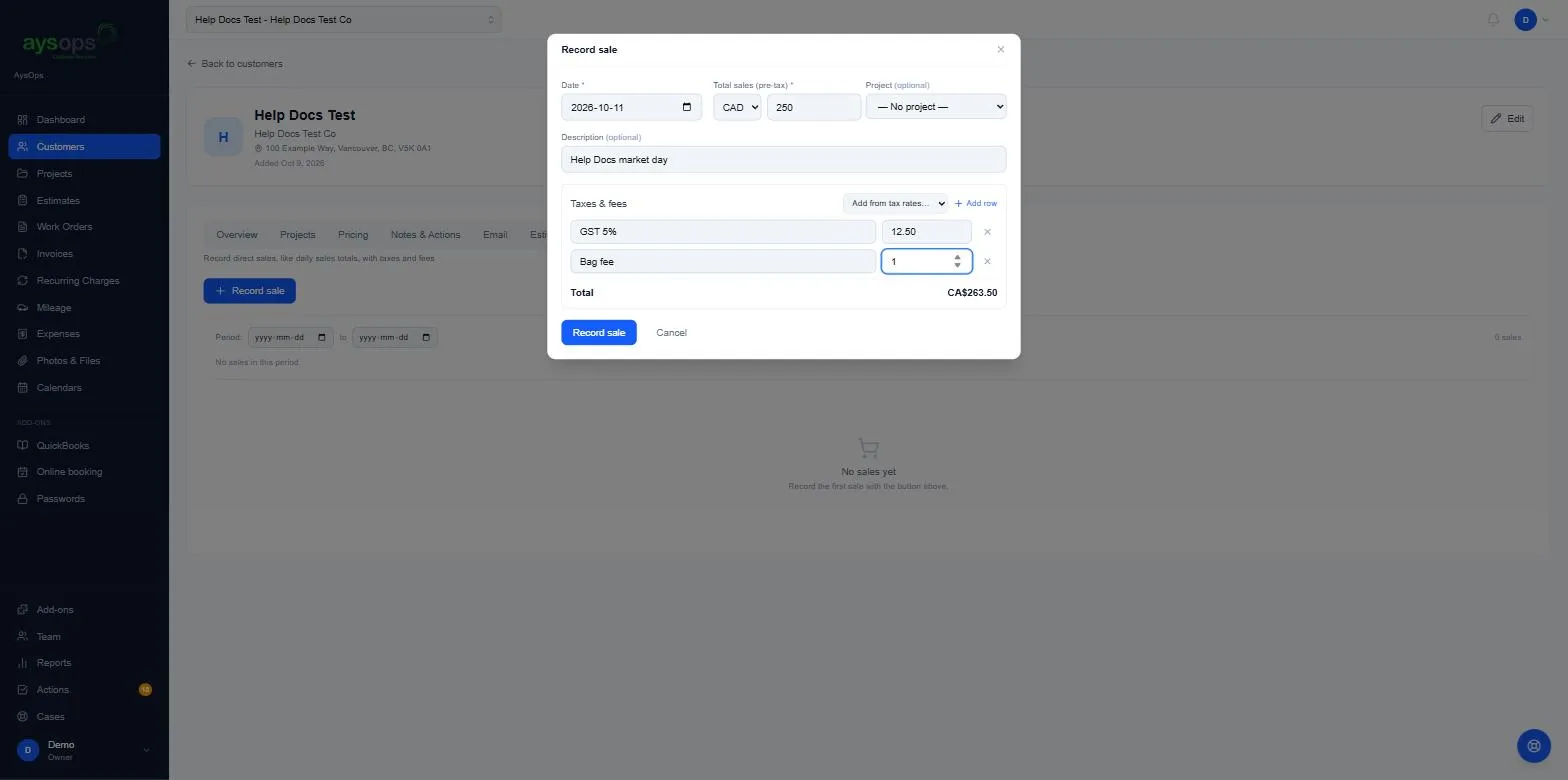
- Fill in:
- Date (required): today to start with.
- Total sales (pre-tax) (required), and the currency (CAD or USD).
- Project (optional): one of this customer’s projects.
- Description (optional), for example “Saturday market”.
- Under Taxes & fees:
- Pick from Add from tax rates… (for example GST (5%)). The amount is worked out from the sales total for you.
- Or click Add row and type a name and amount yourself, for example a “Bag fee”. Fees are added to the total; a row left completely empty is ignored.
- Remove a row with the x.
- Check the Total and click Record sale.
What happens next
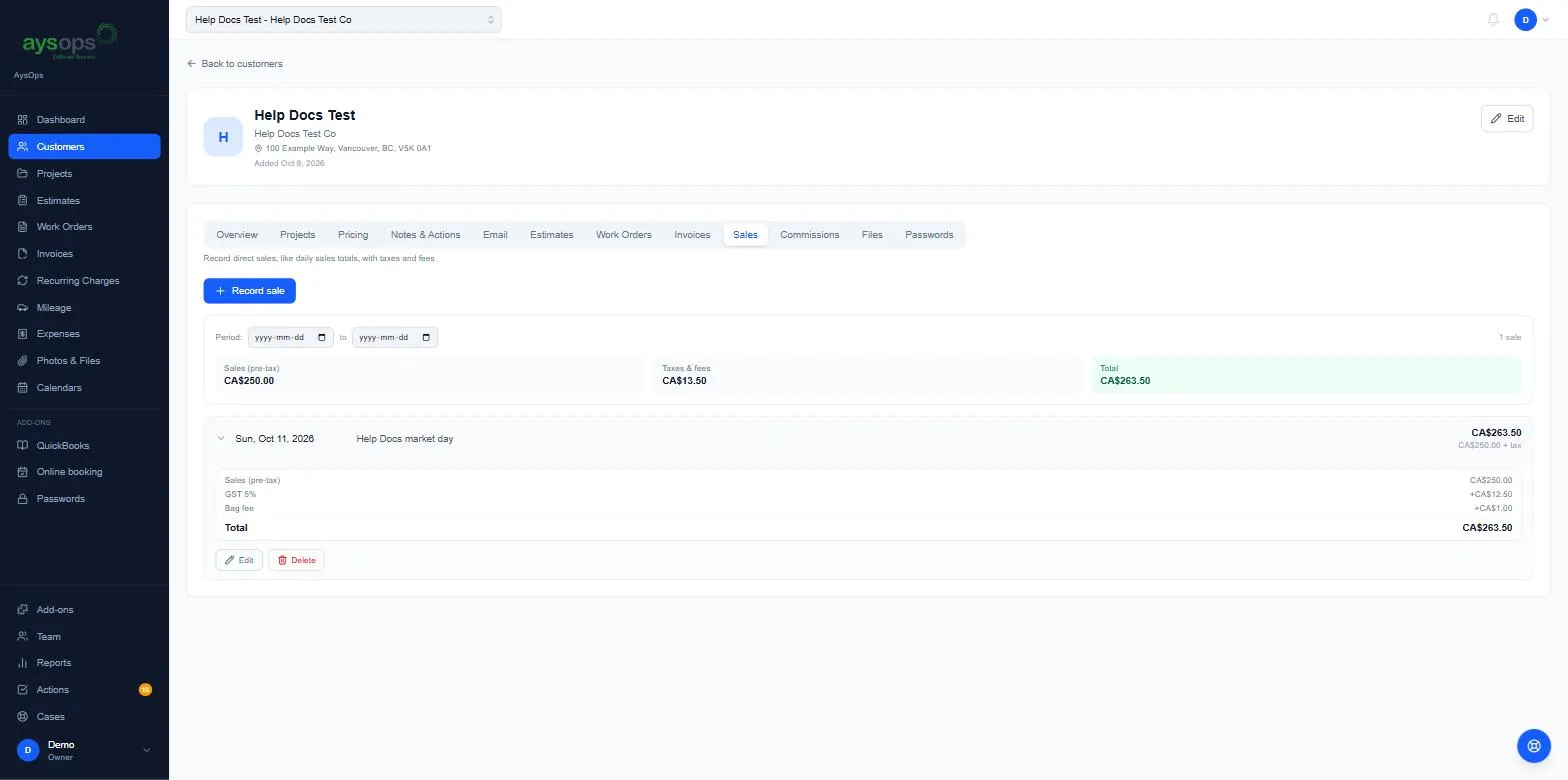
Section titled “What happens next”- The sale is listed by date, with totals for Sales (pre-tax), Taxes & fees and Total for the period. Use Period to choose the dates.
- Click a sale to see its breakdown, with Edit and Delete.
- With QuickBooks Sync, sales go to QuickBooks as sales receipts. A tax picked from your tax rates keeps its tax code there; a row you typed goes over as its own line.
If something goes wrong
Section titled “If something goes wrong”- “Tax/fee row … is missing a name”: give the row a name, or remove it.
- “Value must be greater than or equal to 0.” (your browser’s message, on the amount box) or “…needs a valid amount”: a fee can’t be negative.
Related articles
Section titled “Related articles”sale, sales, direct sale, record sale, daily sales, sales total, cash sale, market day, food truck, point of sale, till total, sales tax, bag fee, sales tab, revenue without invoice