
The morning itinerary email
What this does
Section titled “What this does”Sends you one email early each morning with your day: today’s appointments, overdue invoices, work waiting on you, and any system alerts. If there’s nothing to report, no email is sent.
Before you start
Section titled “Before you start”Everyone gets their own itinerary and chooses what’s in it. It’s on for new users.
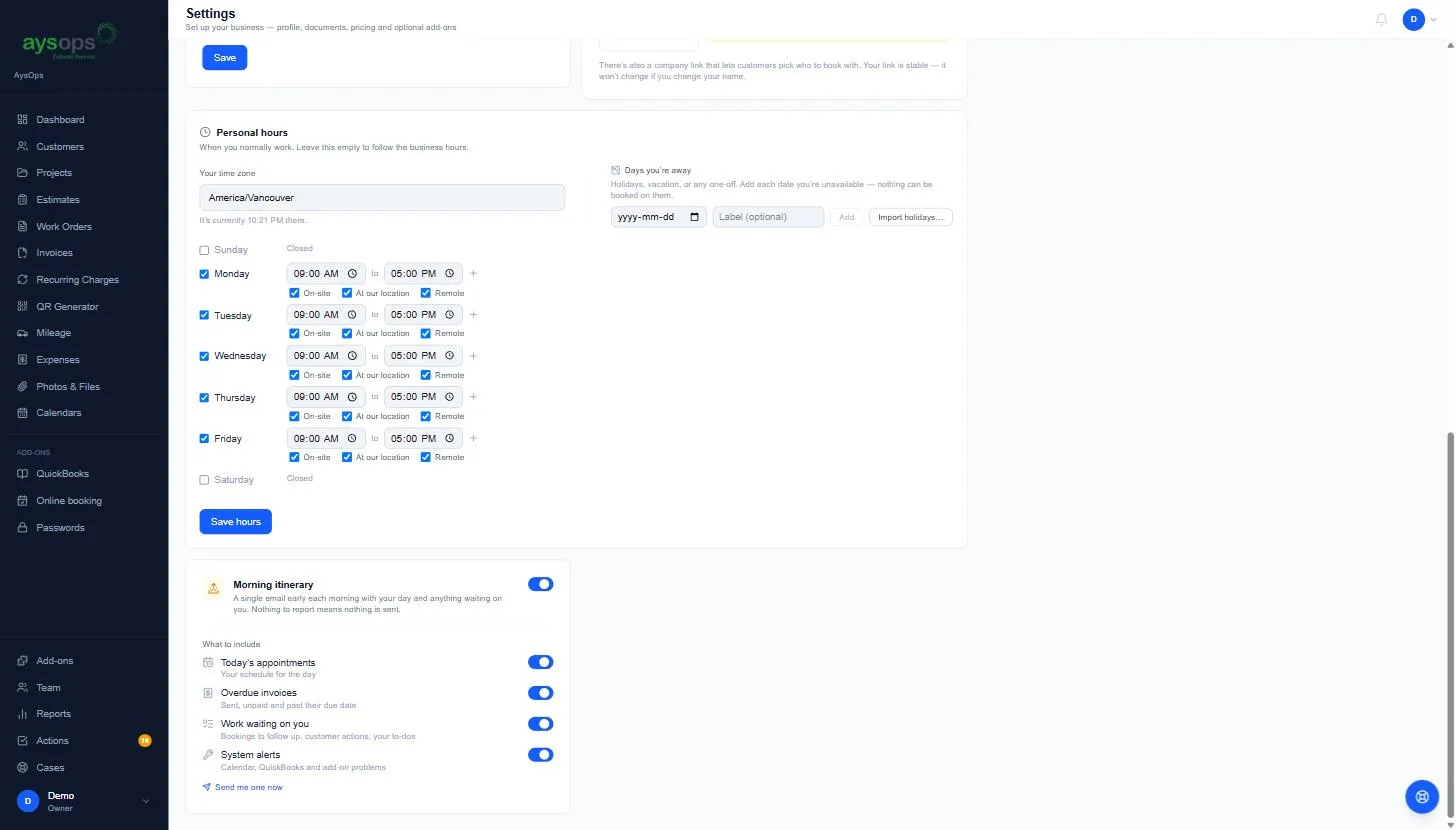
- Click your initial or photo at the top right, then Settings. Stay on the Personal tab and scroll to the bottom: Morning itinerary.
- Use the switch next to Morning itinerary to turn the email on or off completely.
- Under What to include, switch each part on or off:
- Today’s appointments: your schedule for the day.
- Overdue invoices: sent, unpaid and past their due date.
- Work waiting on you: bookings to follow up, customer actions, your to-dos.
- System alerts: calendar, QuickBooks and add-on problems.
- To see what it looks like, click Send me one now. It says Sent. Check your inbox. The button then counts down 5 minutes before you can send another.
What happens next
Section titled “What happens next”The email arrives between about 1 and 4 AM in your own time zone, so it’s waiting when you start your day. Your time zone is set under Personal hours on the same page.
If something goes wrong
Section titled “If something goes wrong”- I don’t get it some days: nothing was due that day; an empty itinerary isn’t sent.
- It arrives at the wrong time: check Your time zone under Personal hours.
- I want to stop it: turn off the Morning itinerary switch. You can also use the unsubscribe link in the email: it opens Stop the morning digest?; click Yes, stop sending it. Only this email stops. You can turn it back on any time with the switch.
Related articles
Section titled “Related articles”morning email, daily email, digest, itinerary, daily summary, unsubscribe, stop emails, schedule email