
Sell online with a Buy button on your website
What this does
Section titled “What this does”Puts a Buy now button for one of your products, services or plans on your own website. The customer pays by card on a secure AysOps checkout, and the sale is recorded in AysOps. There’s no online store to build: each item gets its own button.
Before you start
Section titled “Before you start”- To actually take money you need AysOps Payments With Stripe with your Stripe account connected. See Set up AysOps Payments. Until then the button works but the checkout says the item isn’t available.
- The item must be on your company-wide price list (Settings → Pricing), not a customer’s own price.
- Click Settings, then Pricing, then Products & Services (or Recurring Charges for a plan).
- Click Sell online on the item.
- Tick Sell this online.
- Set the Button text (starts as “Buy now”).
- For a product: tick Let buyers choose how many to let them buy more than one, and set the most per purchase.
- Optional: an After purchase message, shown after they pay and added to their receipt.
- Click Save. “Saved. This product can now be bought online.” appears, and the item shows Selling online in the list.
- Under Style, choose Link (opens the checkout in a new tab, no script) or Popup (opens it over your page; your website must be in Allowed websites under Website & embeds).
- Click Copy next to Code to paste on your website and paste it into your website. Open the checkout lets you try it.
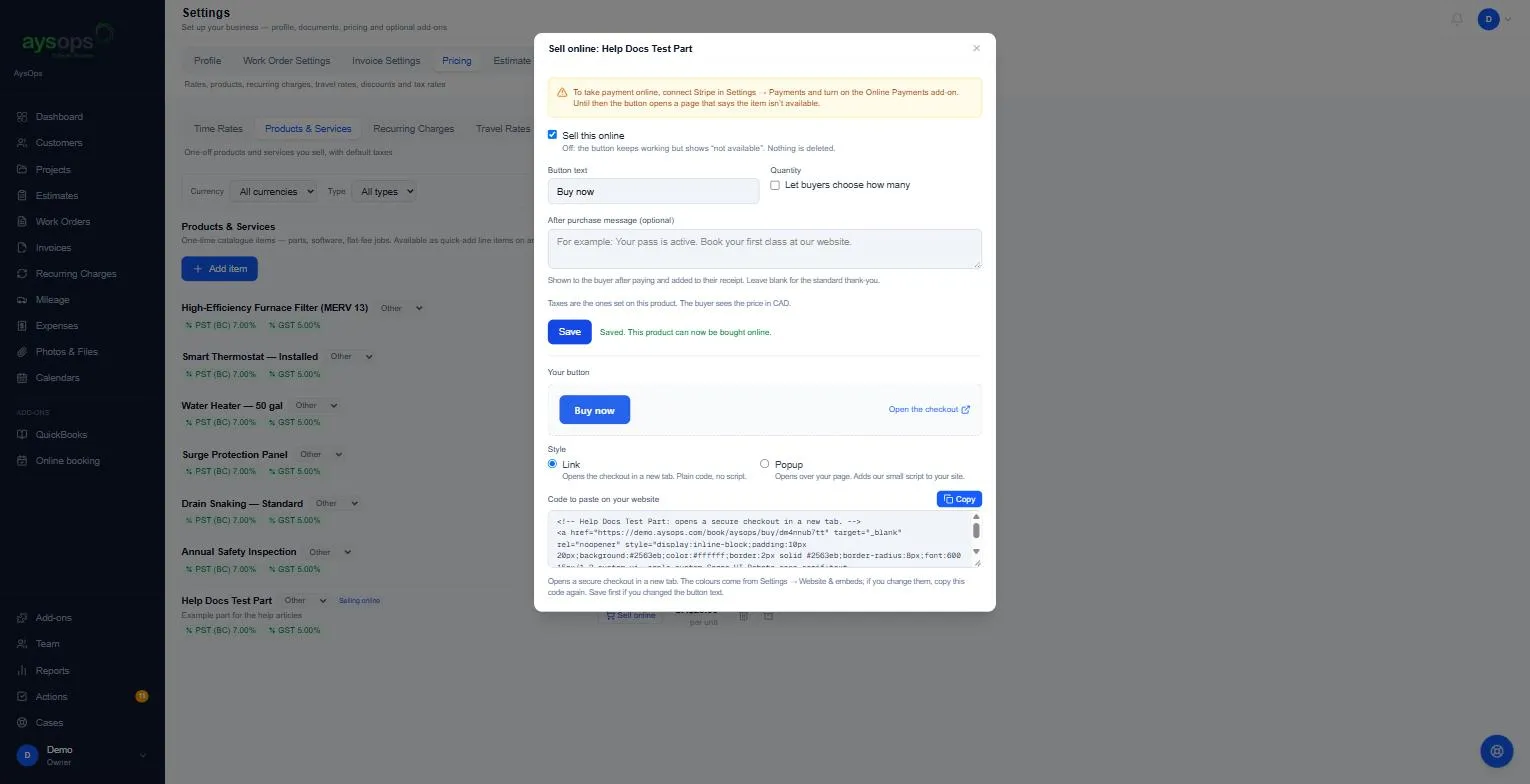
The taxes are the ones set on the item. The colours come from Website & embeds → Appearance; if you change them or the button text, save and copy the code again (Link style).
Prepaid packs
Section titled “Prepaid packs”A Buy button on a product that is a prepaid pack gives the buyer the pack as soon as they pay, and the pack is listed in your customers’ portal under Buy a pack. Prepaid packs come with the Customer Portal add-on. See Sell prepaid packs of hours or classes.
Plans (recurring charges)
Section titled “Plans (recurring charges)”Selling a plan works the same way from Recurring Charges, with no quantity. Every buyer must agree to autopay, so each cycle is charged to their card automatically. Buyers can’t cancel from the page: they contact you.
Stop selling something
Section titled “Stop selling something”Open Sell online and untick Sell this online, then Save. The button on your website keeps working but shows “not available”. Nothing is deleted.
If something goes wrong
Section titled “If something goes wrong”- The checkout says “This item isn’t available”: Stripe isn’t connected, AysOps Payments is off, or Sell this online is unticked.
- The popup opens a new tab instead: your website isn’t in Allowed websites.