
Projects (company projects and customer projects)
What this does
Section titled “What this does”A project groups related work: its estimates, work orders, invoices, expenses, mileage, files and notes, with running totals at the top. There are two kinds:
- Customer projects: a job for one customer (for example “Kitchen renovation”). They live under that customer.
- Company projects: your own ventures, not tied to a customer (for example “Shop renovation” or “Replace the van”). They take their own work orders, expenses and mileage.
Before you start
Section titled “Before you start”You need permission to manage customers.
See all projects
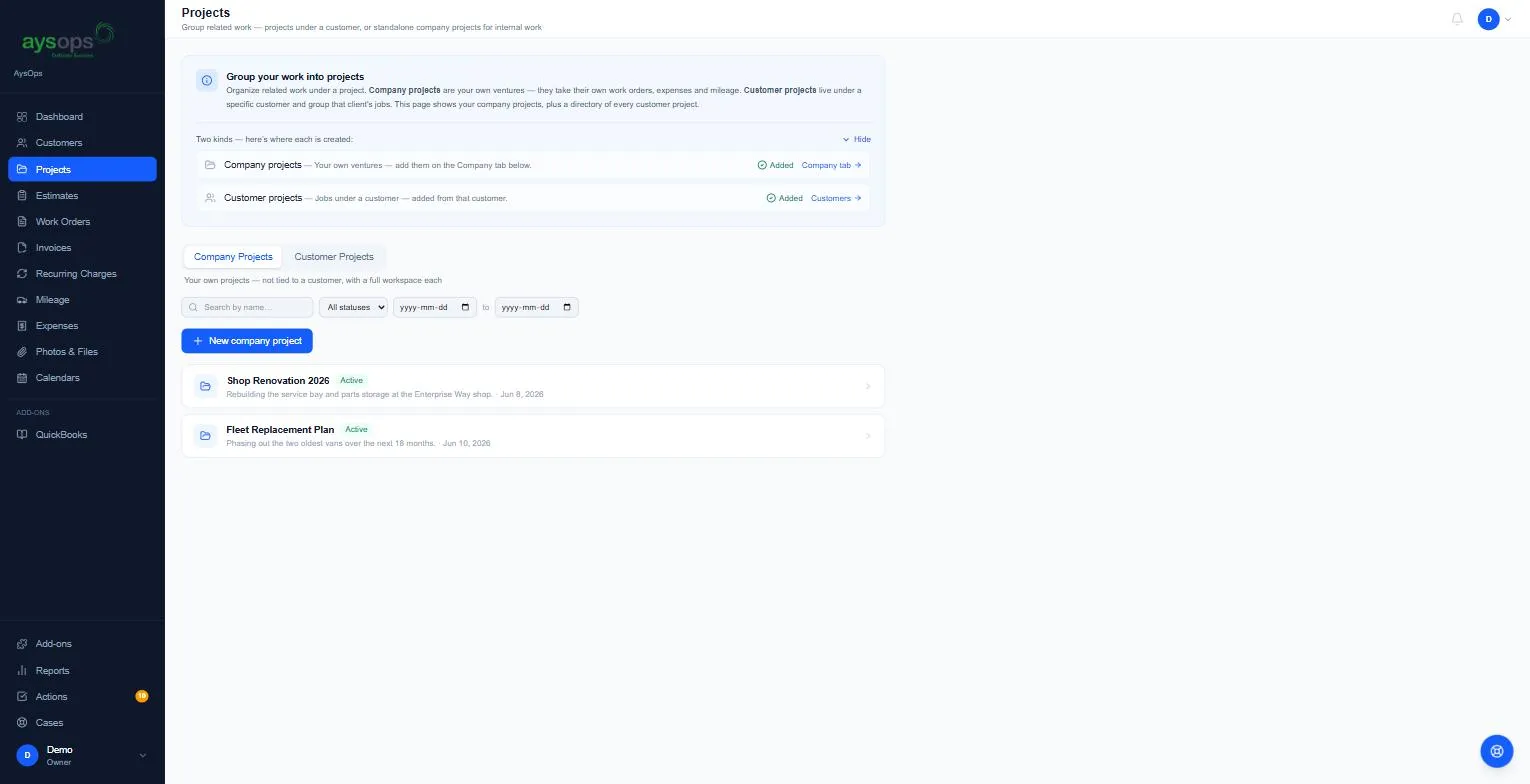
Section titled “See all projects”- Click Projects in the menu. Two tabs:
- Company Projects: your own projects, each with a full workspace.
- Customer Projects: a directory of every customer’s projects.
- Use the search box, the status list (Active, On hold, Completed, Cancelled) and the dates to narrow the list.
Create a company project
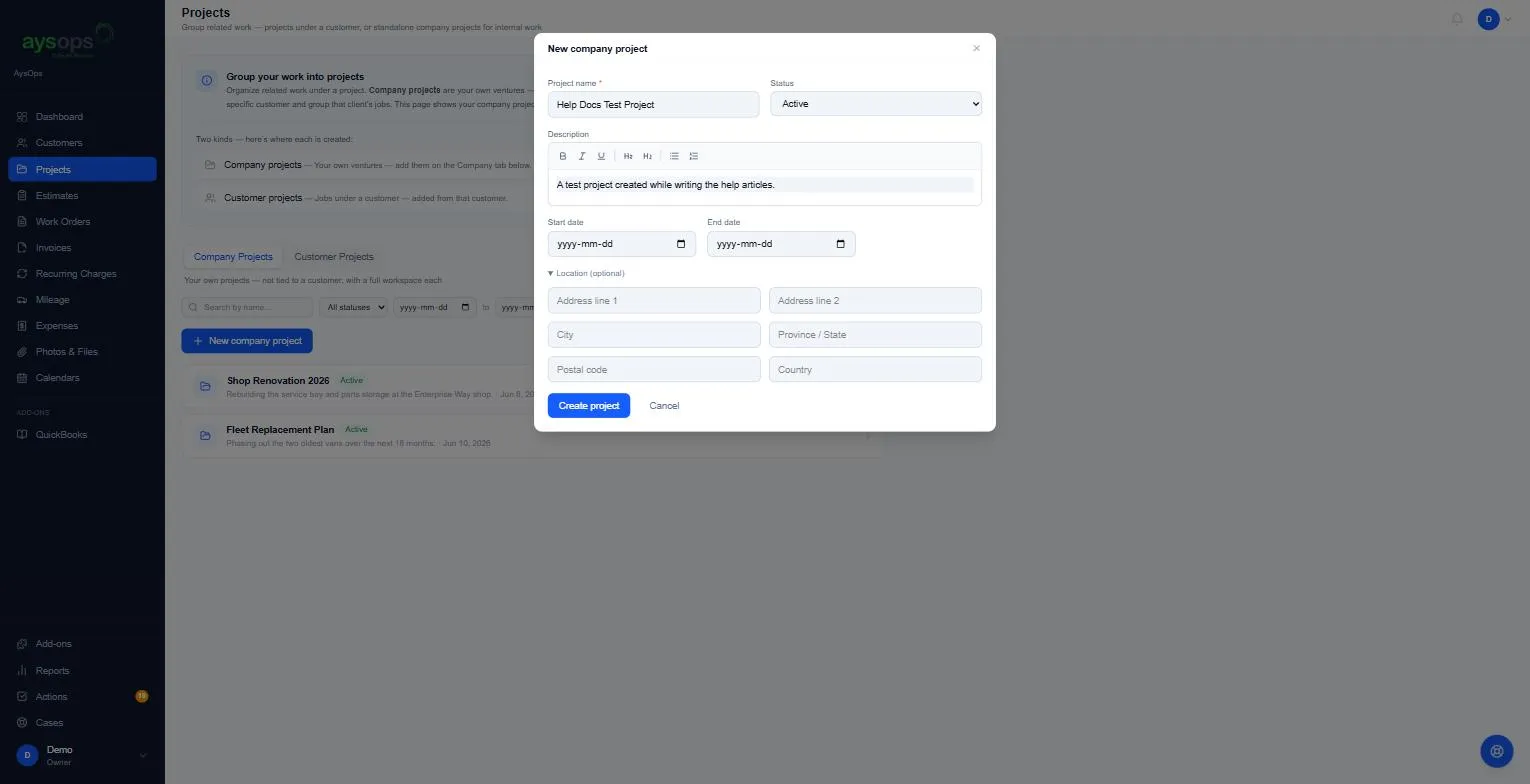
Section titled “Create a company project”- On Company Projects, click New company project.
- Enter a Project name (required), choose a Status (it starts as Active), and add an optional Description, Start date, End date and Location (optional) address.
- Click Create project.
Create a customer project
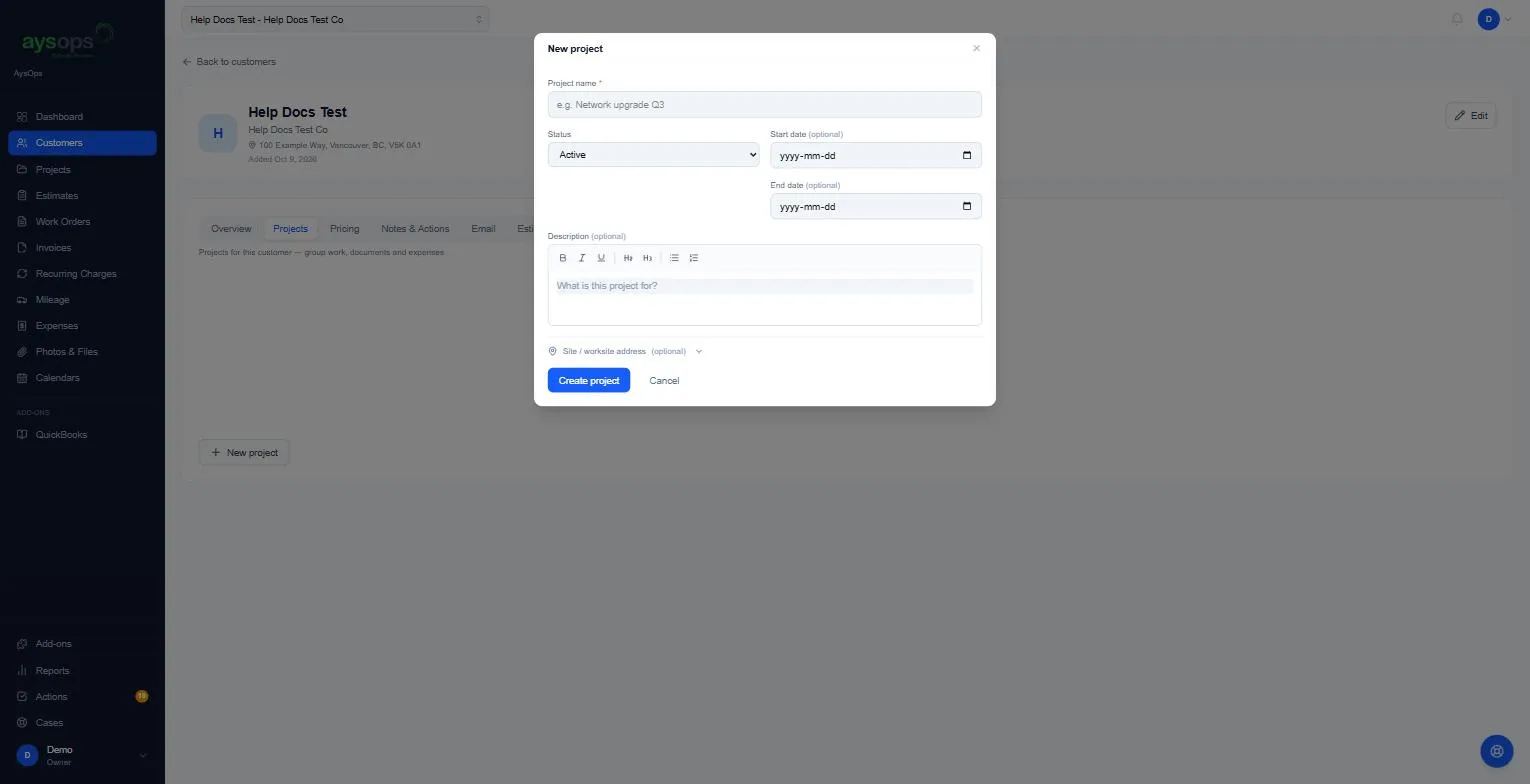
Section titled “Create a customer project”- Open the customer and click their Projects tab, then New project.
- Enter a Project name (required), Status, optional Start date, End date and Description, and optionally a Site / worksite address.
- Click Create project. You’re taken straight into the project.
Inside a project
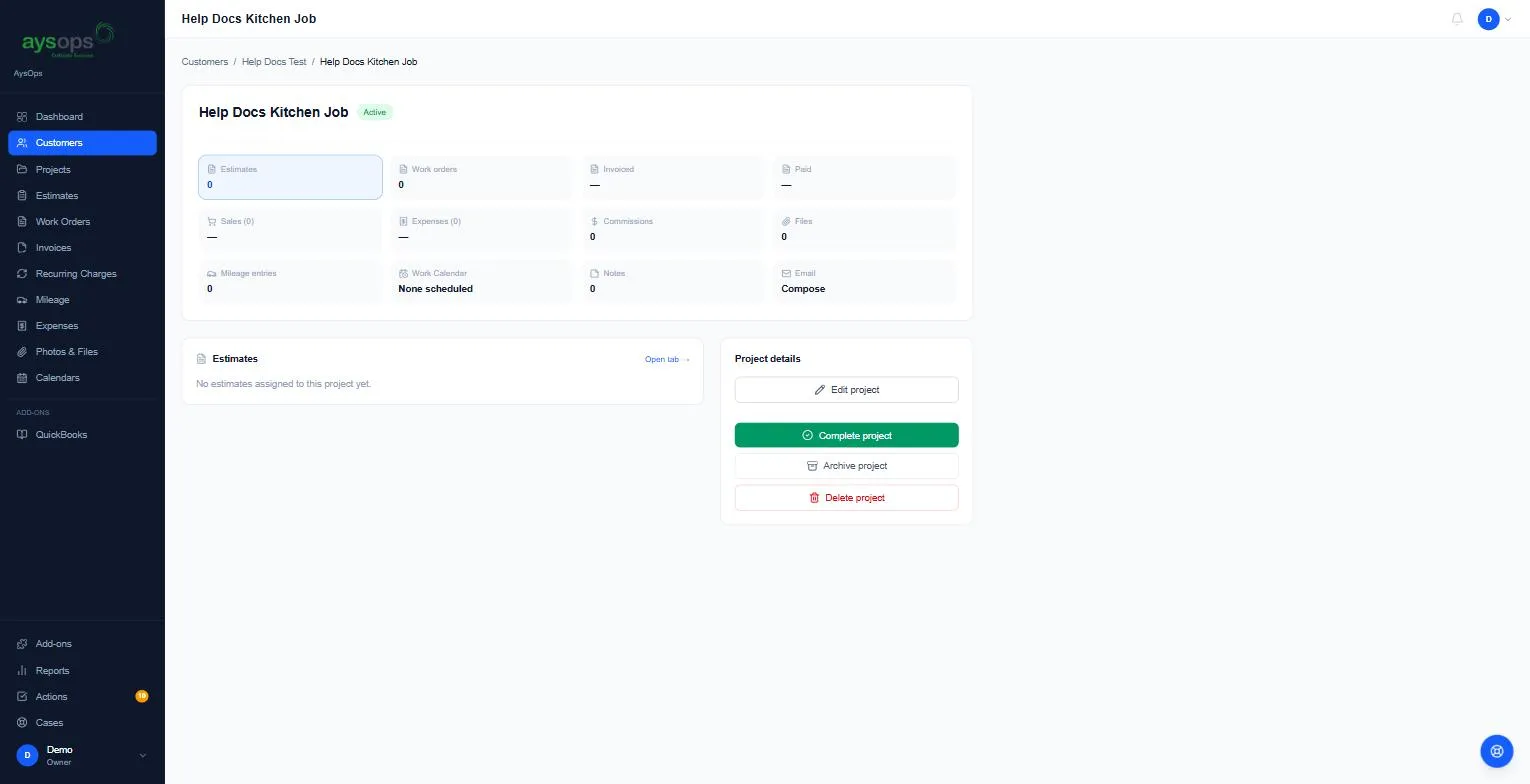
Section titled “Inside a project”At the top are running totals: Estimates, Work orders, Invoiced, Paid, Sales, Expenses, Commissions, Files, Mileage entries, Work Calendar, Notes and Email (click Compose to email about the project). A company project also has tabs like a customer’s page (Overview, Email, Pricing, Notes & Actions, Estimates, Work Orders, Invoices, Sales, Commissions, Files).
Finish, archive or delete a project
Section titled “Finish, archive or delete a project”- Complete project: marks it completed and sets the end date to today, after you confirm (“Mark this project completed?”). The button only shows when no work orders are open and every invoice is paid. Until then you’ll see “Complete becomes available when no work orders are open and every invoice is paid.” (You can’t complete a project by changing its status in Edit; use the button.)
- Archive project: hides it from your lists, together with the documents filed under it. The project then says it’s archived and nothing was deleted, with a Restore from archive button that brings it back.
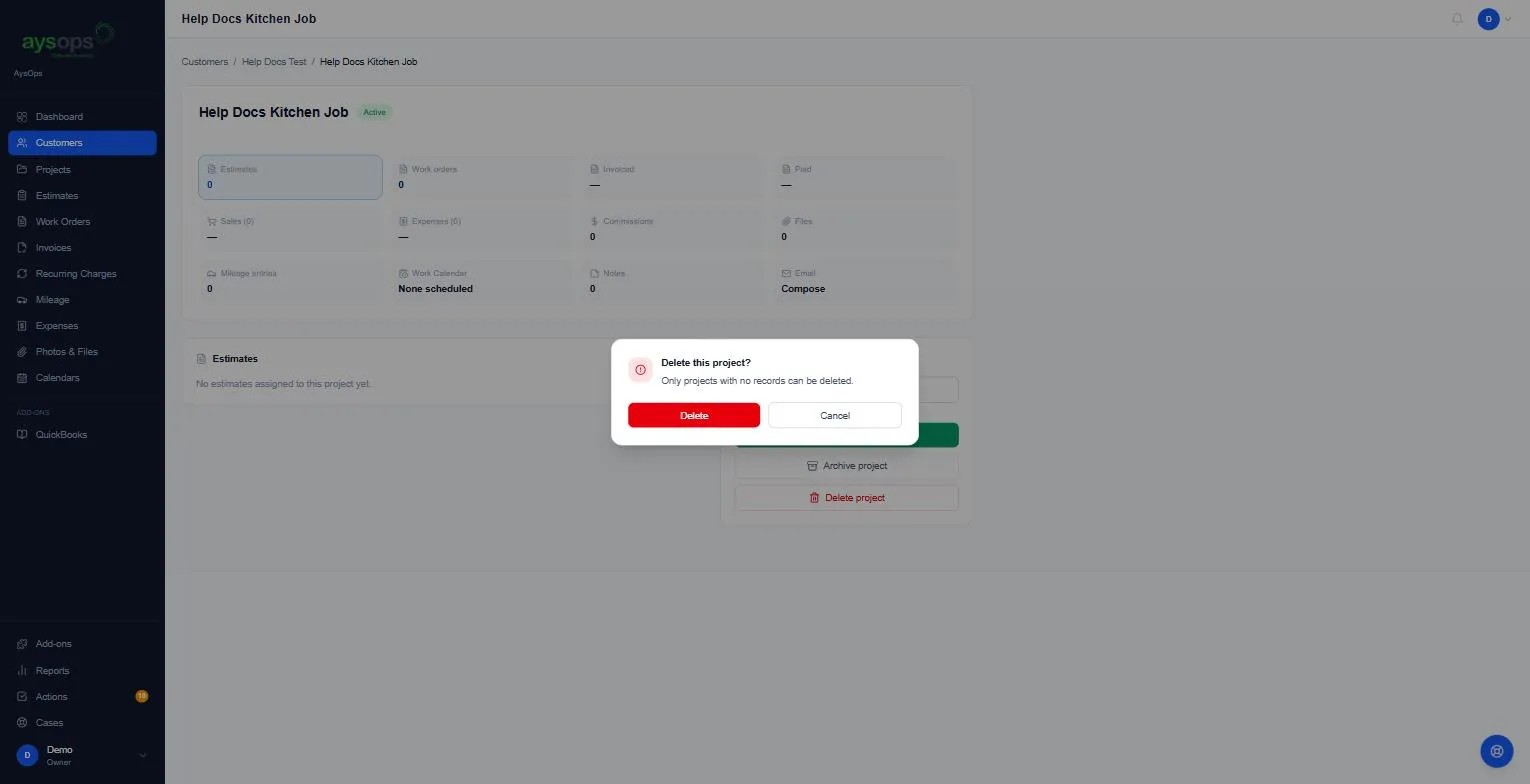
- Delete project: only for a project with nothing in it. The confirmation says “Only projects with no records can be deleted.” If anything is attached, there’s no Delete button and you’ll see “This project has records attached, so it can’t be deleted. Archive it instead.”
What happens next
Section titled “What happens next”When you create an estimate, work order, expense or mileage trip, you can choose the project it belongs to, and the project’s totals update.
If something goes wrong
Section titled “If something goes wrong”- “Company projects cannot contain their own projects.”: a company project can’t have sub-projects.
- “New projects cannot start as completed”: create it first, then use Complete project.
Related articles
Section titled “Related articles”project, projects, new project, company project, customer project, job, group work, complete project, archive project, delete project, internal project