
Estimate templates and quote validity
What this does
Section titled “What this does”- A template saves a set of lines you quote often (for example “Network setup” or “Furnace tune-up”), so a new estimate starts with them already filled in.
- Quote validity sets how many days a sent quote stays open before it expires.
Before you start
Section titled “Before you start”- Templates need permission to create estimates.
- Changing the quote validity needs permission to manage settings (owners and admins by default).
Create a template
Section titled “Create a template”- Click your initial or photo → Settings → Estimate Templates (or click Settings under Estimates in the left menu).
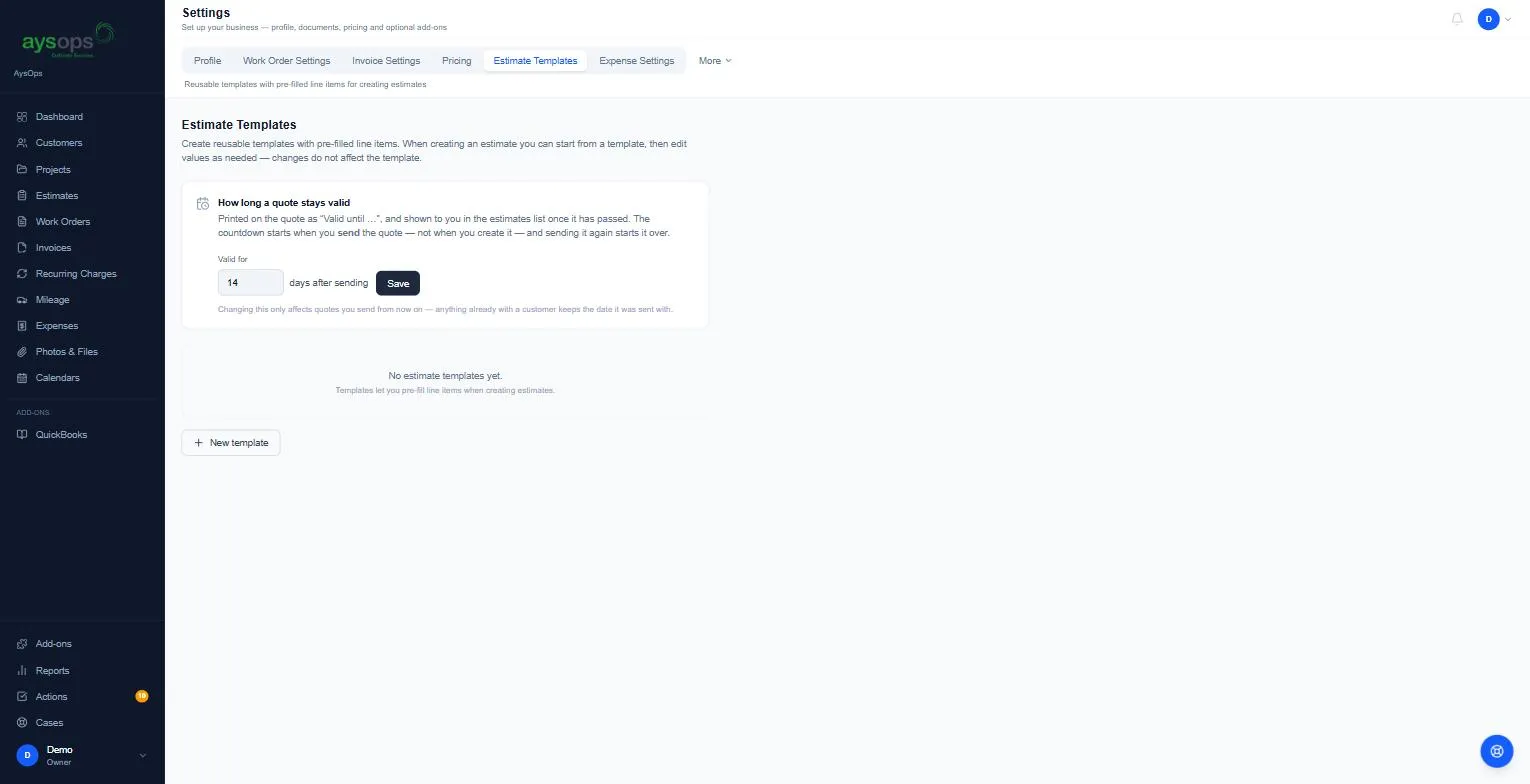
The page has two lists: Estimate templates for ordinary quotes, and Contract templates for quotes with terms, questions and quantities the customer sets (see Contracts).
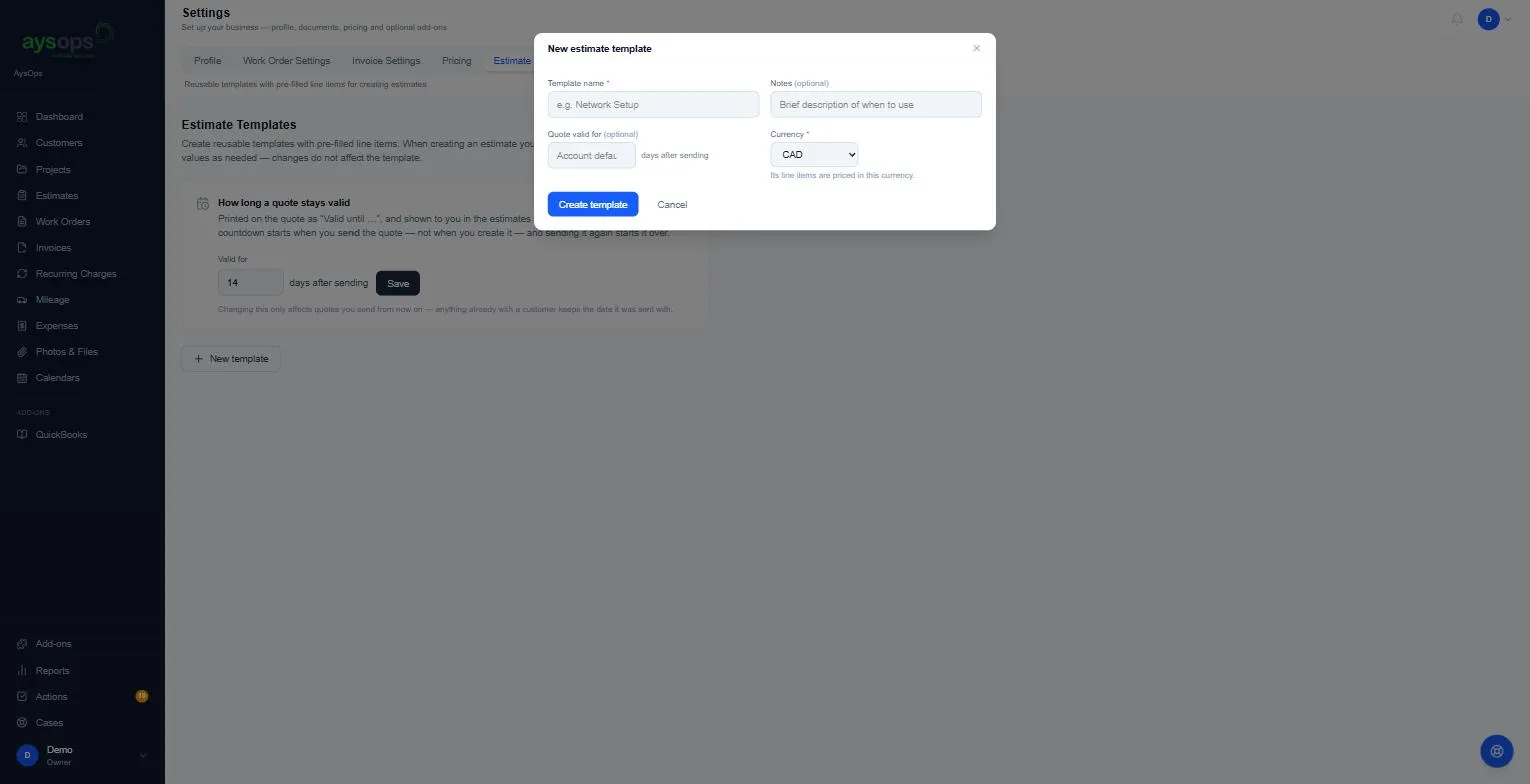
- Click New estimate template (or New contract template under Contract templates) and fill in:
- Template name (required): for example “Network Setup”.
- Notes (optional): when to use it.
- Quote valid for (optional): days after sending, for quotes started from this template. Leave blank to use your account default.
- Currency (required): its lines are priced in this currency.
- Click Create template.
Add lines to the template
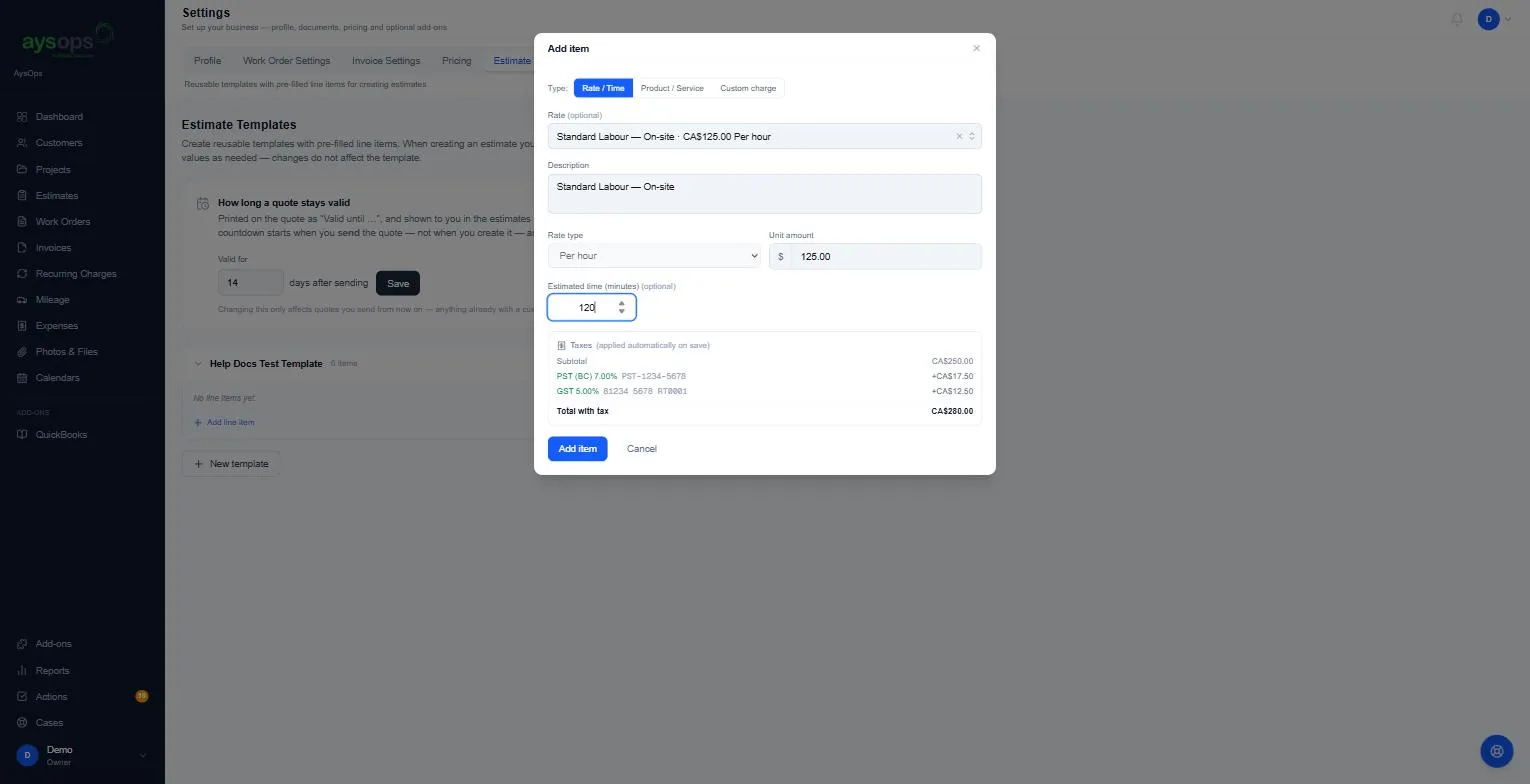
Section titled “Add lines to the template”- Click the template to open it. It says “No line items yet.”
- Click Add line item, choose Rate / Time, Product / Service or Custom charge, and fill it in the same way as on an estimate. See Add lines to an estimate.
- Click Add item. Repeat for each line.
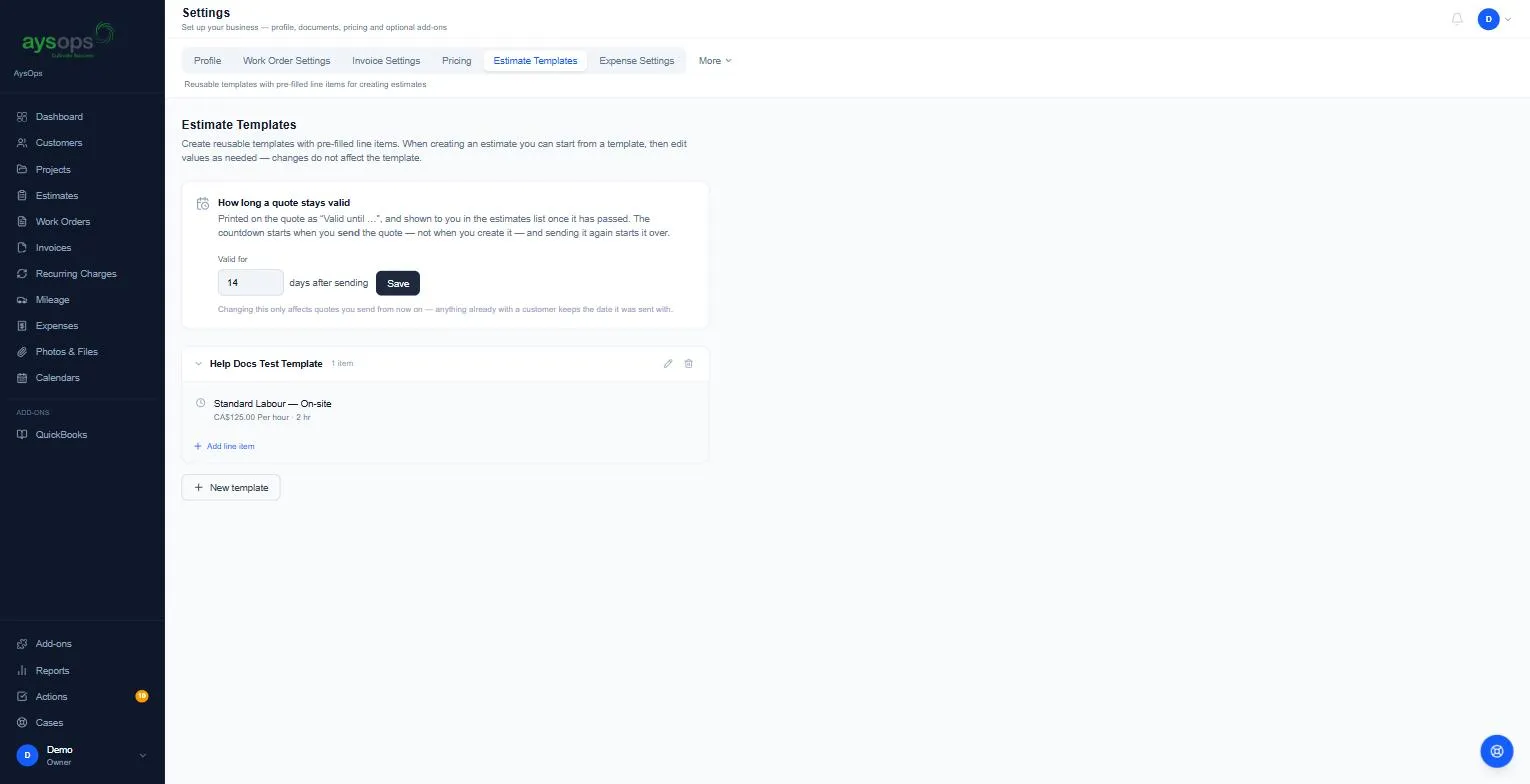
The template shows how many items it has, for example “1 item”. Use the pencil to rename it or the bin to delete it.
Use a template
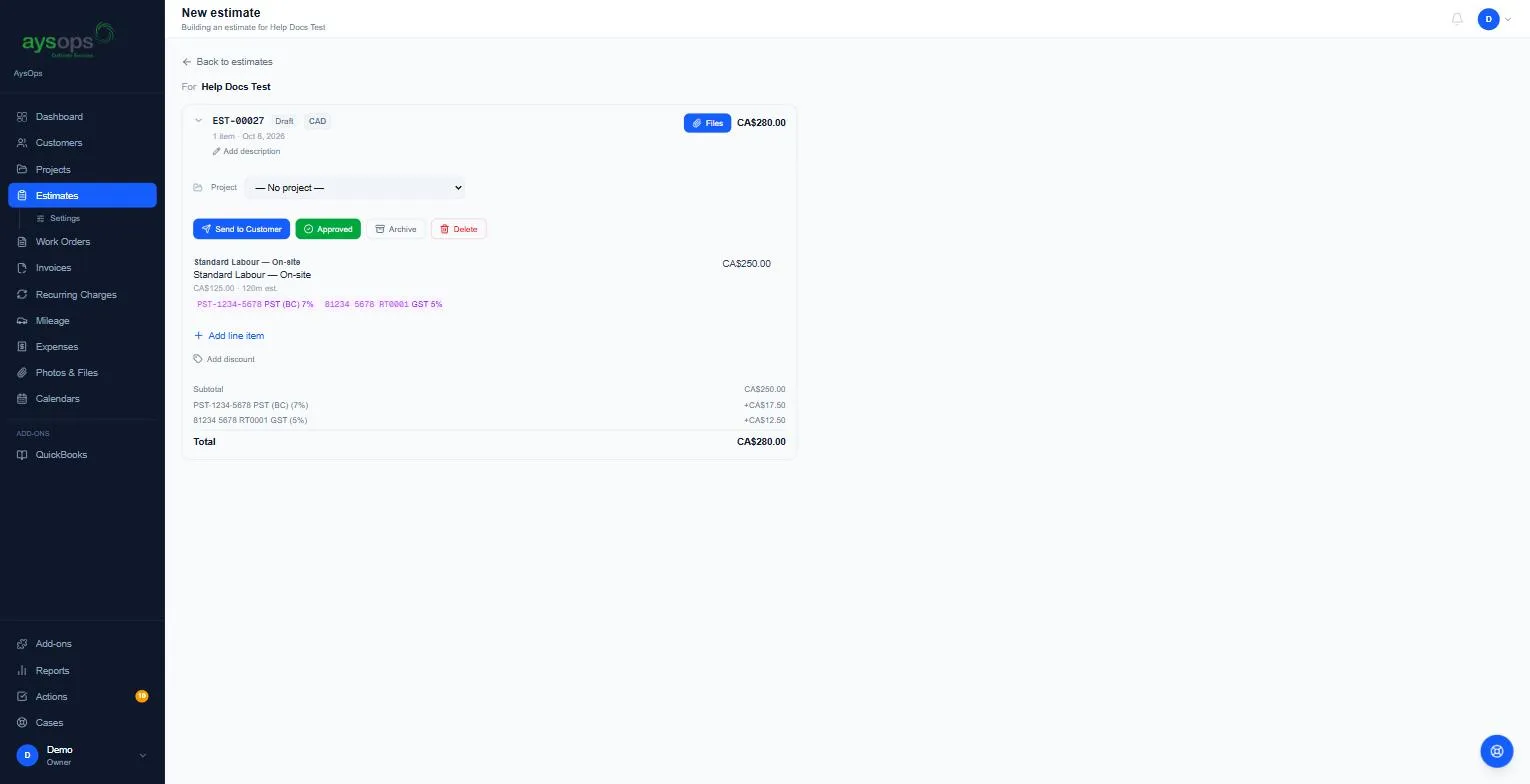
Section titled “Use a template”When you create an estimate, choose it under Start from a template. The new estimate opens with the template’s lines and taxes. Change anything you need: changes don’t affect the template.
Save an estimate as a template
Section titled “Save an estimate as a template”On any estimate with lines, click Save as template, type a name and click Save template. The template gets the estimate’s lines, sections, optional extras, what the customer sees, contract terms and questions, and saved attachments. The customer, dates, the customer’s answers and one-off files are not copied.
What estimates from the template show the customer
Section titled “What estimates from the template show the customer”Open the template. Under the lines:
- Customer sees: every line, section totals or one total for the job. See Choose what your customer sees, and offer optional extras.
- Optional extras: tick lines the customer can choose to add.
- Files sent with estimates from this template: tick saved attachments to add to every estimate made from it. See Send files with an estimate.
Make a template a contract
Section titled “Make a template a contract”Create it with New contract template, or tick This template is a contract on an existing template; it then moves to the Contract templates list. A contract adds terms the customer must agree to, details for them to fill in, and quantities they set. See Contracts.
Change how long quotes stay valid
Section titled “Change how long quotes stay valid”- On the same page, find How long a quote stays valid.
- Enter the number of days in Valid for … days after sending (14 by default).
- Click Save.
The countdown starts when you send the quote, not when you create it, and sending it again starts it over. Changing the number only affects quotes you send from now on. Quotes already with customers keep their date.
Related articles
Section titled “Related articles”- Create an estimate
- Contracts: terms, customer details and quantities the customer sets
- Send an estimate