
Request a deposit on an estimate
What this does
Section titled “What this does”Asks the customer to pay part of the price before you start, for example 25% or a CA$500 parts deposit. The customer sees the deposit on the quote, and whatever they pay is credited to the final invoice.
Before you start
Section titled “Before you start”- Optional: save your usual deposits as presets so they’re one click. See Deposit presets.
- One deposit per estimate. Adding a new one replaces the old one.
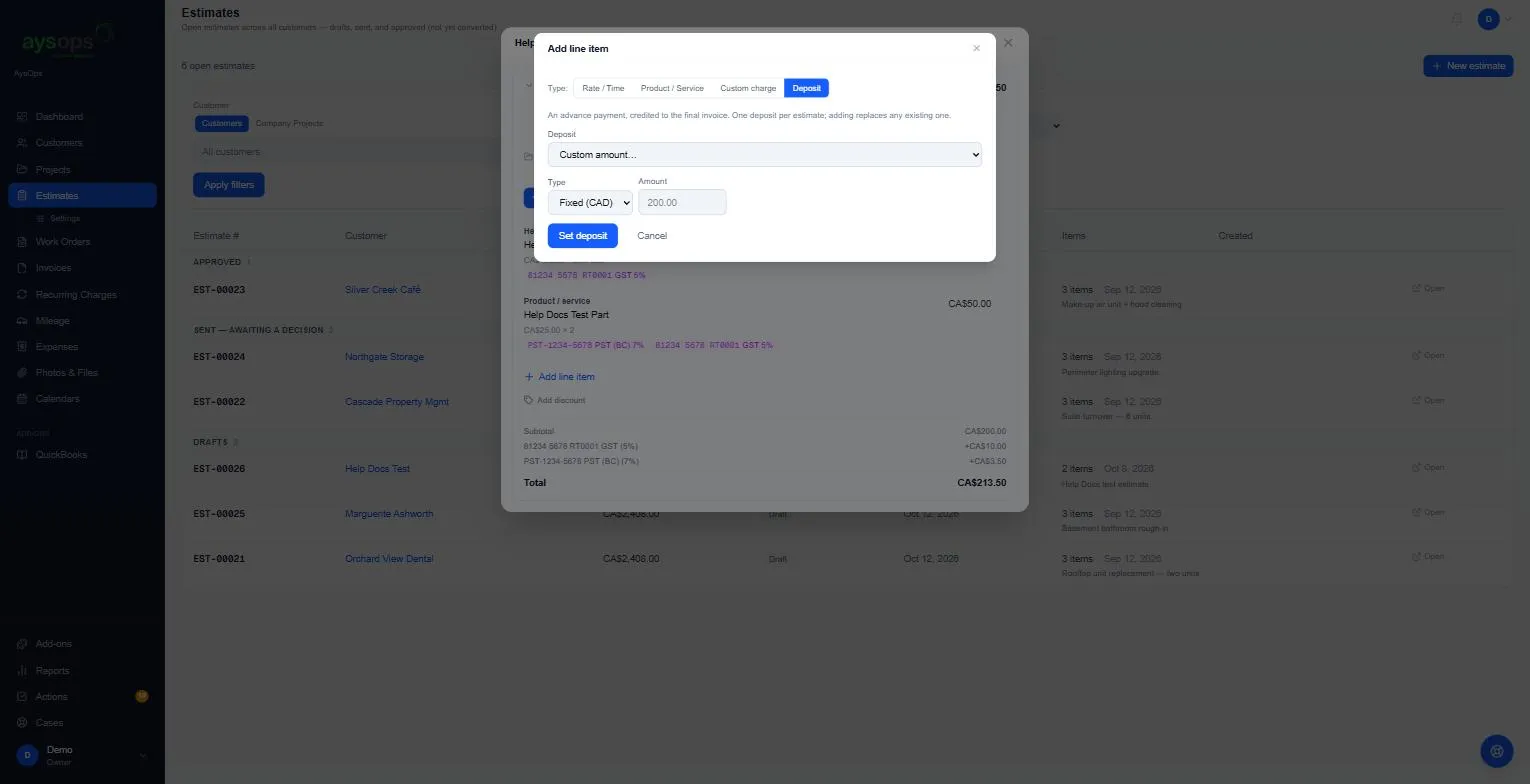
- Open the estimate and click Add line item.
- Click Deposit at the top of the popup.
- Under Deposit, pick a preset, or leave Custom amount… and choose:
- Type: Fixed (CAD) (or Fixed (USD): a dollar amount in the estimate’s currency) or Percent of the total.
- Amount (or Percent): for example 200.00, or 25 for 25%.
- Click Set deposit.
What happens next
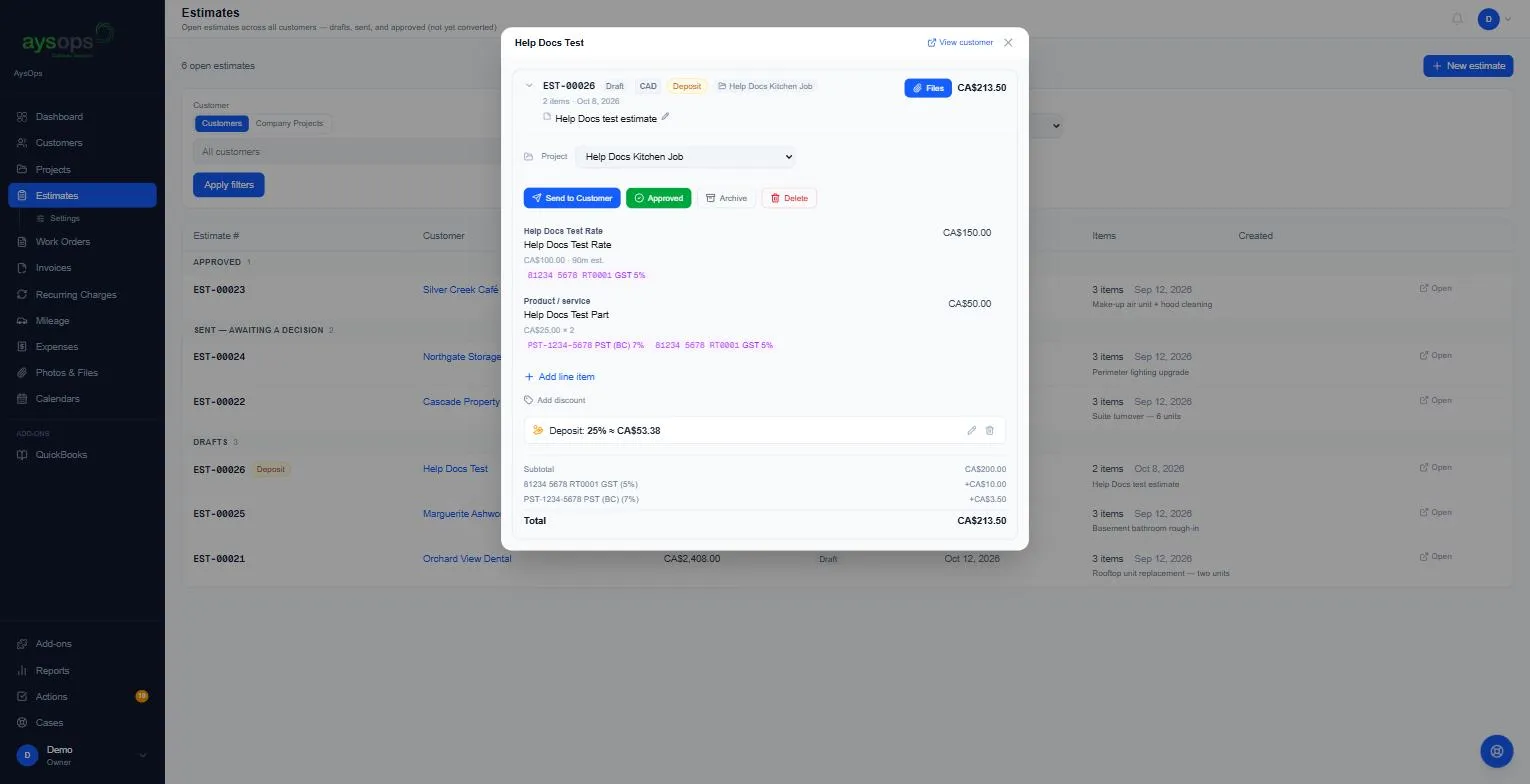
Section titled “What happens next”- A Deposit box appears under the lines, for example “Deposit: 25% ≈ CA$53.38”. A percentage deposit follows the total, so it changes if you add a discount or more lines.
- The estimate gets an orange Deposit label, here and in the estimates list.
- Use the pencil to change the deposit, or the bin to remove it. You can do this while the estimate can still be edited: not while a sent quote is waiting for the customer’s answer, and not once it is approved.
The deposit is copied to the work order when you convert the estimate. See Convert an estimate to a work order.
Related articles
Section titled “Related articles”deposit, request deposit, upfront payment, down payment, retainer, percent up front, deposit on quote, deposit on estimate