
Calendar Sync: connect Google, Microsoft 365 or Apple iCloud
What this does
Section titled “What this does”Puts your AysOps appointments into the calendar you already use: Google Calendar, Microsoft 365 / Outlook or Apple iCloud.
- AysOps creates one dedicated calendar in your account (for example “AysOps: [your business]”) and keeps it in step both ways: add or change an event there and it shows in AysOps.
- Optionally, it also reads when you’re busy from your other calendars, times only, never what the events are, so your team and your booking page don’t book over them.
Before you start
Section titled “Before you start”- Turn on the Calendar Sync add-on. See Add-ons explained.
- Each person connects their own calendar.
- For iCloud you need an app-specific password from your Apple ID account page (your normal Apple password won’t work).
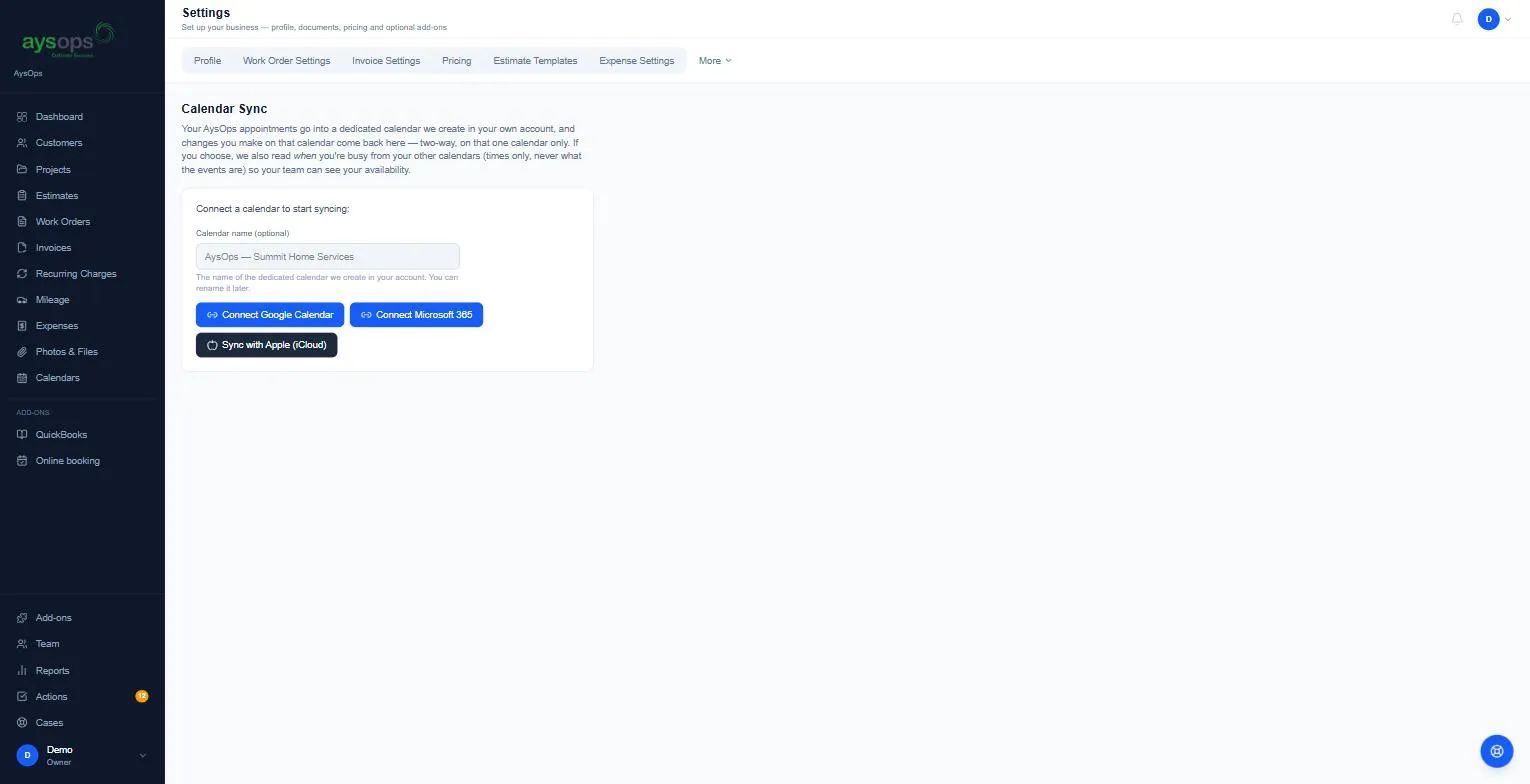
- Click Settings, then More, then Integrations, then Calendar Sync.
- Optional: type a Calendar name for the calendar AysOps creates. You can rename it later.
- Click Connect Google Calendar, Connect Microsoft 365 or Sync with Apple (iCloud).
- Google / Microsoft: sign in and allow access.
- iCloud: enter your Apple ID (email) and the App-specific password, then Connect iCloud.
- When you come back, AysOps offers to sync your existing events: click Push events to send your upcoming appointments to the new calendar now. New appointments sync by themselves.
Once connected
Section titled “Once connected”- Sync my appointments to this calendar: the main on/off switch.
- Also mark me busy from these calendars: tick any of your other calendars whose busy times should count. Each one is a separate choice. The list is there as soon as you connect, and a calendar’s busy times are brought in as soon as you tick it. After that they refresh every 15 minutes.
- Also email me the .ics file: optionally get each appointment by email as well.
- Rename this calendar: change the name of the AysOps calendar.
- Busy times show as grey bands on the work calendar.
Ask your team to connect their calendars
Section titled “Ask your team to connect their calendars”Each person connects their own calendar; you can’t connect one on their behalf. An owner or administrator can send them a reminder:
- Click Team in the left menu, then the Team Calendar tab.
- Each member shows Not invited, Invited or Connected (with Google, Microsoft 365 or Apple iCloud). Click Send invite (or Resend invite). They get an email, “Connect your calendar for [your company]”, with a link to connect.
- For a connected member you can switch Sync enabled and Also email .ics on or off, or Disconnect their calendar (you’re asked first; only they can connect it again).
Disconnect
Section titled “Disconnect”Click Disconnect and confirm. You choose whether to remove the AysOps calendar from your calendar app as well (“The calendar and every event in it are removed from your calendar app. This can’t be undone.”). Your appointments stay in AysOps.
Turning off Calendar Sync (Settings, then Add-ons, then Cancel) also disconnects the calendars. The popup has Also disconnect calendars now, ticked: every team member’s calendar is disconnected straight away, AysOps’s access is removed at Google or Microsoft, and the busy times AysOps imported are deleted. Untick it to keep calendars syncing until the add-on ends; they are disconnected then. Your appointments stay in AysOps, and the AysOps calendar stays in your Google or Microsoft calendar until you delete it there.
If something goes wrong
Section titled “If something goes wrong”- “Please finish two-step sign-in first, then try connecting again”: complete two-step sign-in for this visit (reload the page to be asked), then connect. See Two-step sign-in.
- “We couldn’t complete the connection with the provider”: try again, signing in with the right account.
- “Please sign in as the account that started the connection”: you were signed in to a different Google or Microsoft account. Sign in with the one you meant to connect.
- A connection stops working: you get an item on your to-do list so appointments don’t quietly stop arriving.
- I deleted an AysOps appointment in Google/Outlook: it isn’t simply removed from AysOps. It lands on your to-do list for you to decide.
- It works only with Google, Microsoft 365 and iCloud. If yours doesn’t work, cancel within your 7-day free trial and you won’t be charged.