
Send files with an estimate (terms, brochures, warranty sheets)
What this does
Section titled “What this does”Send your own files with an estimate, such as your terms and conditions, a product brochure or a warranty sheet. They go to the customer with the quote, appear on their approval page, and stay with the work order and invoice the estimate becomes.
These are separate from Files on the estimate, which are your own files about the job (photos, and the worksheet an AI estimate was made from). Those are never sent to the customer.
Before you start
Section titled “Before you start”- You need permission to create estimates (work orders and invoices: permission for those).
- Files can be PDF, image (JPG, PNG, WebP), Word or text files, up to 25 MB each, and up to 20 per estimate. Spreadsheets can’t be attached, so a pricing worksheet is never sent by mistake.
- Files are added before the estimate is sent. A sent quote is locked: recall it to add or remove files.
Save files you send often
Section titled “Save files you send often”-
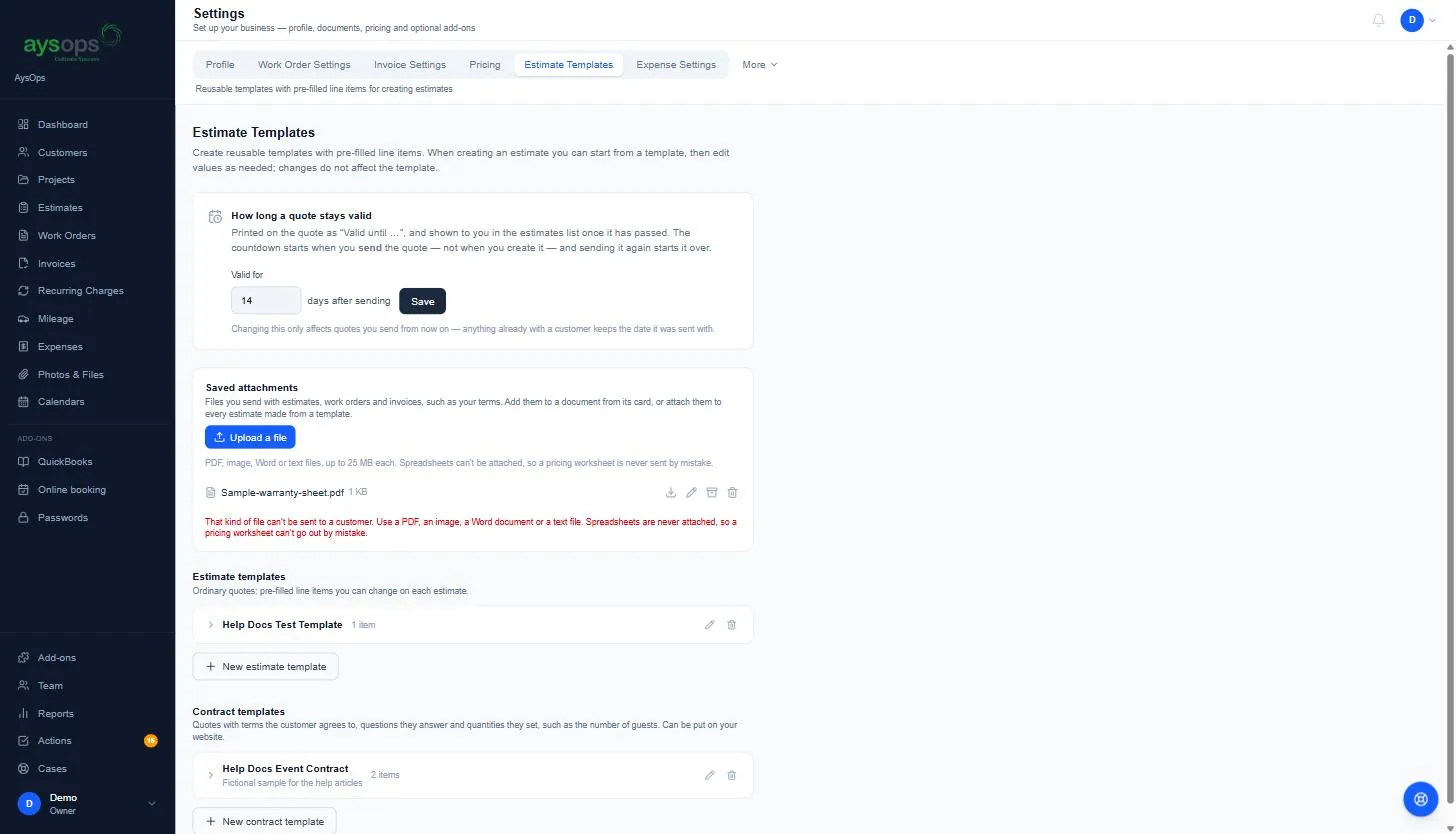
Click your initial or photo → Settings → Estimate Templates.
-
Under Saved attachments, click Upload a file and choose the file.
-
Use the pencil to rename it, the box to archive it, or the bin to delete it. A file that has been sent with an estimate can only be archived, not deleted, because it is part of what a customer was given.
To attach a saved file to every estimate made from a template, open the template and tick it under Files sent with estimates from this template.
Add files to an estimate
Section titled “Add files to an estimate”- Open the estimate.
- Under Files sent with this estimate:
- Click Add a saved file, then Add beside the file; or
- Click Upload a file to add a file for this estimate only. Tick Also save it for next time first to keep it in your saved attachments too.
- Click Send to Customer as usual. See Send an estimate to your customer.
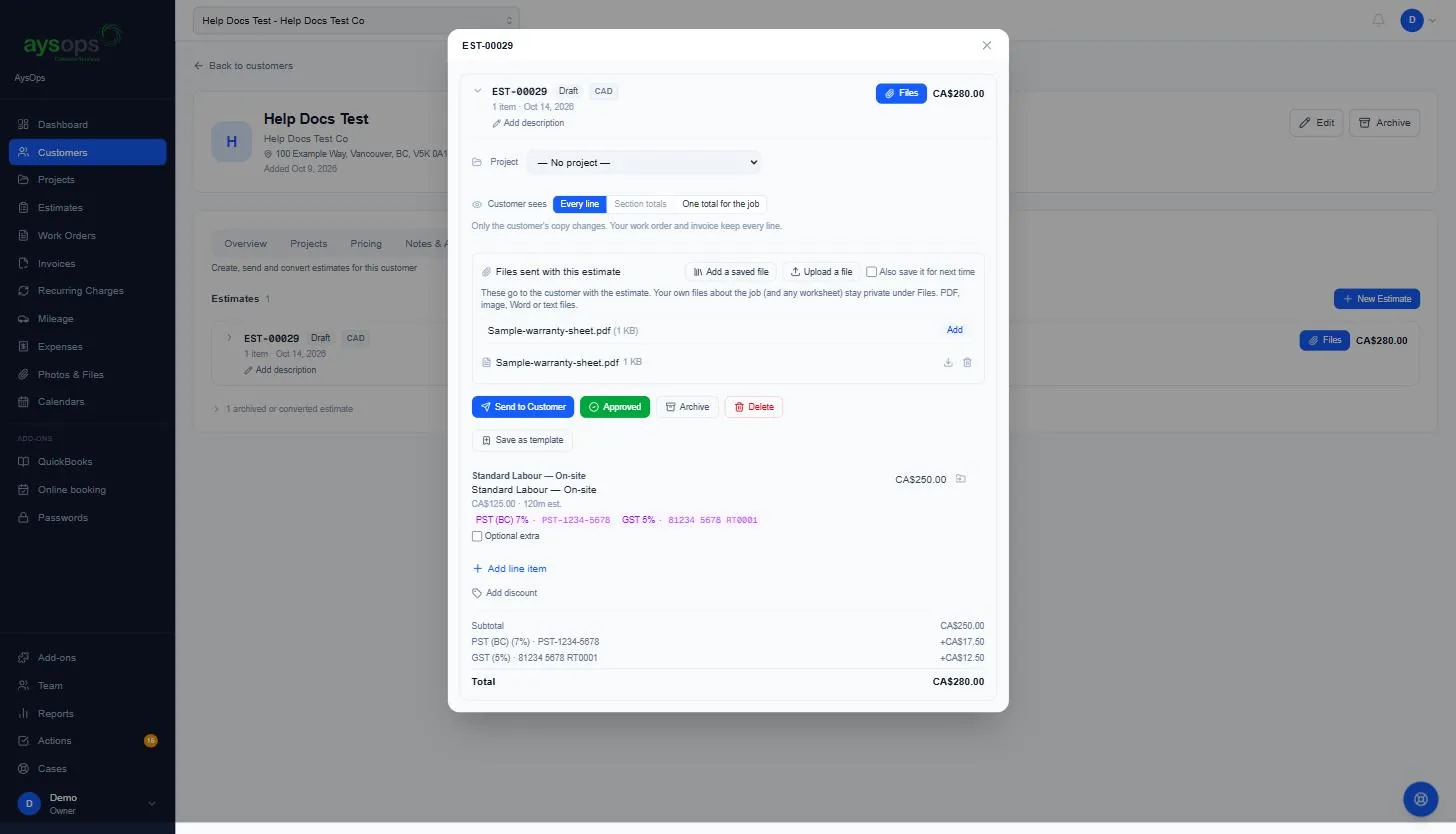
Each estimate keeps its own copy of the file, so renaming or archiving a saved file later never changes what a customer was sent.
What the customer gets
Section titled “What the customer gets”- The files are attached to the email, as long as the email stays under about 10 MB with the estimate’s PDF. A file that would go over that is sent as a download link instead, and the email says which is which.
- Their quote page lists the files under Files, each with Download.
- When they approve or decline, AysOps records which files they were given (name, size and a fingerprint of the file), so you can show later exactly which terms went with that quote.
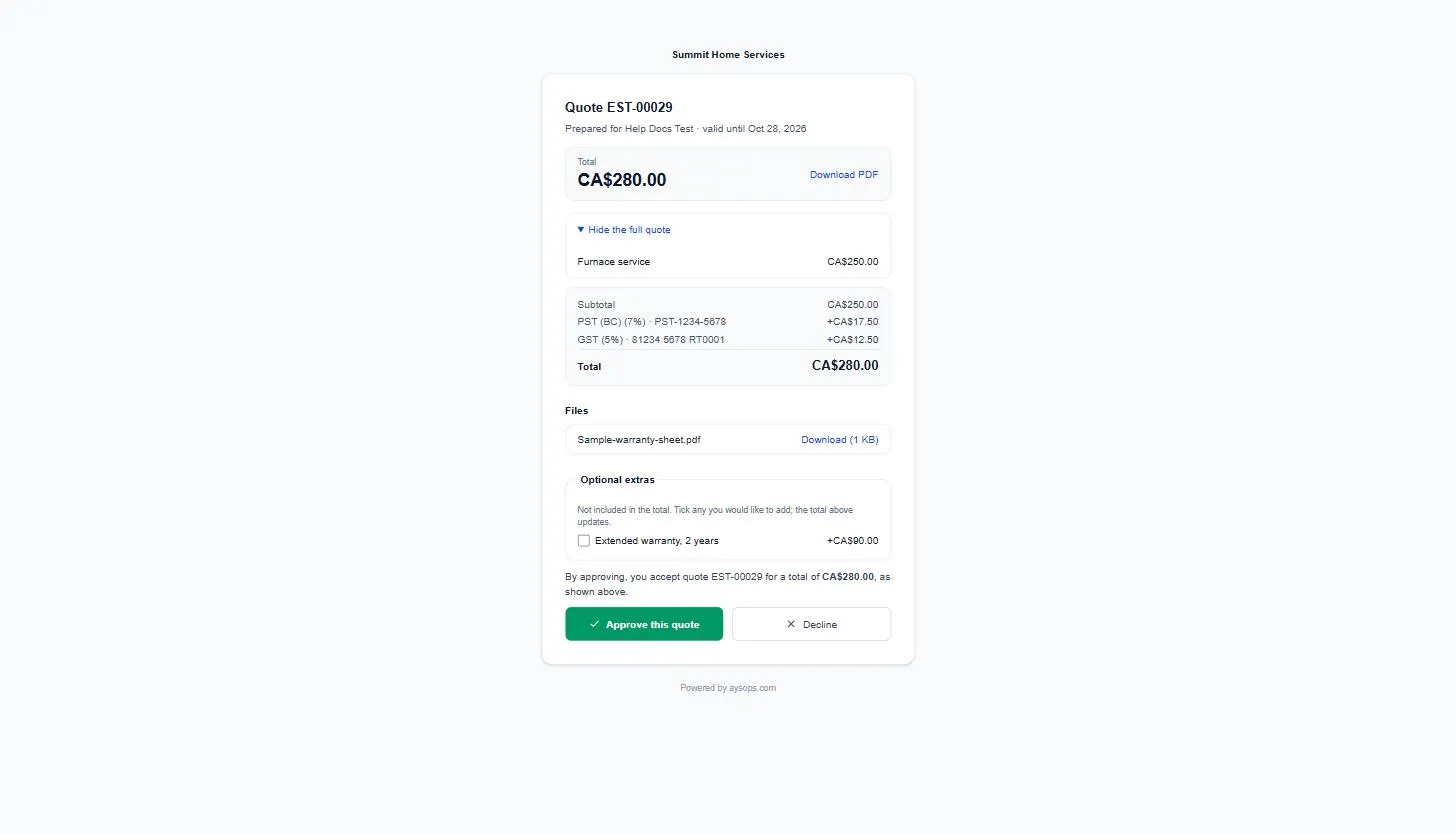
Once sent, a file shows Sent and can’t be removed from that estimate.
Work orders and invoices
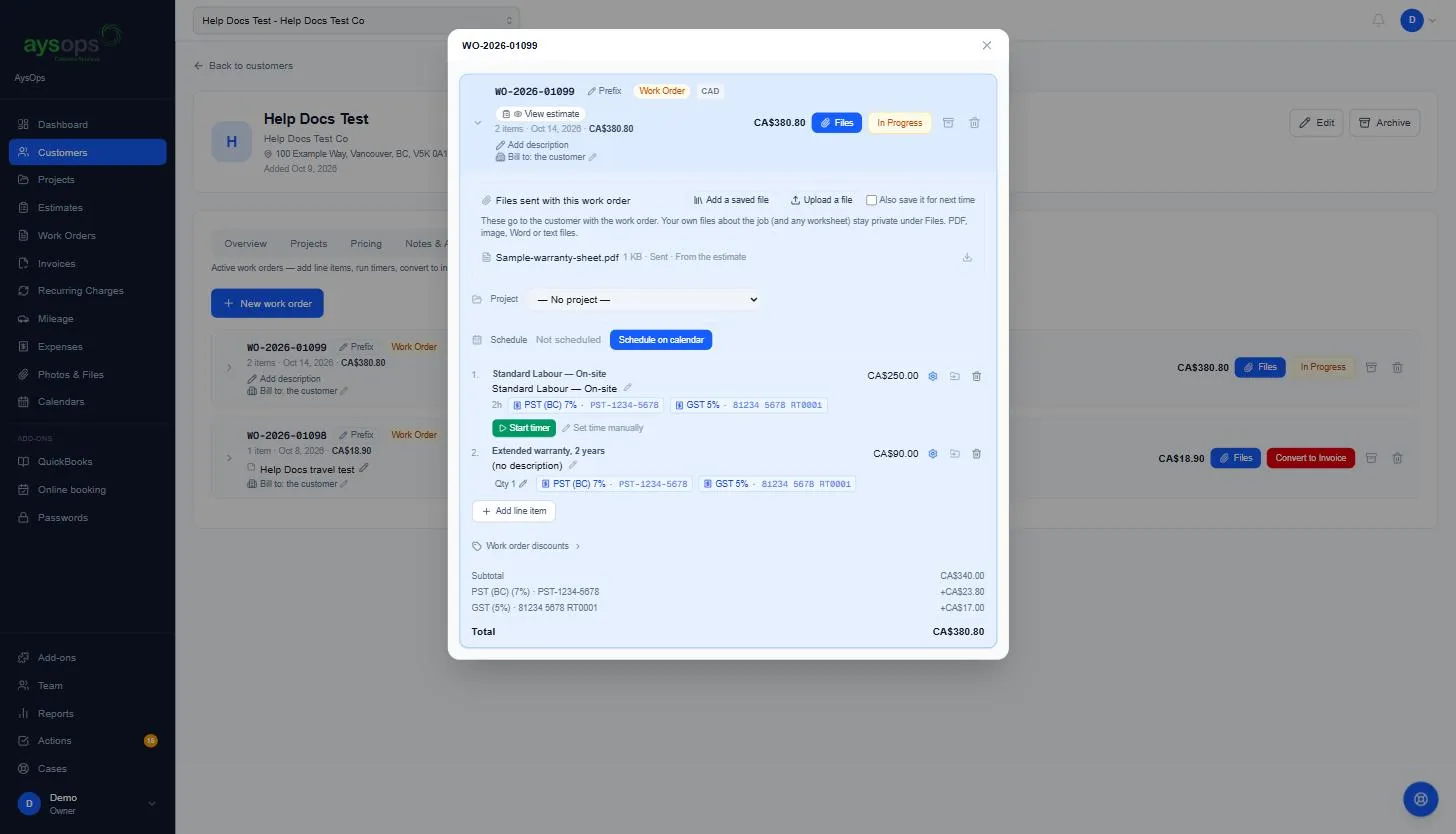
Section titled “Work orders and invoices”When you convert the estimate, its files come with it: the work order shows them under Files sent with this work order, marked From the estimate. You can add more there, for example a warranty sheet for the invoice. The invoice email sends them the same way, attached or as links.
If something goes wrong
Section titled “If something goes wrong”- “That kind of file can’t be sent to a customer”: the file is a spreadsheet or another type that isn’t allowed. Save it as a PDF and upload that.
- “Files can be added while the estimate is a draft”: the quote has been sent. Recall it, add the file, and send it again.
- “This file has already been sent to the customer, so it stays with the document”: a sent file can’t be removed.
- “Storage limit reached”: files count toward your company’s storage. See Storage limit reached.
Related articles
Section titled “Related articles”- Send an estimate to your customer
- Estimate templates and quote validity
- What your customer sees
- Convert an estimate to a work order