
Add a discount to an estimate or work order
What this does
Section titled “What this does”Takes money off the whole document using one of your saved discounts, for example 15% off or CA$50 off. The taxes are worked out on the discounted amount.
Before you start
Section titled “Before you start”- Create the discount first in Settings → Pricing → Discounts (or on the customer’s Pricing tab for a discount only they get). See Discounts.
- The estimate must still be editable (a Draft, Declined or Expired quote).
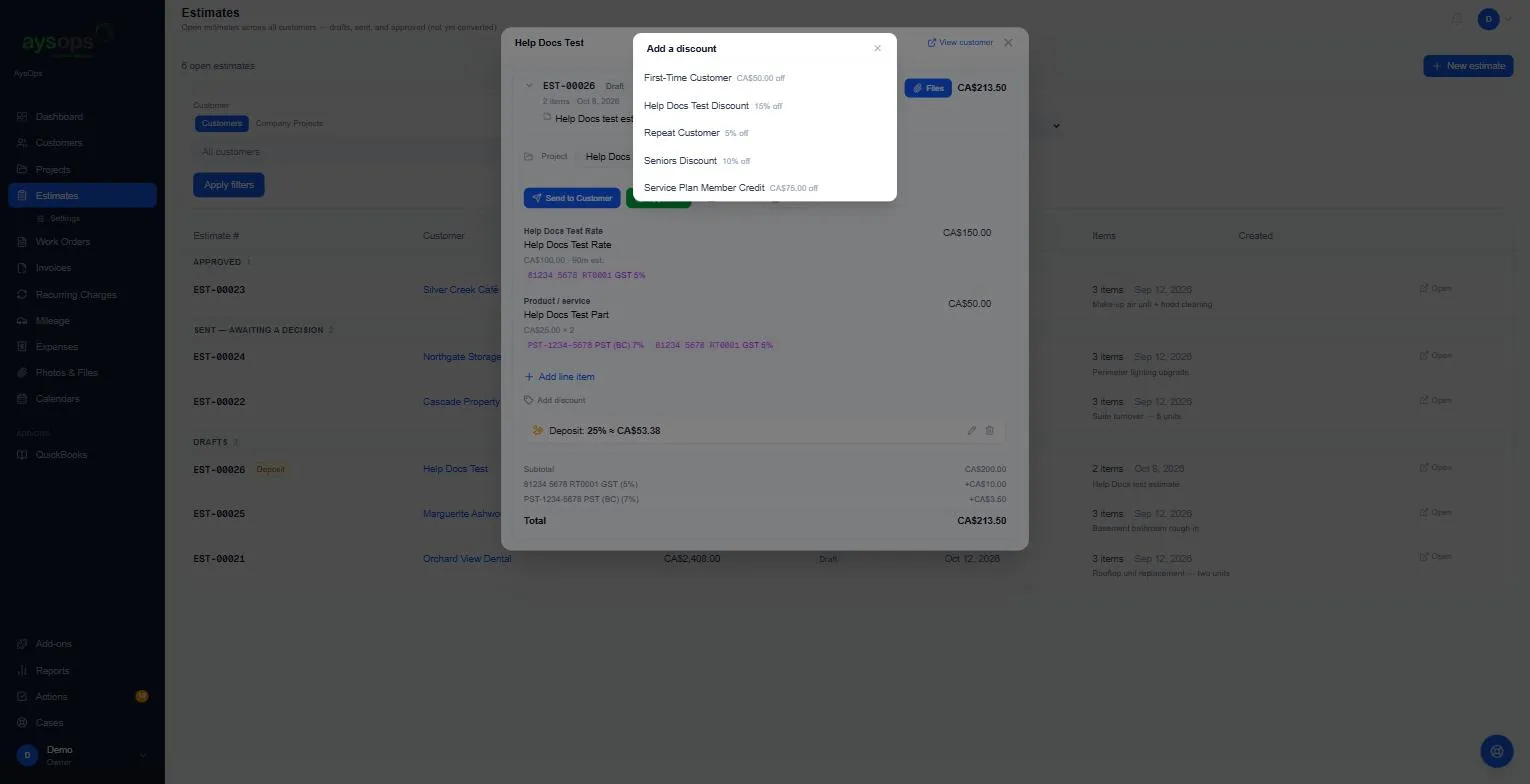
- Open the estimate and click Add discount (under the lines).
- In the Add a discount popup, click the discount you want. Each one shows its amount, for example “15% off” or “CA$50.00 off”.
What happens next
Section titled “What happens next”The discount shows as a green tag under the lines, and the totals gain a green Discount row (for example −CA$30.00). The taxes go down to match.
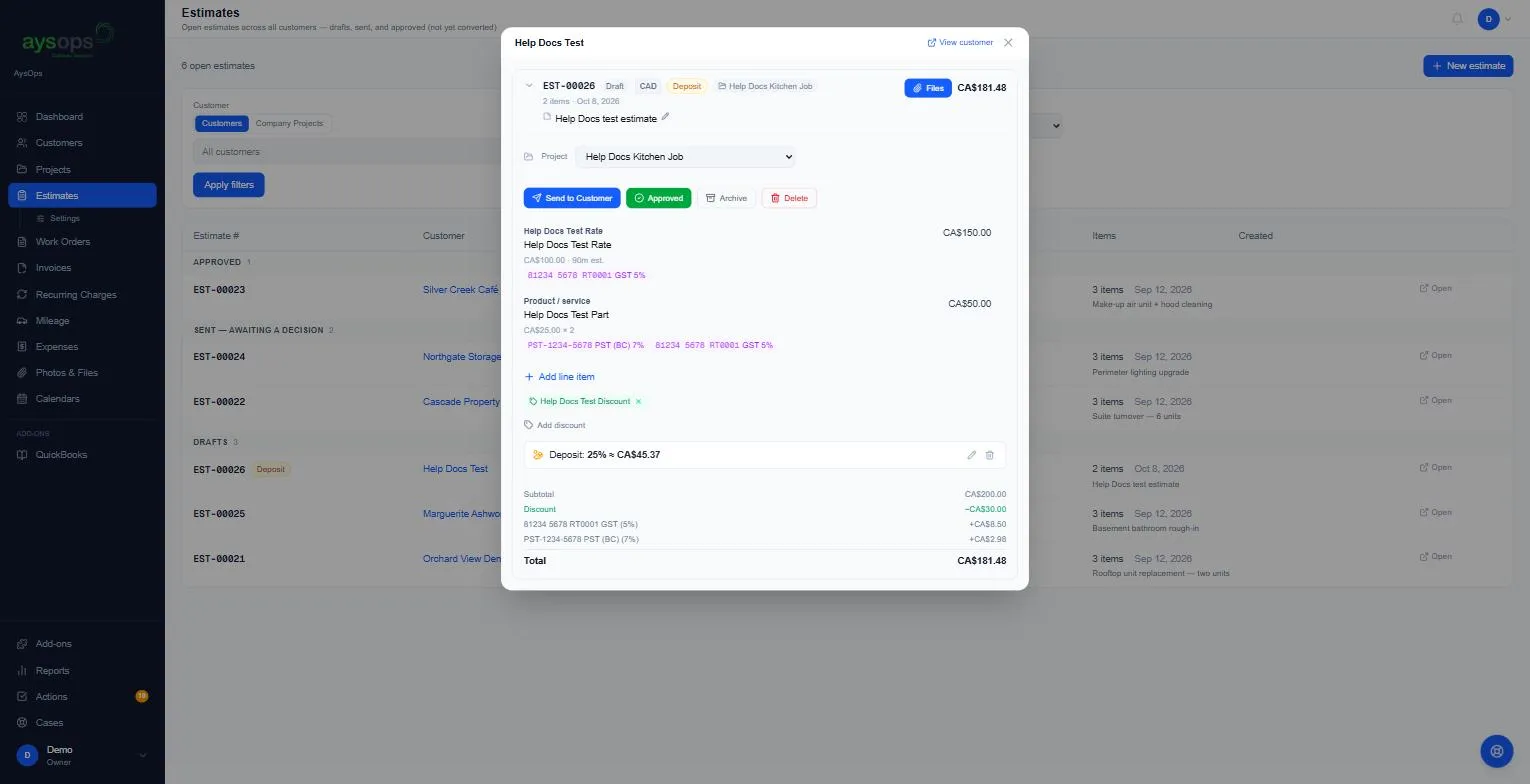
To remove it, click the × on the discount’s tag.
If the customer has a membership with a member discount, that discount is already on new estimates and work orders for them, tagged Membership. Remove it the same way if it should not apply.
If something goes wrong
Section titled “If something goes wrong”- The discount I want isn’t listed: it’s archived, it’s a fixed amount in a different currency, or it belongs to a different customer.
Related articles
Section titled “Related articles”discount, apply discount, money off, percent off, reduce total, remove discount, seniors discount, loyalty discount on a quote