
Track time on a work order (timer or manual)
What this does
Section titled “What this does”Records how long you worked on a job so it’s billed at your rate. You can run a timer while you work, or type the time in afterwards.
Before you start
Section titled “Before you start”- The time goes on a Rate / Time line. Add one first (see Add lines to a work order), or use Start timer & save to add the line and start timing in one go.
- The work order must still be a work order (not yet converted to an invoice).
Use the timer
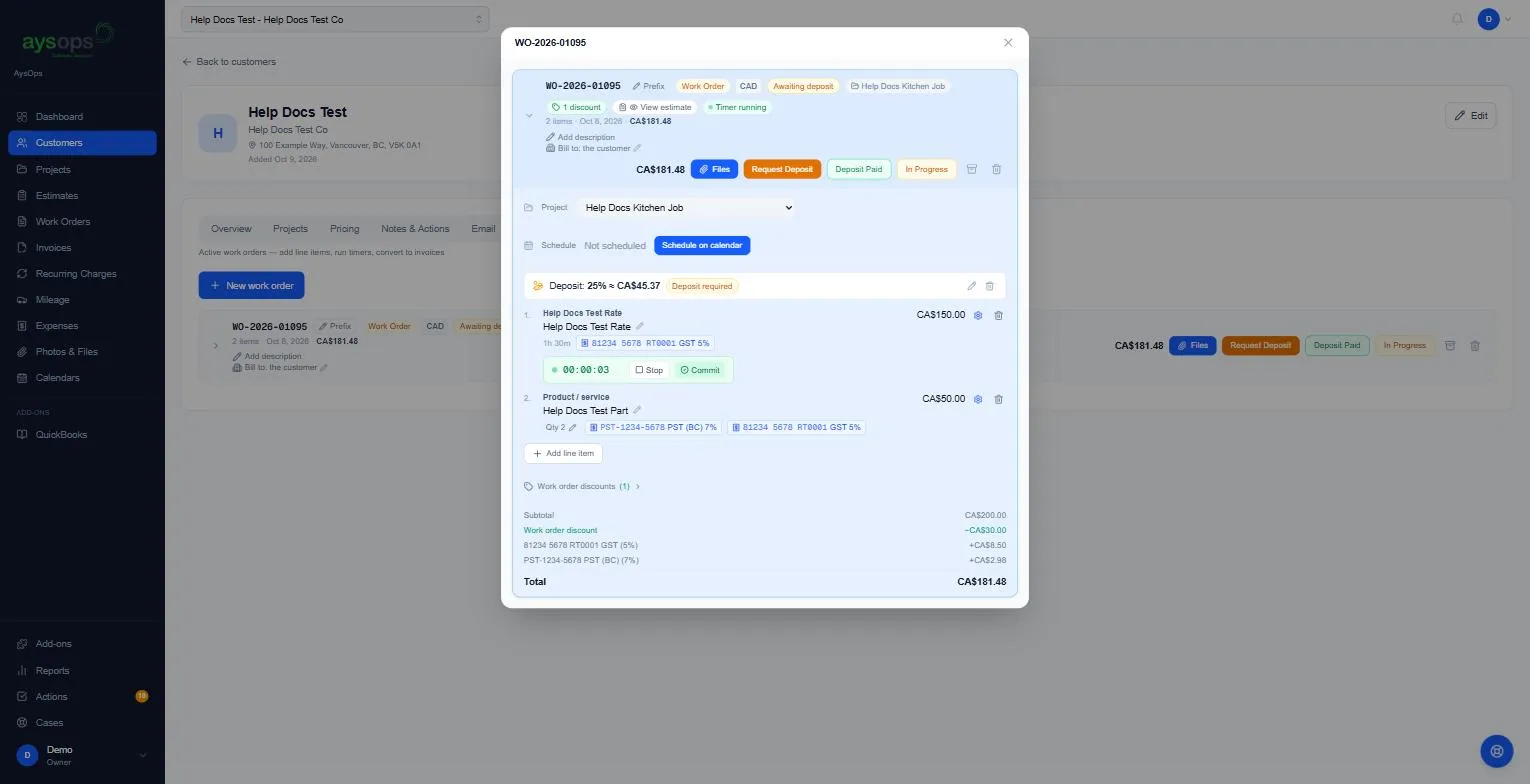
Section titled “Use the timer”- Open the work order. Under a Rate / Time line, click Start timer. The clock counts up (for example 00:00:03) with Stop and Commit beside it.
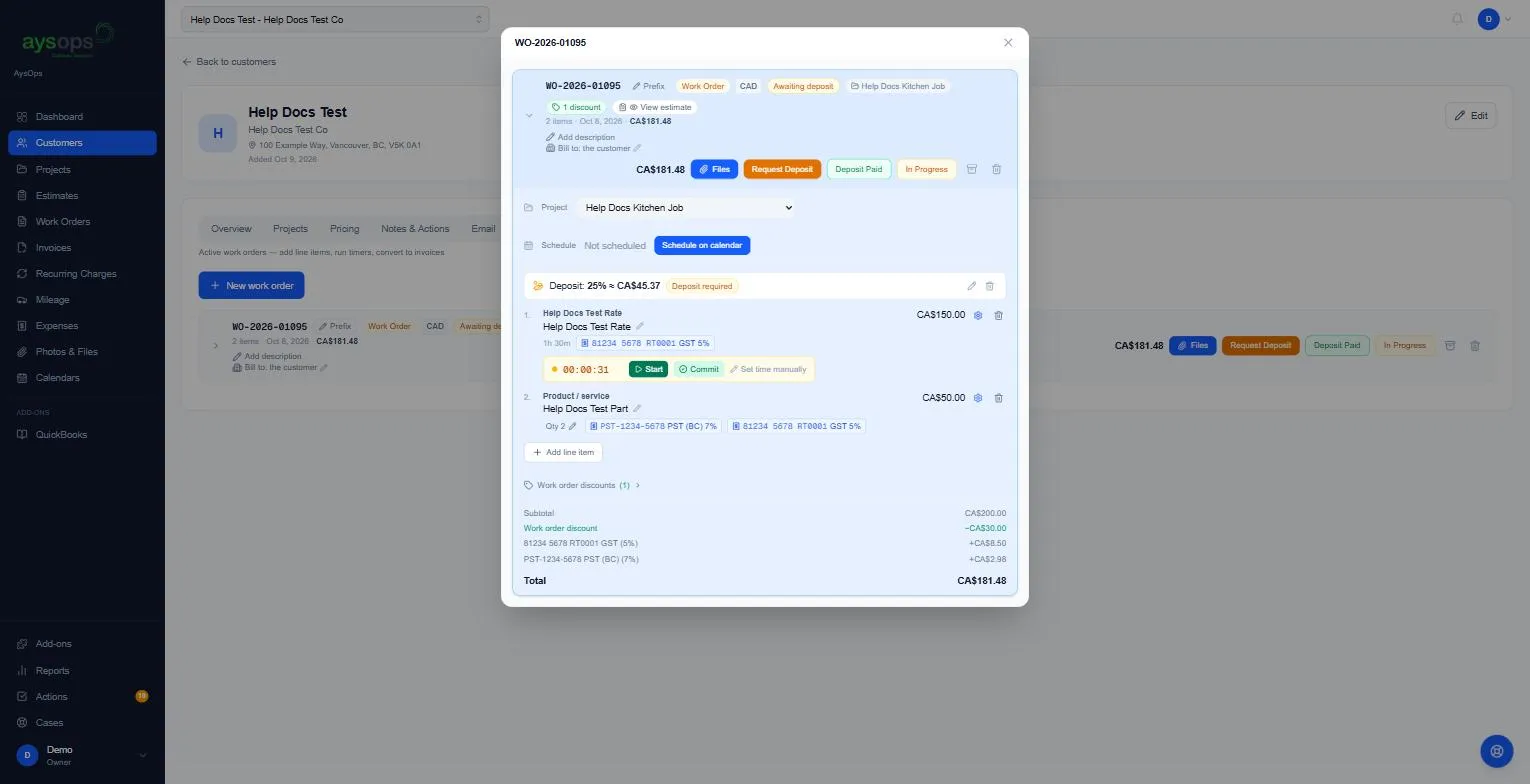
- Click Stop to pause (for lunch, or between visits). The time is kept, and you’ll see Start (carry on), Commit and Set time manually. Stopping can take a second or two to show.
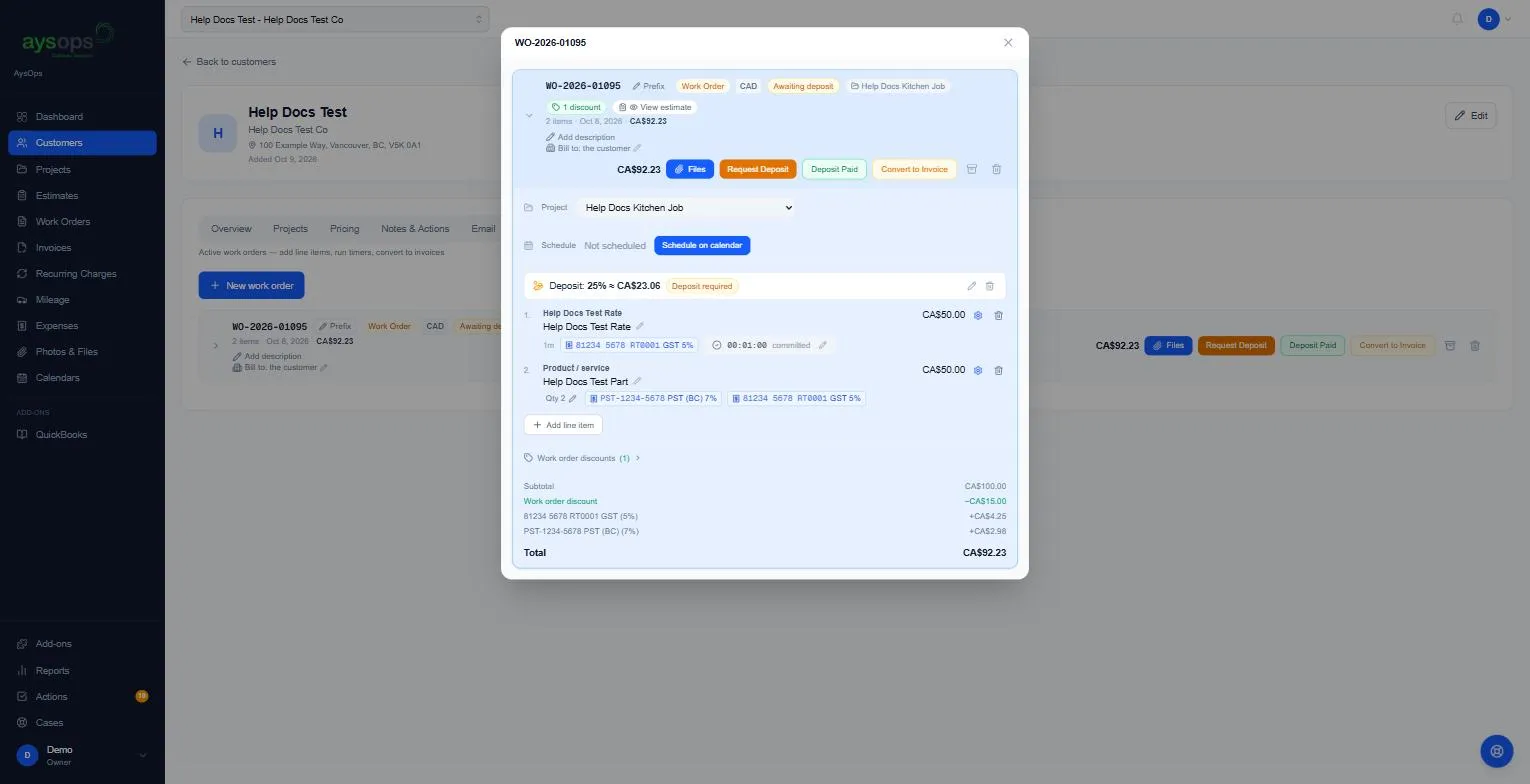
- When the job is finished, click Commit. The line shows the time with committed, and the amount is worked out. On a line that came from an estimate, the timed time replaces the estimated time.
Type the time in
Section titled “Type the time in”- Under the line, click Set time manually (or the pencil beside a committed time).
- Enter the hr and min, for example 1 hr 30 min, and click Save.
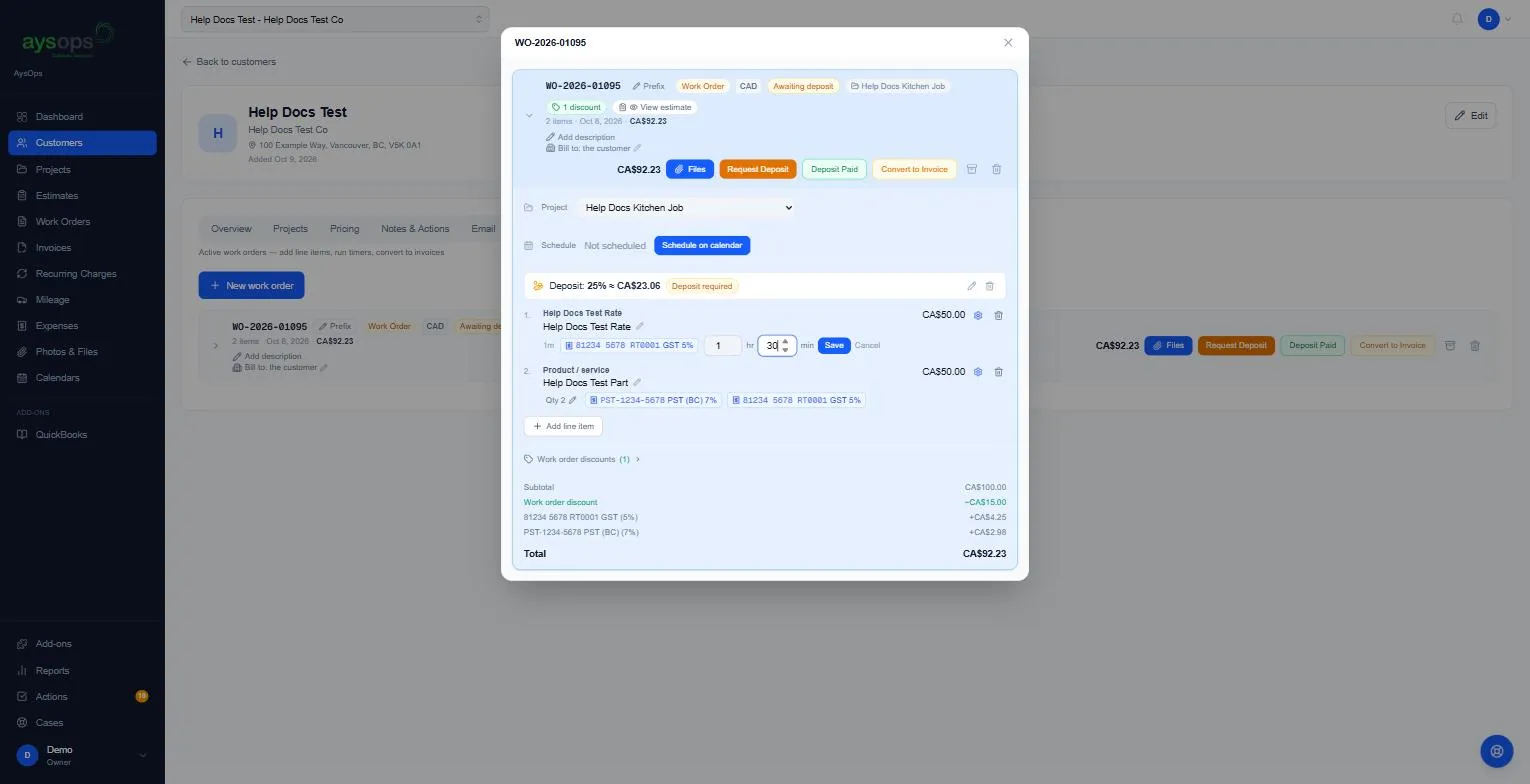
- ⚠️ Then click Commit. A typed-in time is saved but not committed, so you need to commit it before you can convert the work order to an invoice.
Add time while adding the line
Section titled “Add time while adding the line”In Add line item → Rate / Time, Duration has two choices:
- Manual: type hr and min.
- Date & time: enter when you started and finished (Start and End date and time). The date and hours show under the line on the invoice, in the invoice email and on the customer’s receipt, for example Sep 11, 2026 · 10:00 AM – 12:00 PM.
Or click Start timer & save to add the line and start its timer straight away.
How the amount is worked out
Section titled “How the amount is worked out”- The timer counts exact seconds and is rounded once, to the nearest minute, when you commit. A timer that was used never commits as 0 (at least 1 minute).
- The charge then follows your rate’s time increments and minimum. For example, on a rate with a 30-minute minimum, a 1-minute visit is charged as 30 minutes. See Time rates.
Included hours for members
Section titled “Included hours for members”If the customer has a membership that includes hours of this service, a purple box at the top of the work order says how many are left this billing period. Select the button that names the line, for example Use 1 hr 30 min included on Network setup, to charge that time $0. If the line is longer than the hours left, only the hours left are included. An included line has no timer and its time can’t be changed; remove it to give the hours back.
What happens next
Section titled “What happens next”While any time line is not committed, the work order shows an amber In Progress label where Convert to Invoice would be. Commit every time line and the Convert to Invoice button appears. See Convert a work order to an invoice.
If something goes wrong
Section titled “If something goes wrong”- I can’t convert, it says In Progress: a time line is still running, paused, or was never timed. Commit it (or remove it). Setting the time manually also needs a Commit. Point at In Progress to see this reminder.
- The header still says “Timer running” after I stopped it: the screen hasn’t caught up. Reload the page.
- “Someone else changed this while you were editing it…”: the time was changed in another tab or by a colleague. Reload, then set it again.