
Send an invoice
What this does
Section titled “What this does”Emails the invoice to your customer with the PDF attached. If you take card payments online, the email also has a link to pay.
Before you start
Section titled “Before you start”- The invoice must be Ready to Send (converted from a work order). See Convert a work order to an invoice.
- You need permission to send invoices (owners, admins and managers by default).
- Open the customer’s Invoices tab. The invoice is under Waiting Review.
- Optional: click Preview to see the invoice exactly as the customer will: your logo, From, Bill To, lines, totals, due date and footer. Click Close preview.
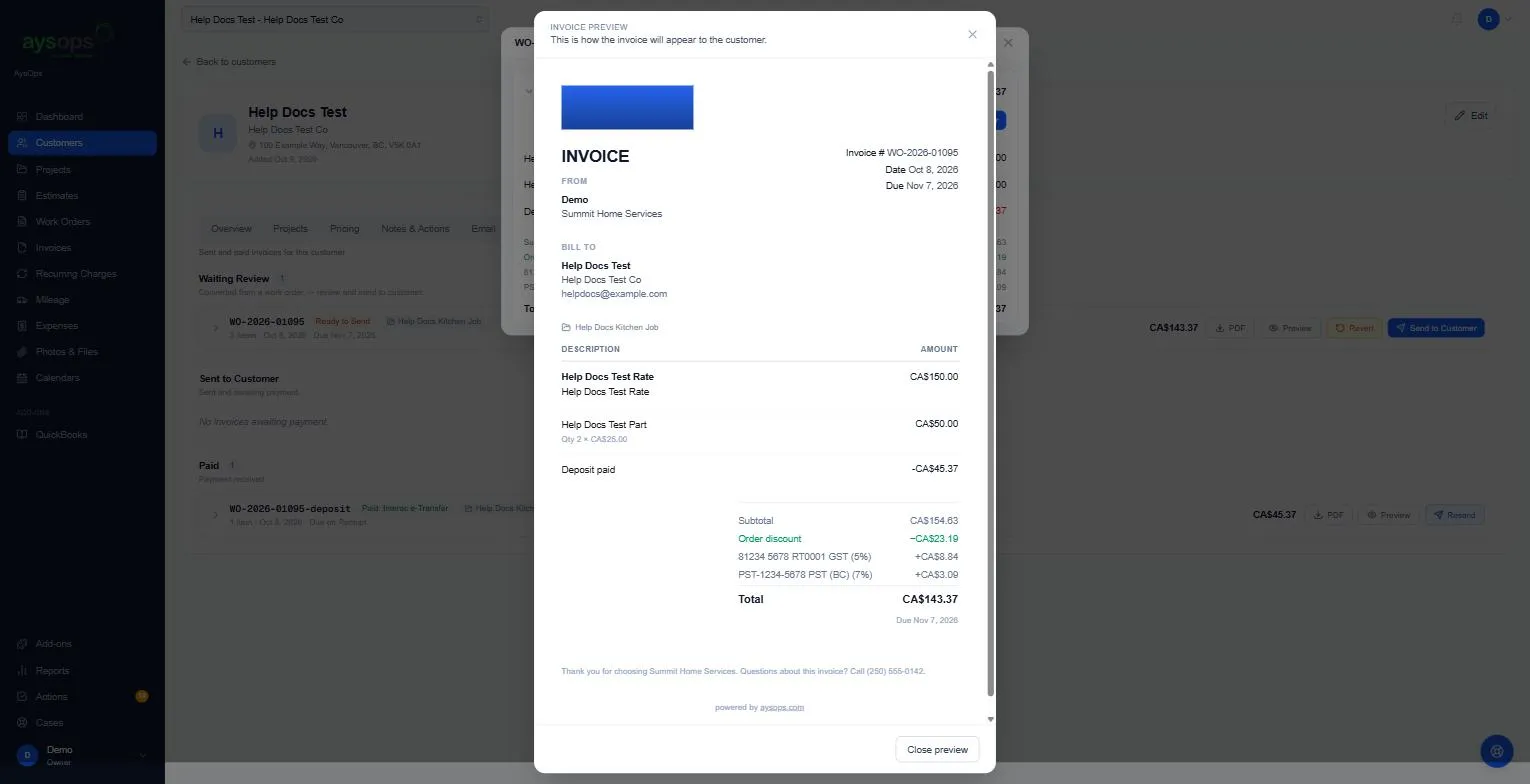
- Click Send to Customer.
- In “Send invoice WO-… to customer?”:
- Bill to: who is being billed (the customer, or another bill-to; see Bill-to destinations).
- Send to: whose email it goes to. It defaults to the billing contact if the customer has one. Changing it here affects this send only.
- Don’t offer online payment on this invoice (only if you take card payments online): tick it to send the email without the Pay this invoice online button. The payment page is then closed for this invoice, including any link already sent. You can still take a card yourself with Collect Payment (see Online payments). The invoice shows No online payment. Untick it on a later Resend to open payment again.
- Click Yes, send invoice.
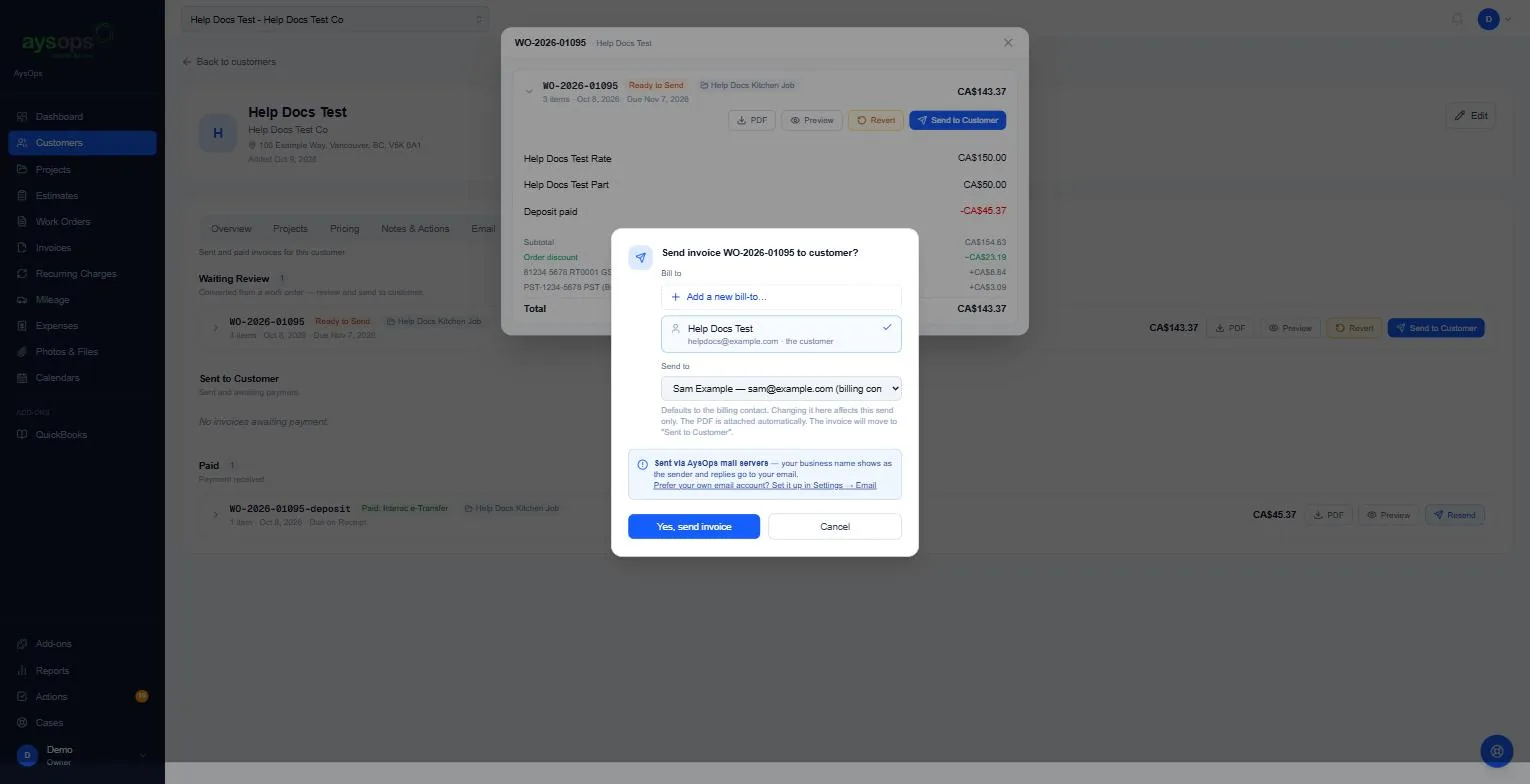
If you haven’t connected your own email, the box notes it’s sent via AysOps mail servers: your business name shows as the sender and replies go to your email. To send from your own mailbox, see Settings → Email.
What happens next
Section titled “What happens next”- The invoice moves to Sent to Customer with the label Sent.
- The due date counts from the day you send it (for example Net 30 from the send date).
- The customer gets the invoice PDF and, if you take online payments, a pay link. See Online payments.
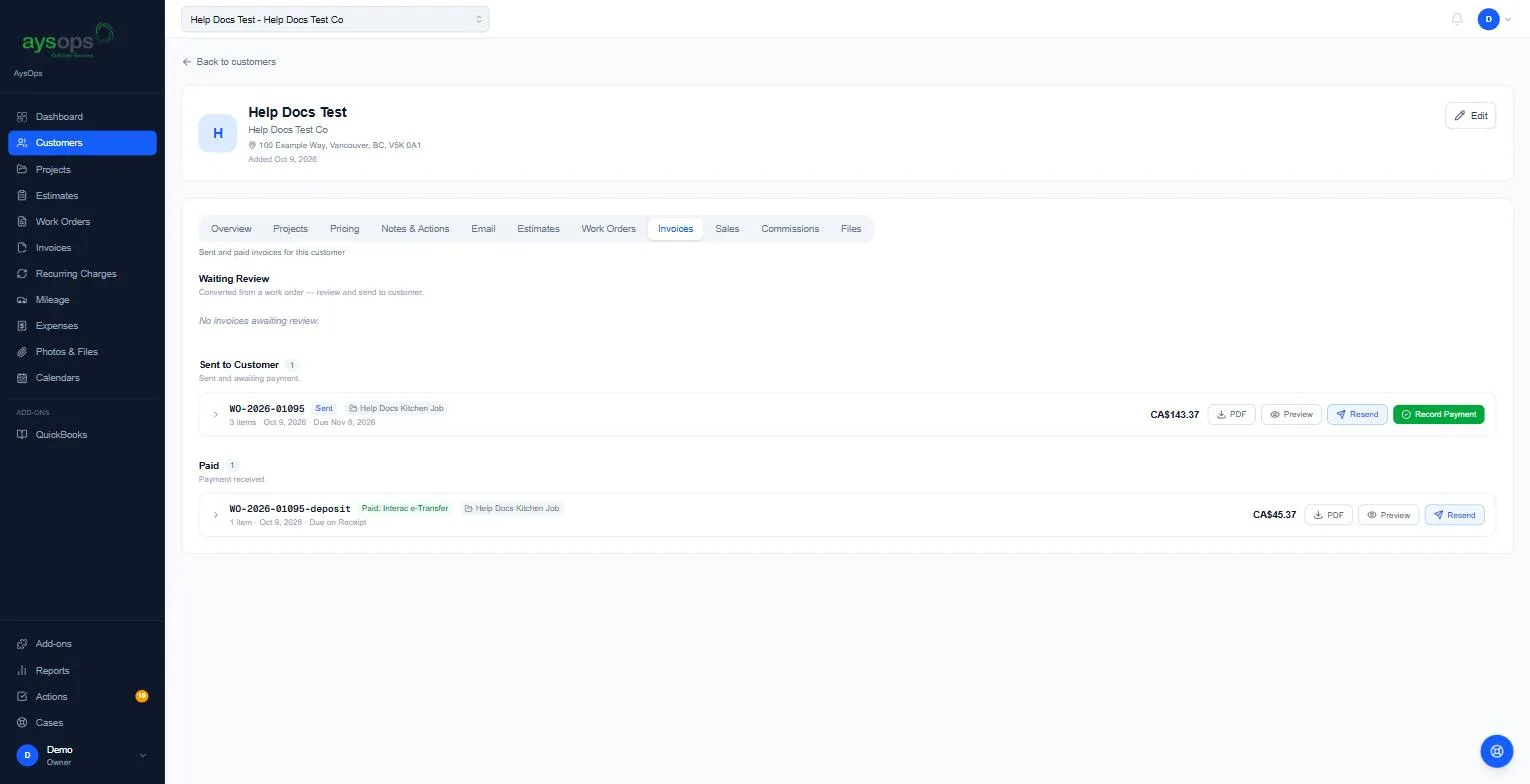
To send it again, click Resend, check Send to, and click Yes, resend invoice. The status stays the same.
If something goes wrong
Section titled “If something goes wrong”- There’s no Revert button any more: a sent invoice can’t go back to a work order.
- The customer didn’t get it: check the Send to address, ask them to look in their junk folder, and click Resend.
Files with the invoice
Section titled “Files with the invoice”Files under Files sent with this work order (or invoice) go with the invoice email: attached when they fit, otherwise as download links that the email lists. They include files sent with the estimate the work order came from.
Related articles
Section titled “Related articles”send invoice, email invoice, resend invoice, invoice preview, invoice PDF, bill to, send to, billing contact, due date, pay link