
Choose what your customer sees, and offer optional extras
What this does
Section titled “What this does”- Customer sees lets you keep every line on your estimate but show the customer less: one line per section with its total, or one line for the whole job.
- Optional extras are lines the customer can choose to add, for example an upgrade. They are not in the total until the customer ticks them.
Choose what the customer sees
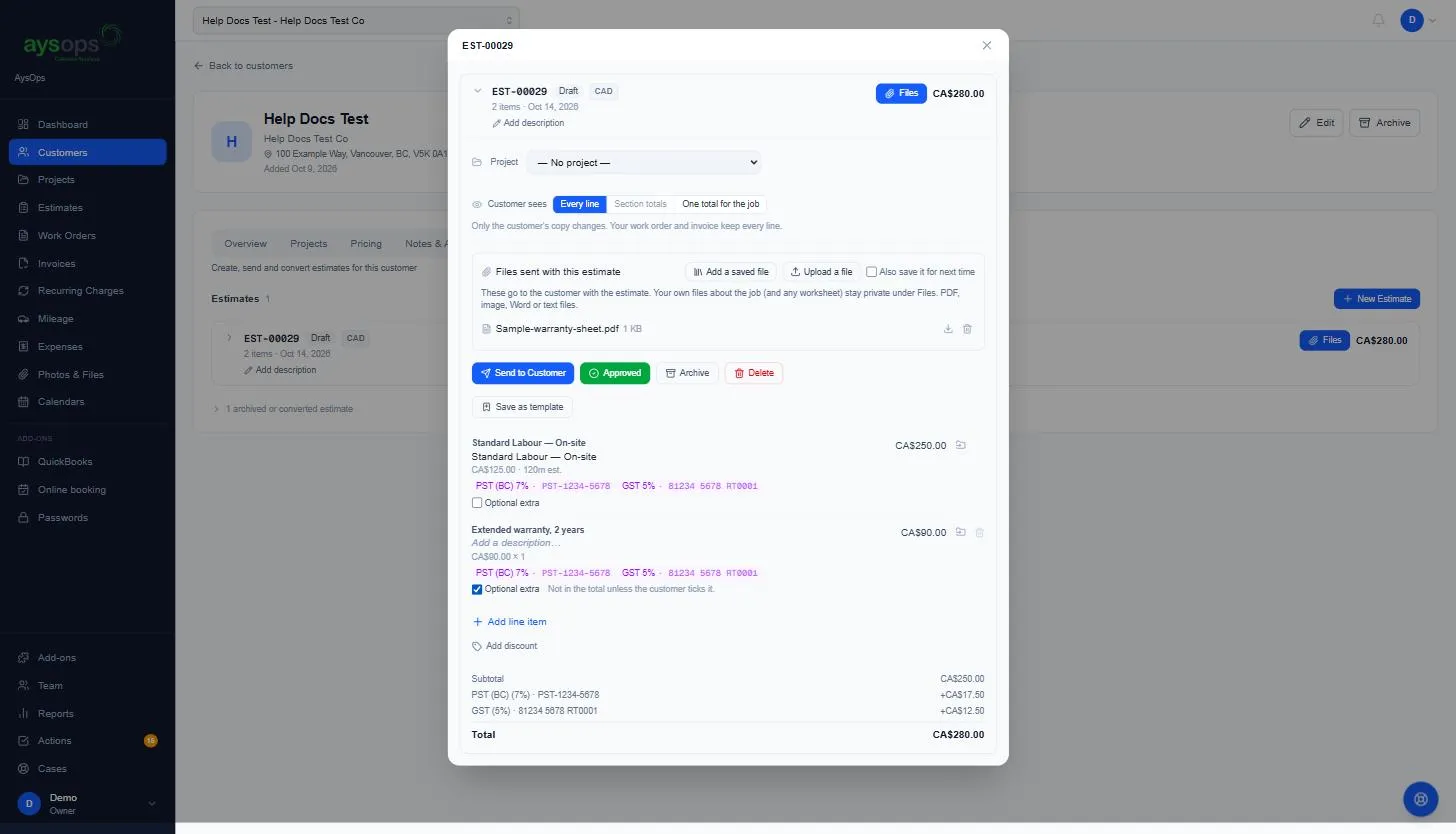
Section titled “Choose what the customer sees”- Open a draft estimate.
- Beside Customer sees, choose:
- Every line: every line, grouped under its sections (the usual quote).
- Section totals: one line per section, at that section’s total. Lines that are not in a section still show on their own. Not available until a line has a section (see Organise lines into sections).
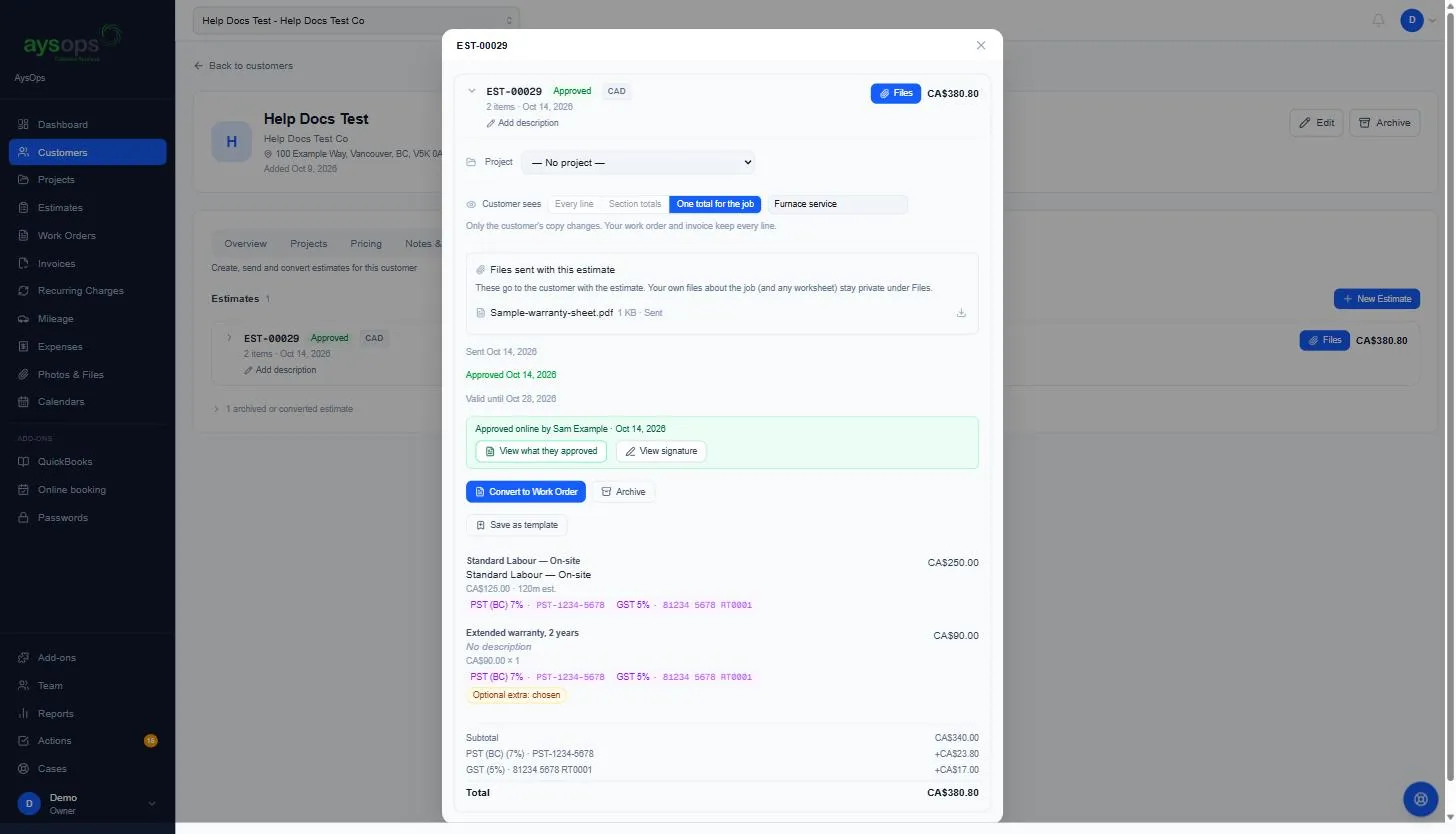
- One total for the job: one line for everything. Type the name your customer reads (for example “Kitchen renovation”) and click Save name. With no name it reads “Total for all work”.
To see exactly what your customer will get, click Preview beside the choices: the customer’s PDF opens in a window, with your choice applied. (The Valid until date is added when you send it.) On a phone, tap Open in a new tab if the PDF does not show in the window.
Only the customer’s copy changes: the email, the PDF and their quote page. Your estimate, the work order and the invoice keep every line, so your team still sees the full breakdown. Taxes, discounts and the total are the same in every choice.
Offer an optional extra
Section titled “Offer an optional extra”- On a draft estimate, tick Optional extra under the line.
- The estimate’s total no longer includes it (“Not in the total unless the customer ticks it”).
- Send the estimate.
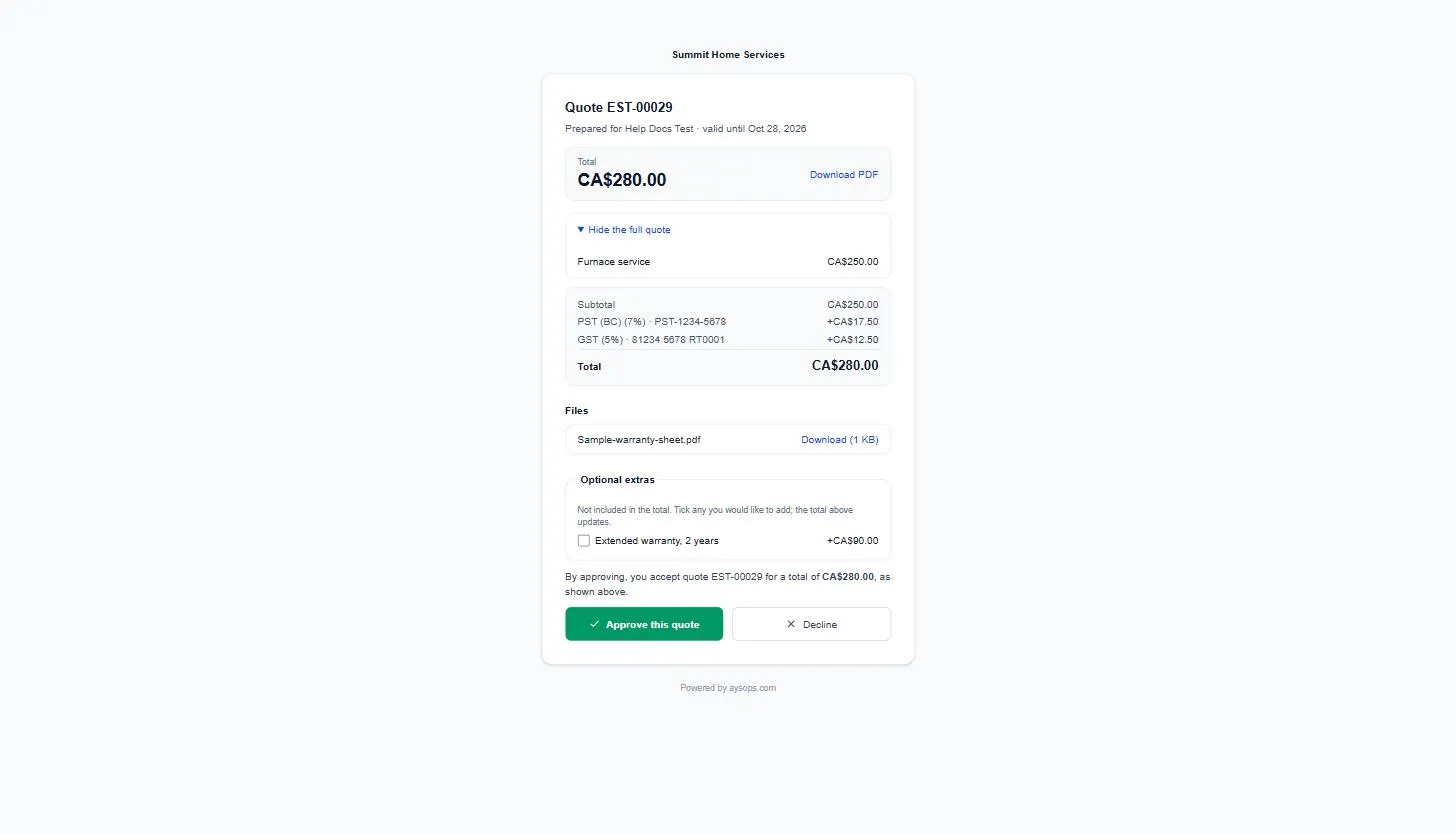
On their quote page the customer sees Optional extras with a tick box and the price of each. Ticking one adds it to the total straight away, and the amount above Approve follows. When they approve, AysOps records which extras they chose. When you convert the estimate, only the extras they chose go onto the work order.
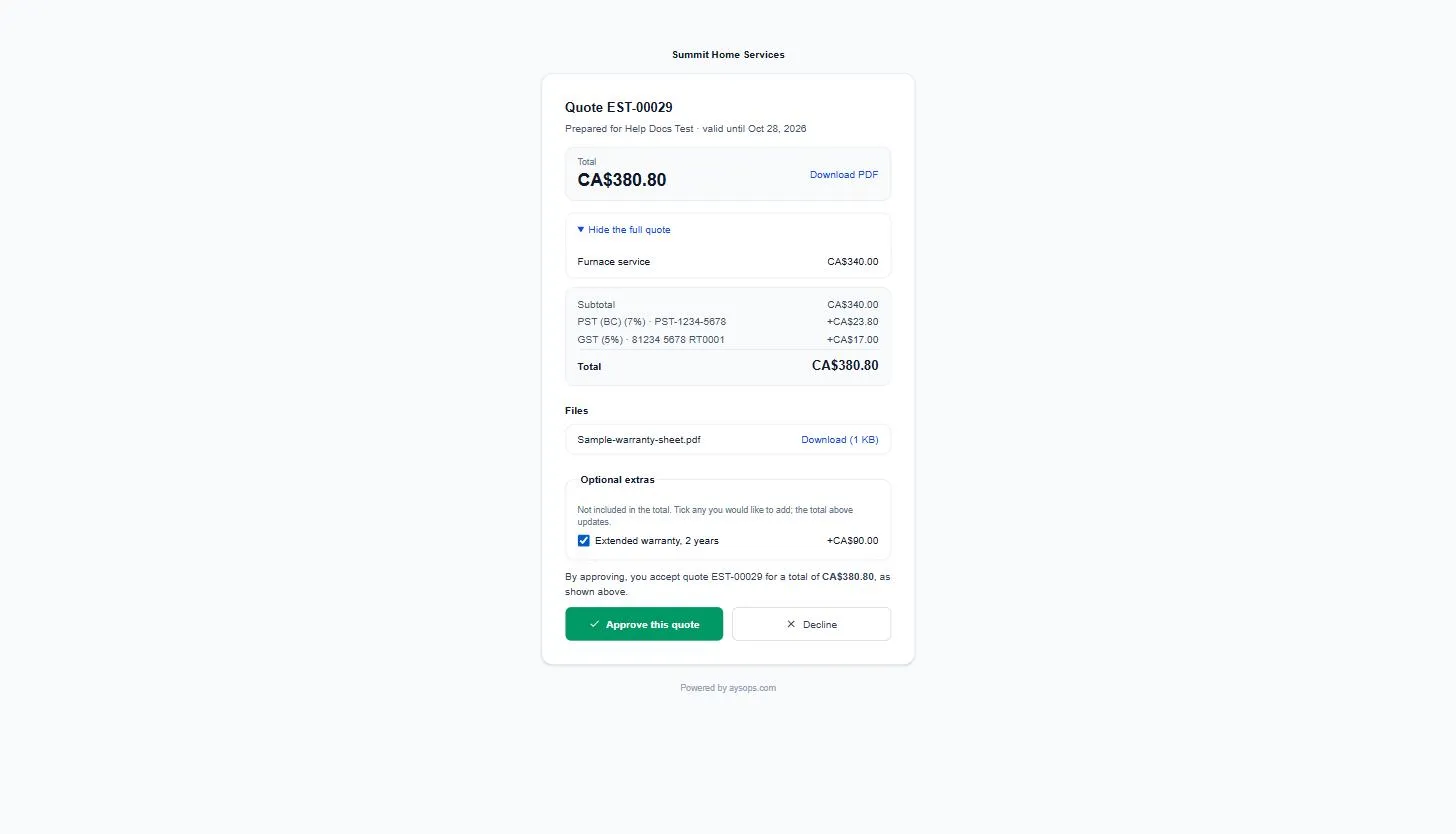
After they approve, the line on your estimate shows Optional extra: chosen.
If the customer tells you by phone, click Approved, then Mark approved, and tick Customer chose it under each extra they want, before you convert.
Templates can do both: open a template in Settings → Estimate Templates and use Customer sees and Optional extras there. Estimates made from it start that way.
If something goes wrong
Section titled “If something goes wrong”- The choice is greyed out: the quote has been sent. Recall it to change it.
- “The total with the extras you chose is …” (customer): the quote changed while their page was open. The page shows the new total; they approve again.
- “The customer chose the extras when they approved online”: their choice is signed and can’t be changed. Send a revised quote instead.
Related articles
Section titled “Related articles”- Organise lines into sections
- Send an estimate to your customer
- What your customer sees
- Convert an estimate to a work order