
File storage: how much you have and how to get more
What this does
Section titled “What this does”Every AysOps company includes 2 GB of file storage, shared by the whole team. Everything you upload counts towards it: receipts, photos, documents, customer files, saved reports, meeting transcripts, and the QR codes you save in the QR Generator. You can add more storage at any time.
Who can do this
Section titled “Who can do this”Only the account owner can see the storage bar on the Add-ons page and add or reduce extra storage. Administrators and everyone else see the Extra Storage options without the bar or any buttons.
See how much you’ve used
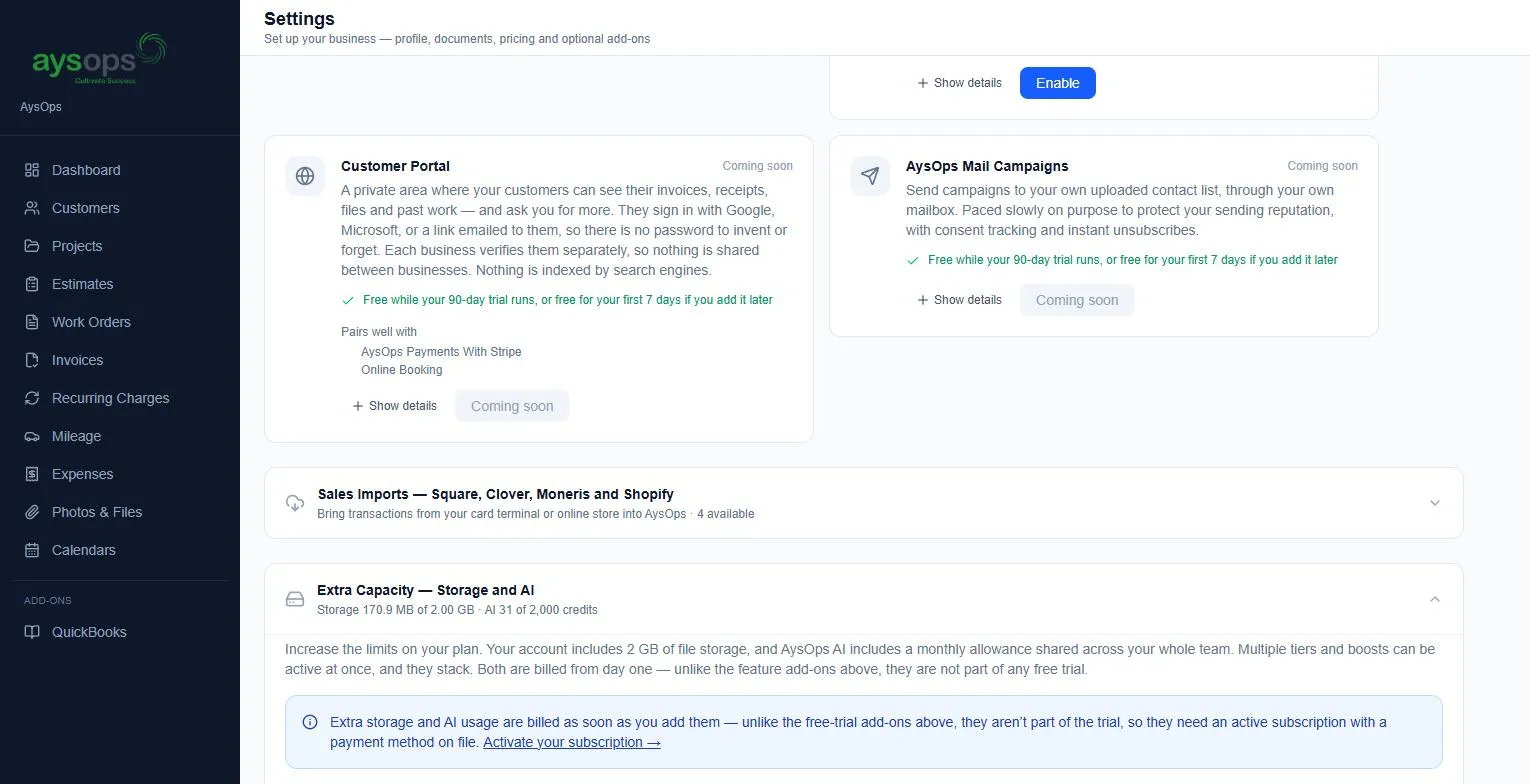
Section titled “See how much you’ve used”- Click Add-ons in the left menu (or Settings, then Add-ons) and open Extra Capacity: Storage and AI. The heading shows, for example, “Storage 170.9 MB of 2.00 GB”, and the Your file storage bar shows how much is used and how much is left.
- The bar turns amber at 80% and red when it’s full.
- Manage files takes you to Photos & Files, where you can delete files you no longer need.
Add more storage
Section titled “Add more storage”Under Extra Capacity: Storage and AI there are four sizes. Click Add on the one you want.
| Option | Adds | Price |
|---|---|---|
| Extra Storage: 2 GB | 2 GB | $2.50 CAD/mo |
| Extra Storage: 20 GB | 20 GB | $13.50 CAD/mo |
| Extra Storage: 100 GB | 100 GB | $35 CAD/mo |
| Extra Storage: 400 GB | 400 GB | $65 CAD/mo |
- They stack: you can have more than one, and the amounts add up.
- Extra storage is billed from the day you add it, even during your free trial. It needs an active subscription with a payment method on file. If you’re still in your trial, the Add buttons are greyed out and the page shows Activate your subscription → first. See Billing and your subscription.
Reduce or cancel extra storage
Section titled “Reduce or cancel extra storage”- A reduction takes effect at the end of your paid period, so you keep what you paid for until then. You can undo the reduction for free until that date.
- You can’t reduce below what you’re actually using. Delete some files first.
If something goes wrong
Section titled “If something goes wrong”- “Storage limit reached” when uploading or saving a report: the message says how much space is left. Delete files you don’t need, or add extra storage.
- “Your subscription has ended. Subscribe again in Settings → Billing, then add storage.”: extra storage can only be added to a running subscription. Subscribe again on the Billing page first.
Related articles
Section titled “Related articles”storage, file storage, storage full, storage limit, quota, space, 2 GB, extra storage, more storage, upgrade storage, free up space, delete files, transcripts storage