
Business profile (name, address, currency, logo and more)
What this does
Section titled “What this does”Holds your business’s details: its name, addresses, how customers reach you, its currency and year end, its public logo, and a few business-wide choices. (Your own name and photo are on the Personal tab: see Your profile.)
Before you start
Section titled “Before you start”Only people who can change business settings (owners and admins by default) see the Business tab. Each box has its own save button: a change is only kept when you click the button in that box.
Click your initial or photo at the top right → Settings, then click the Business tab.
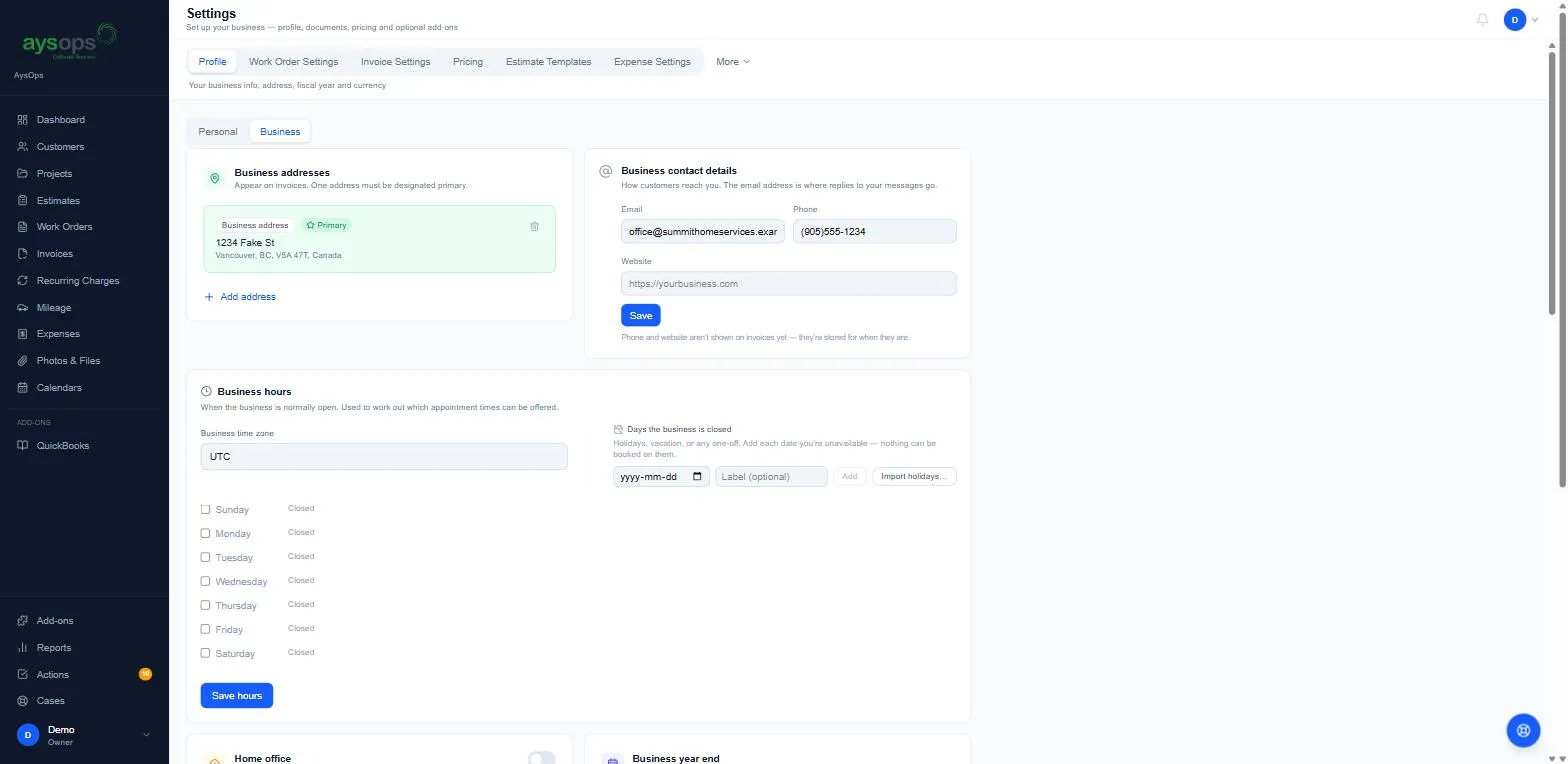
Business addresses
Section titled “Business addresses”Addresses appear on your invoices. One must be the Primary address.
- Click Add address to add one (for example a second office).
- The bin icon removes an address.
Business contact details
Section titled “Business contact details”Email, Phone and Website, then Save. The email is where replies to your messages go. Phone and website aren’t shown on invoices yet; they’re stored for when they are.
Business hours and days the business is closed
Section titled “Business hours and days the business is closed”When the business is normally open, in the Business time zone. See Business hours and closures.
Home office
Section titled “Home office”Switch it on if you use part of your home for the business. Enter Total home size (sq ft) and Business use area (sq ft); AysOps works out the percentage and applies it to home expenses automatically. If you’ve saved addresses, choose which one is your home.
Business year end
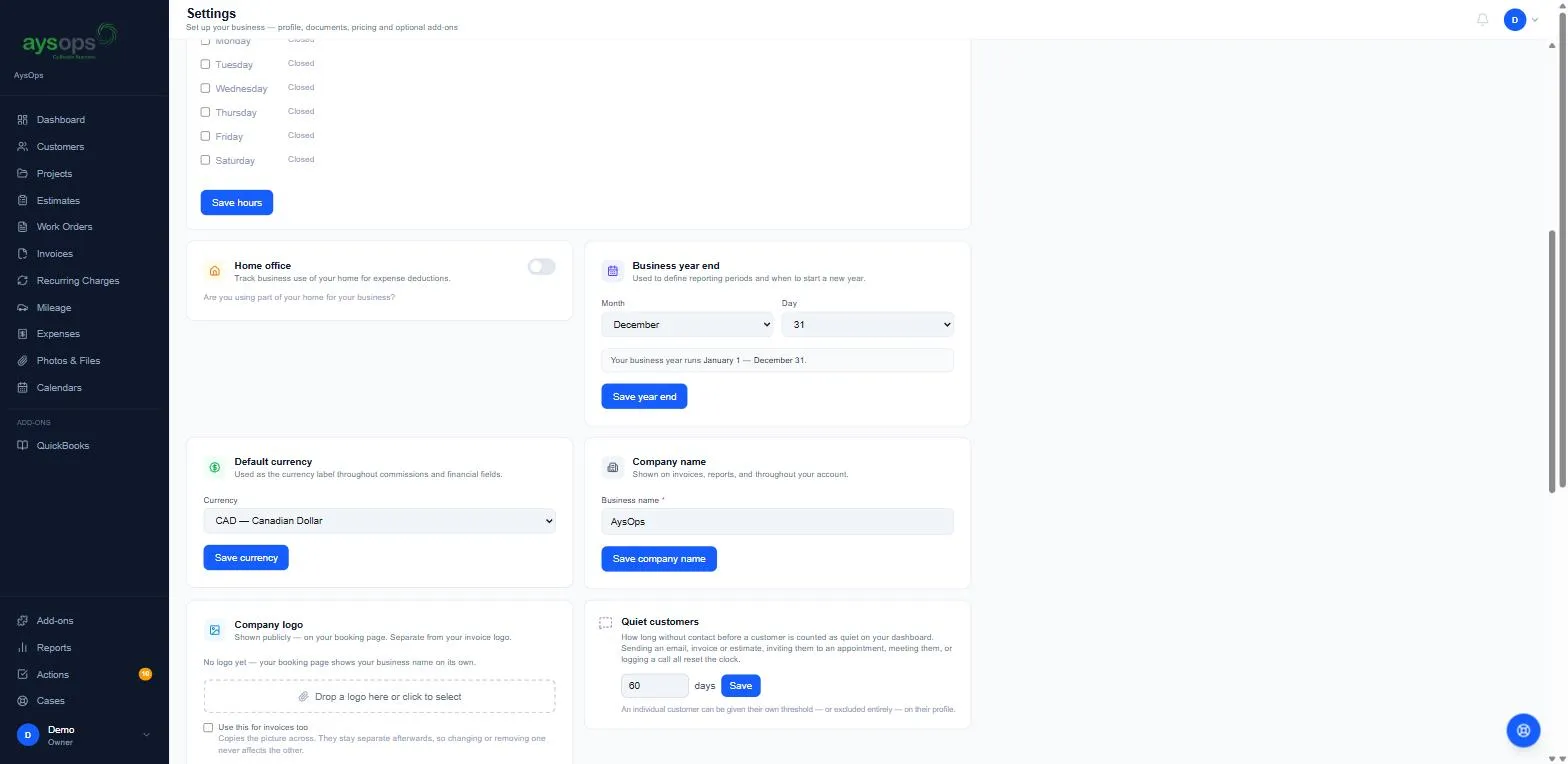
Section titled “Business year end”Choose the Month and Day your business year ends. The box confirms the result, for example “Your business year runs January 1 — December 31.” Click Save year end. Reports use it to define your years.
Default currency
Section titled “Default currency”CAD — Canadian Dollar or USD — US Dollar, then Save currency. This is the currency you bill your own customers in by default.
Company name
Section titled “Company name”Business name (required), shown on invoices, reports and throughout your account. Click Save company name.
Company logo
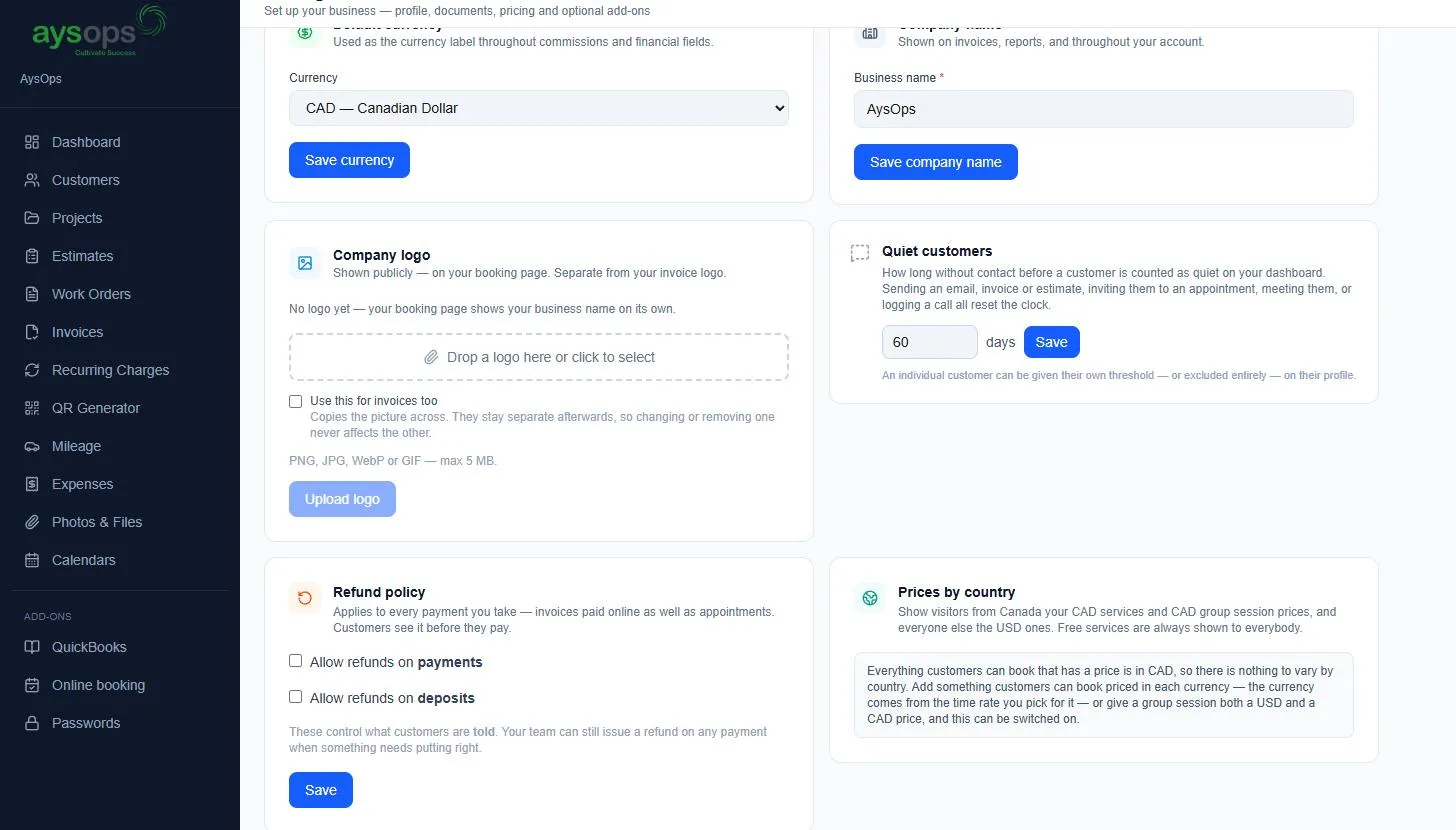
Section titled “Company logo”The logo shown publicly on your booking page. It’s separate from your invoice logo.
- Drop a logo on Drop a logo here or click to select (PNG, JPG, WebP or GIF, max 5 MB).
- Optional: tick Use this for invoices too to copy the picture to your invoices as well. After that they stay separate, so changing one never changes the other.
- Click Upload logo. Without a logo, your booking page shows your business name on its own.
Quiet customers
Section titled “Quiet customers”How many days without contact before a customer counts as “quiet” on your dashboard (for example 60). Sending an email, invoice or estimate, inviting them to an appointment, meeting them or logging a call all reset the clock. Click Save. You can give a single customer their own number, or leave them out entirely, on that customer’s profile. See Quiet customers.
Refund policy
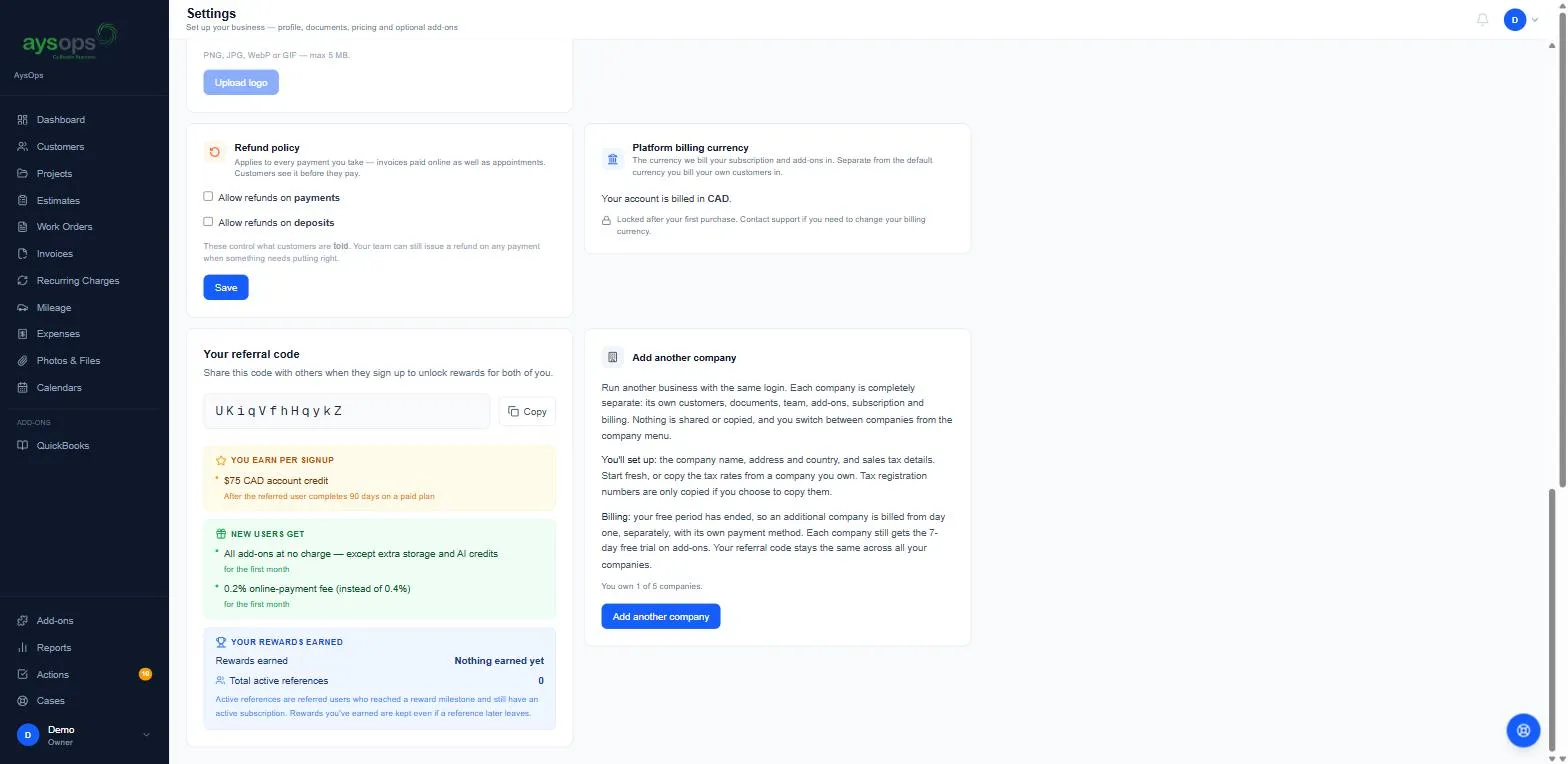
Section titled “Refund policy”What customers are told before they pay, for invoices paid online and for appointments. Tick Allow refunds on payments and/or Allow refunds on deposits, then Save. Your team can still refund any payment when something needs putting right; this only sets what customers are told.
Prices by country
Section titled “Prices by country”For businesses that sell to customers in both Canada and elsewhere. When it’s on, visitors from Canada see your CAD services and CAD group session prices on your booking pages, and everyone else sees the USD ones. Free services are always shown to everybody. It can only be switched on once you have something customers can book priced in each currency (the currency comes from the time rate you pick for a service), or a group session with both a USD and a CAD price. Until then the box explains that there is nothing to vary by country.
Platform billing currency
Section titled “Platform billing currency”The currency AysOps bills you in (for your subscription and add-ons), for example CAD. It’s separate from the currency you bill your customers in, and it’s locked after your first purchase. Contact support to change it.
Your referral code
Section titled “Your referral code”Share it with people who sign up for AysOps. The box shows what you earn per signup, what new users get, and the rewards you’ve earned so far. Click Copy to copy the code.
Add another company
Section titled “Add another company”See Switch between companies, or add another company.
If something goes wrong
Section titled “If something goes wrong”- My change disappeared: you saved a different box. Each box saves only its own fields.
- I can’t see the Business tab: you don’t have permission to change business settings. Ask your account owner.
- I can’t change the billing currency: it’s locked after your first purchase; contact support.
Related articles
Section titled “Related articles”- Business hours and closures
- Your profile, photo and work contact
- Switch between companies, or add another company
- First-time setup