
Quiet customers (who you haven't been in touch with lately)
What this does
Section titled “What this does”Lists customers you haven’t reached out to for a while, so nobody slips away unnoticed. The Quiet customers tile on the dashboard shows how many there are; click it to see the list.
What counts as contact
Section titled “What counts as contact”Each of these resets a customer’s clock:
- sending them an email, an invoice or an estimate,
- inviting them to an appointment, or an appointment with them that took place,
- a note where you ticked I contacted them (Phone call, In person or Other). See Notes & Actions.
A customer becomes quiet after a number of days without contact. You set the number for the business in Settings → Profile (see Business profile).
- On the dashboard, click the Quiet customers tile.
- The page lists them with when you last contacted them (or Never contacted, with how long ago they were added). Longest first puts the longest-quiet at the top; click it for Most recent first.
- Show all customers lists everyone, quiet or not, with how many days since contact (or since they were added). The button then reads Showing everyone: click it again to see only the quiet ones.
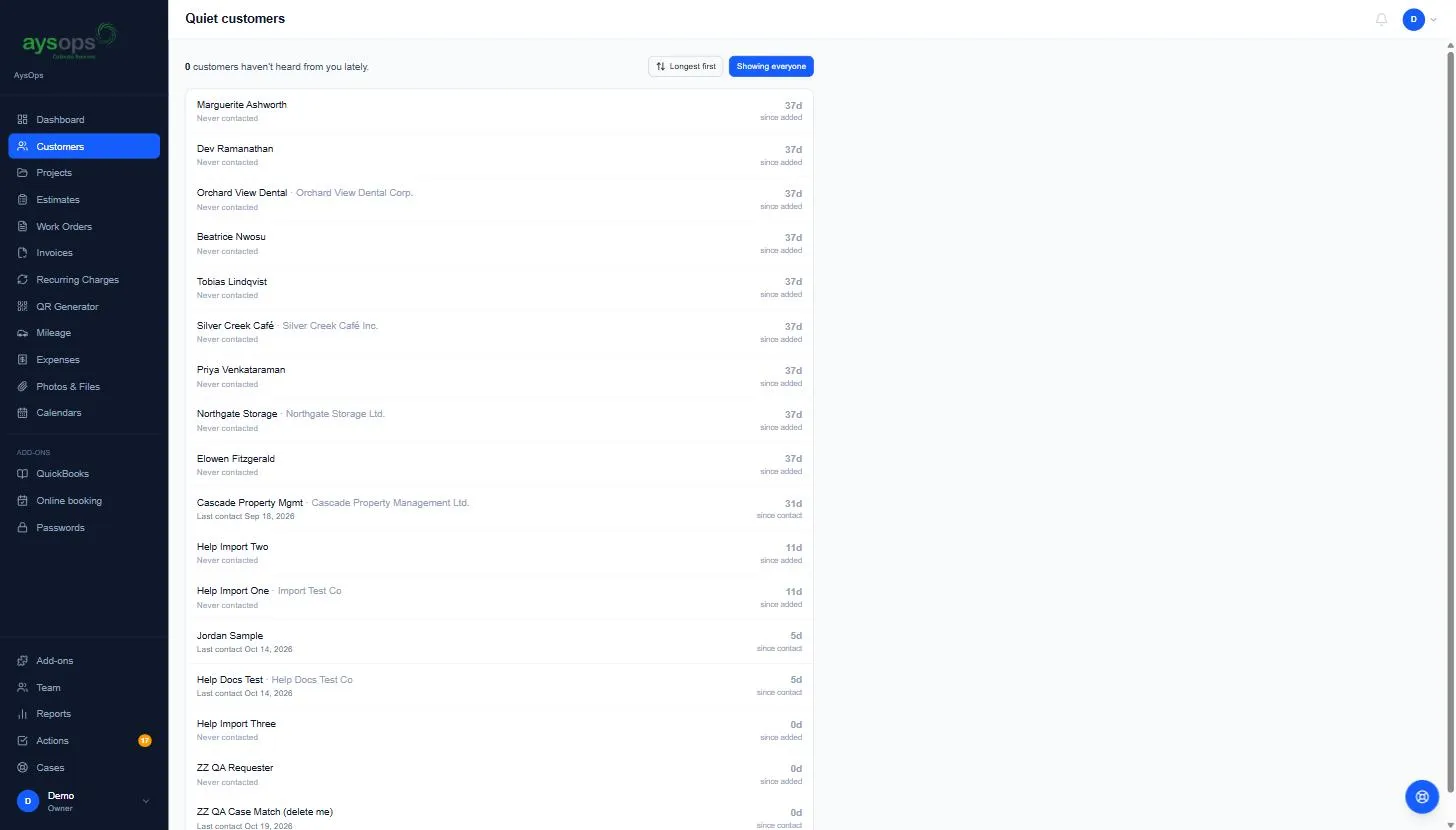 4. Click a customer to see their last contact and get in touch from there.
A different limit for one customer
Section titled “A different limit for one customer”Some customers you only hear from once a year; others should never be flagged. Open the customer, click Edit, and under Flag as quiet after choose:
- Use the default (… days),
- A custom number of days (1 to 3650), or
- Never: don’t flag this customer.
If something goes wrong
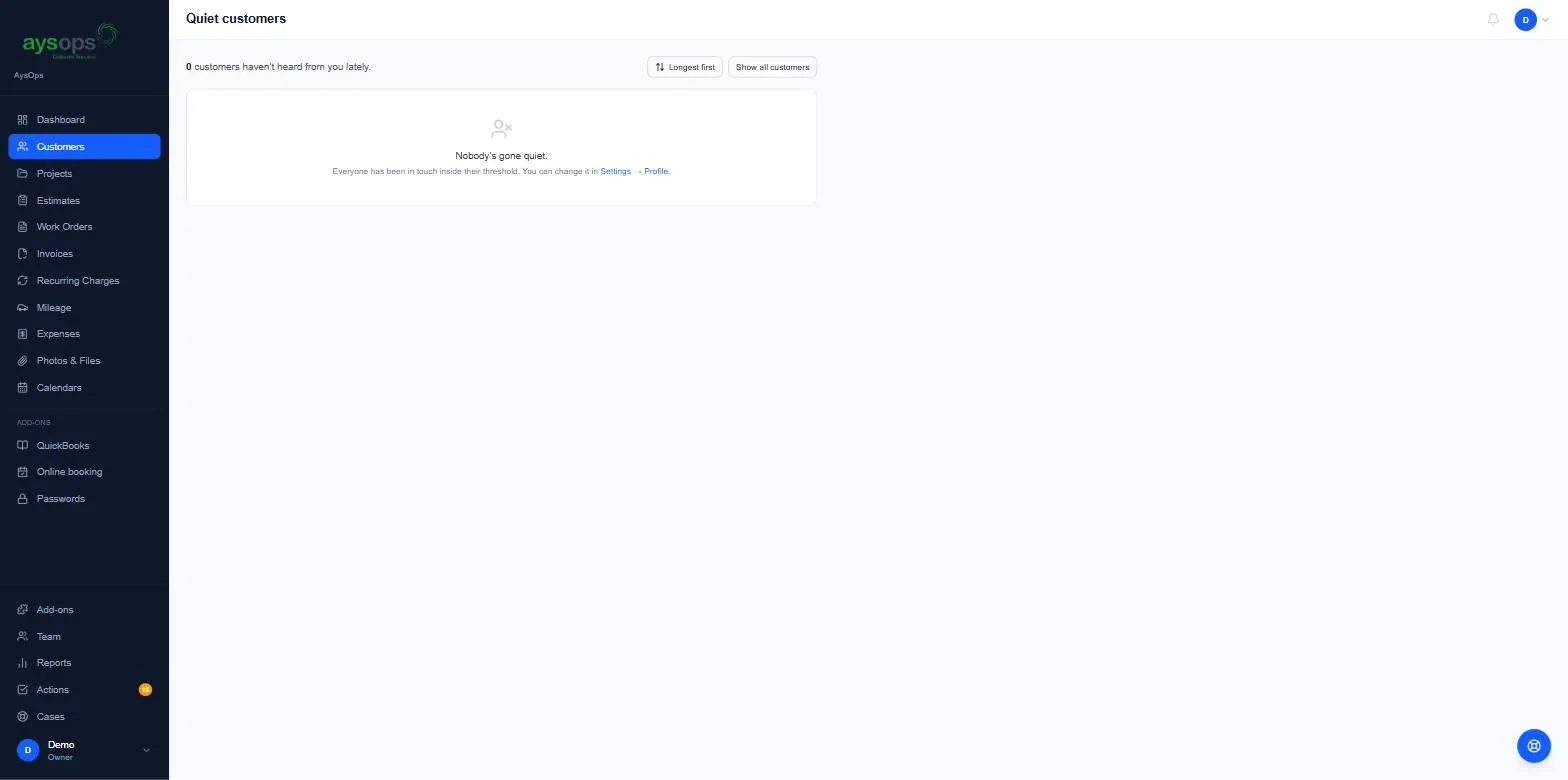
Section titled “If something goes wrong”- “Nobody’s gone quiet”: everyone has been in touch inside their limit.
- A phone call doesn’t count: log it as a note with I contacted them ticked.
- A customer you archived is not here: archived customers are left out of this list, Show all customers and the dashboard tile. Restore the customer and they come back with their contact history. See Archive a customer.
Related articles
Section titled “Related articles”quiet customers, inactive customers, haven't heard from, follow up, lost customers, dormant, last contact, never contacted, stale customers, check in, customer retention