
Support cases: how to open one, the types, and where to see our replies
What this does
Section titled “What this does”A case is how you reach the AysOps team: to report something that isn’t working, ask for a feature, or ask how to do something. Every case has a number, a status, and a conversation where our replies appear. You’ll find all of yours under Cases in the menu.
Before you start
Section titled “Before you start”- Anyone signed in can open a case, from any page.
- 🔴 If you haven’t finished two-step sign-in for this visit, opening or replying to a case is refused with “Please verify your sign-in again before continuing”. Reload the page and complete it. See Two-step sign-in.
- Your cases are yours: other people in your company don’t see them, and you don’t see theirs.
The types of case
Section titled “The types of case”| Type | Use it when |
|---|---|
| Bug or technical issue | Something is broken, shows an error, or doesn’t do what it should. |
| Feature request | You’d like AysOps to do something it doesn’t do yet. |
| Help | You’re not sure how to do something. |
| Other | Anything else: billing questions, feedback, an account question. |
You also say how much it’s affecting you: Low (minor or cosmetic), Normal (affects your work) or Blocking (you can’t continue). That tells us what to look at first.
Open a case
Section titled “Open a case”- Click the round blue button at the bottom right of any page (on a phone: +, then Help & feedback). (Or open Cases and click Submit Case; it’s the same form.) If something just went wrong, open it from the page where it happened: AysOps attaches that page’s details for us.
- Choose the type and how much it’s affecting you, and write a one-line Subject.
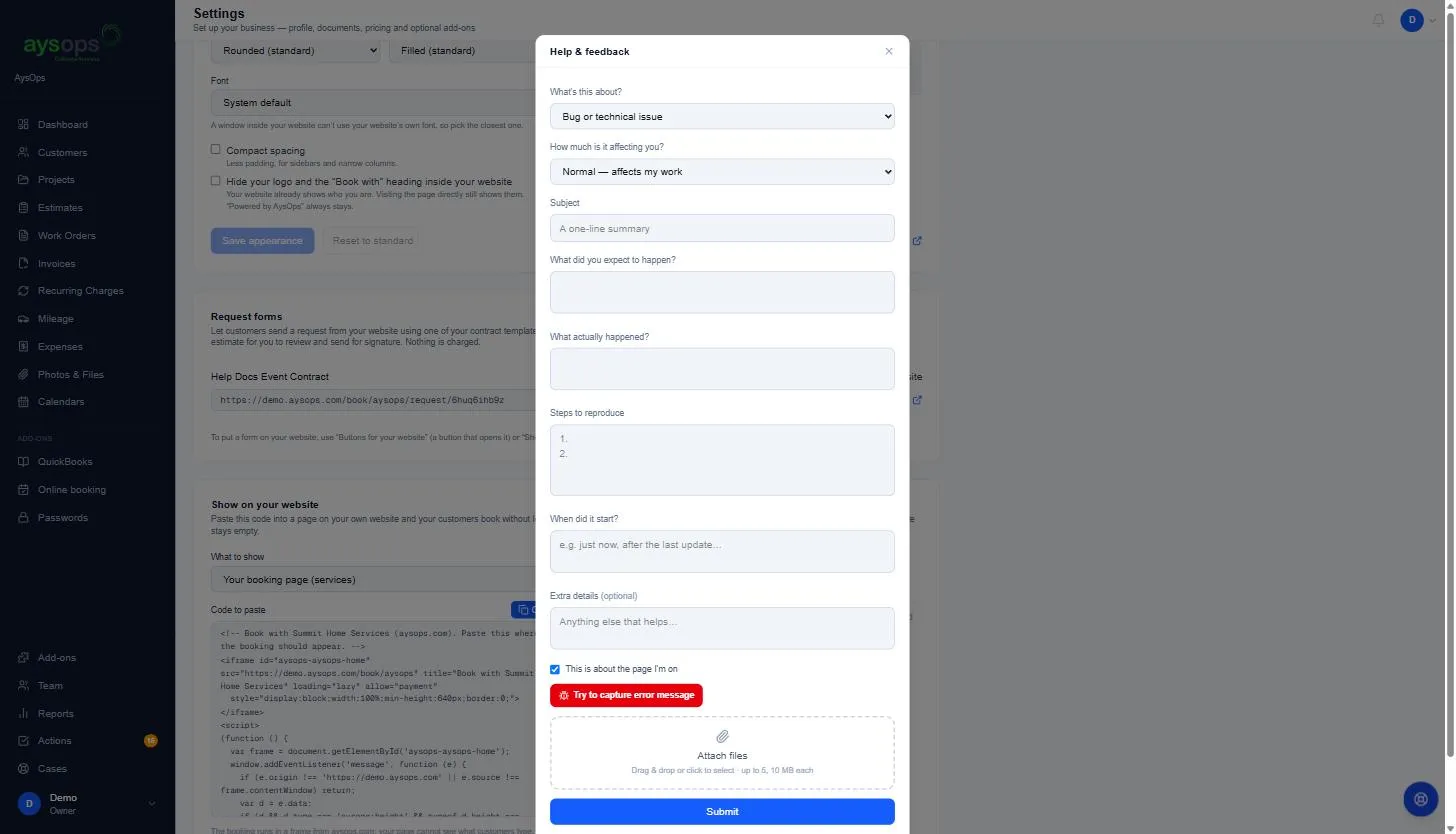
- Describe it. For a bug you’re asked what you expected, what happened, the steps to repeat it and when it started. Try to capture error message attaches any errors AysOps noticed.
- Optional: attach screenshots or files (up to 5, 10 MB each).
- Click Submit. You’ll see “Thanks — we got it.” and your case number.
The full form, field by field, is in Get help or report a problem.
Where to see our replies
Section titled “Where to see our replies”-
Cases in the menu shows a red number when we’ve replied to one of your cases and you haven’t read it yet. We don’t send an email when we reply, so this is where to look.
-
On a phone, tap the menu button (top left) and then Cases, near the bottom of the menu. While a reply is unread, the menu button has a small red dot and Cases shows the red number.
-
On the Cases page, a case with a new reply has a red outline and a red dot (New reply).
-
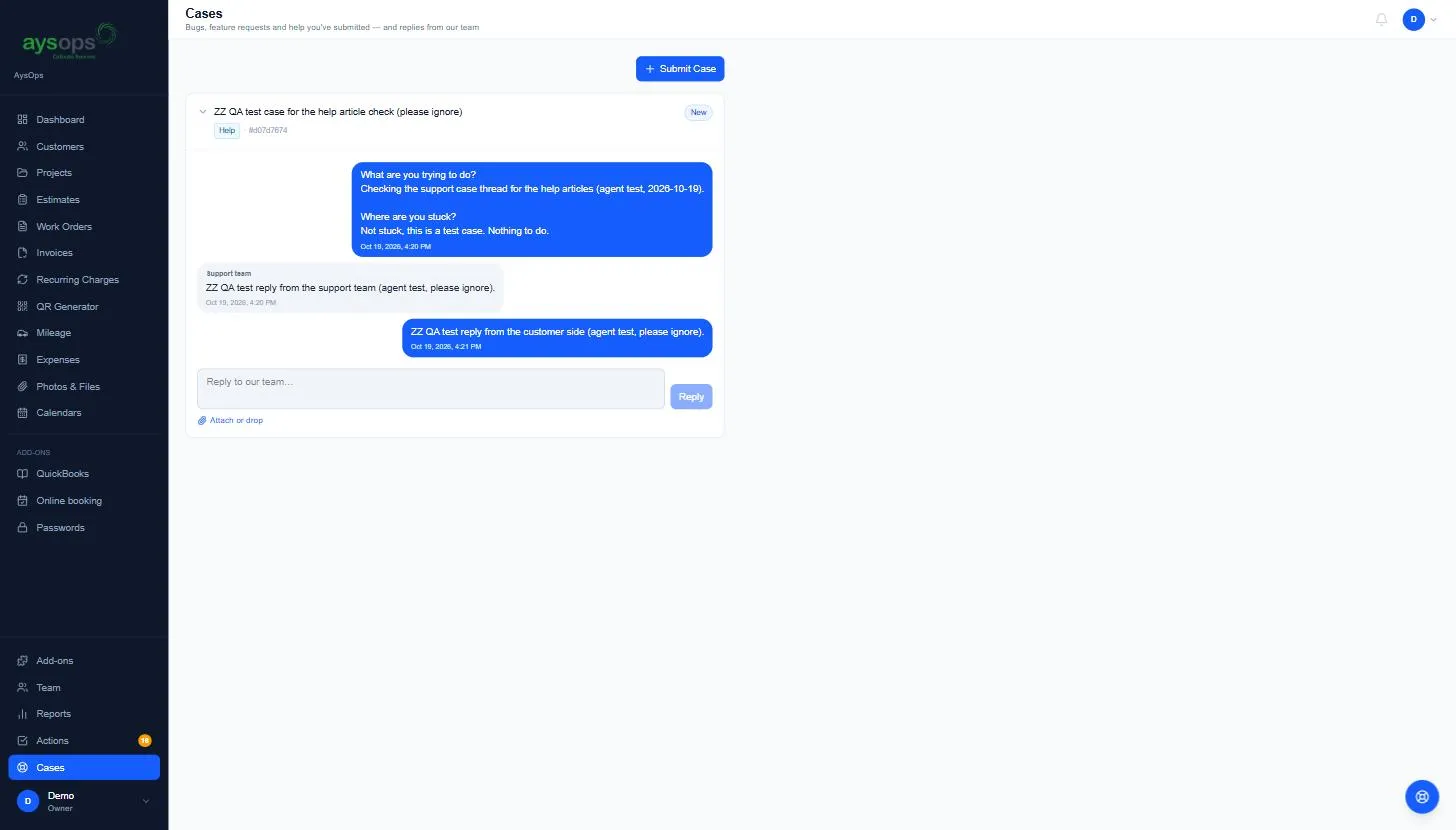
Click the case to open its conversation; it opens right there in the list. Your messages are on the right in blue, and ours are on the left, marked Support team. Opening it marks the reply as read and the red number goes away.
Reply, add files, follow up
Section titled “Reply, add files, follow up”- Open the case, type in the Reply to our team… box, then click Reply.
- To add files (for example a screenshot we asked for), click Attach or drop under the box, or drag the files onto it.
What the statuses mean
Section titled “What the statuses mean”| Status | Means |
|---|---|
| New / Open | We’ve received it. |
| In progress | We’re working on it. |
| Resolved | We think it’s fixed or answered. Reply if it isn’t, and we’ll pick it up again. |
| Closed | Finished. A closed case can’t be replied to: open a new case and mention the old number. |
If something goes wrong
Section titled “If something goes wrong”- “You’re sending a lot at once”: wait the few seconds it says, then try again.
- “This case is closed. Use Submit Case at the top of this page if you need more.”: open a new case, quoting the old case number.
- Can’t sign in at all? You can’t open a case without signing in. Ask a colleague to open one for you, or see I can’t sign in.