
Add a customer
What this does
Section titled “What this does”Creates a customer: the person or business you do work for. Everything else (estimates, work orders, invoices, files, notes) is kept under the customer.
Before you start
Section titled “Before you start”You need permission to manage customers. If you can’t see Add customer, ask your account owner.
-
Click Customers in the menu. You’ll see your customer list with Name, Company, Email, Phone and Added. To find one quickly, type in Search customers… and press Enter: it searches names, companies, email addresses and phone numbers (type the digits in any format, such as 604 555 1234). Click the x in the box to clear it. Archived shows customers you put away.
On a phone, each customer is one row with their name, company, email and phone. Tap the row to open the customer, or the round buttons on the right to call or email them. Show more at the bottom loads the next customers. The button to add a customer is Add.
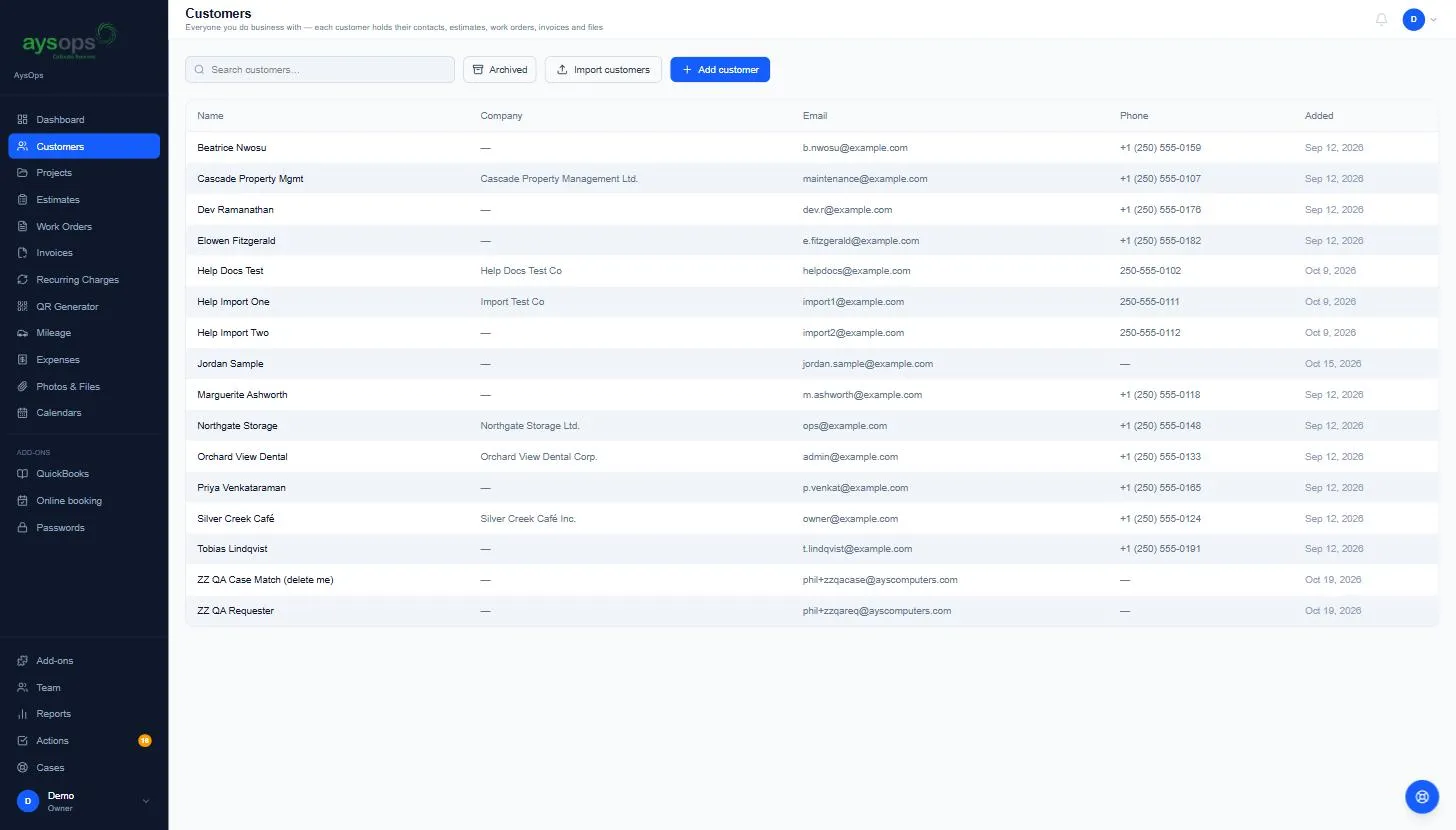
- Click Add customer.
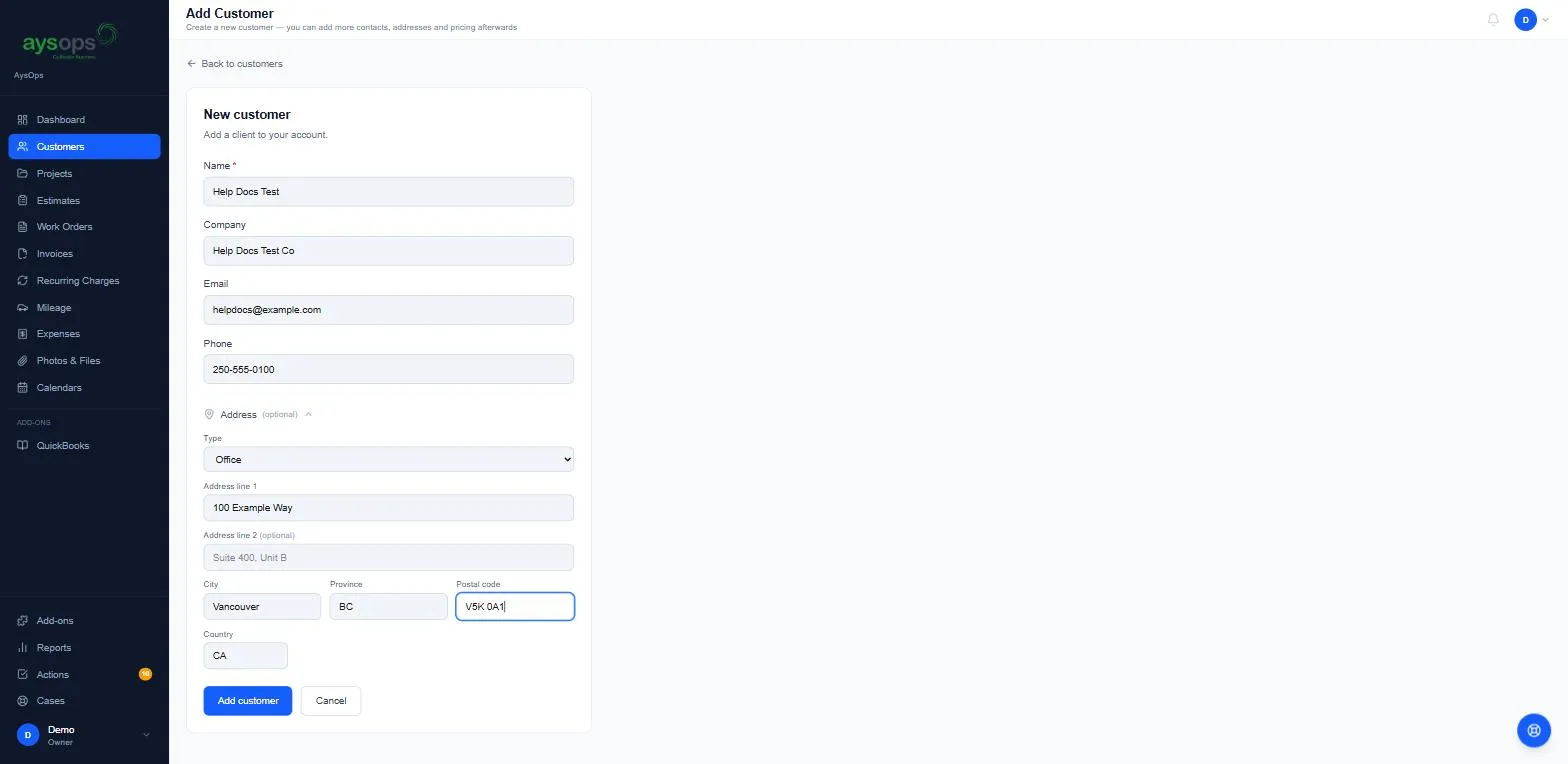
- Fill in:
- Name (required): the person’s name, or the business name if there’s no single person.
- Company: the business name, if different.
- Email and Phone.
- Optional: click Address (optional) to open the address fields:
- Type: Billing, Mailing, Office, Worksite or Other.
- Address line 1, Address line 2 (optional), City, Province, Postal code, Country.
- Click Add customer.
What happens next
Section titled “What happens next”- You’re taken straight to the new customer’s page, on the Overview tab. The address you entered is marked Primary.
- “Created customer” is recorded in the customer’s Notes & Actions history.
- You can now add contacts, more addresses, pricing, and documents. See Tour of a customer’s page.
If something goes wrong
Section titled “If something goes wrong”- The Add customer button is missing: you don’t have permission to manage customers.
- I have lots of customers to add: use Import customers instead. See Import customers.
- Click Cancel (or Back to customers) to leave without saving.