
First-time setup (the setup checklist)
What this does
Section titled “What this does”Gets the six foundations in place before you create your first estimate, work order or invoice: your business address, tax rates, profile, work order settings, invoice settings and email. Skipping them is the most common reason a first invoice has no tax or the wrong currency.
Before you start
Section titled “Before you start”- Only the owner sees the setup checklist.
- Have ready: your business address, the sales taxes you charge (for example GST 5% or HST 13%, and your tax number if you have one), the number you want your work orders to start at, and your usual payment terms.
- ⚠️ Your currency is locked after your first purchase, so choose it carefully.
1. Open the checklist
Section titled “1. Open the checklist”When you sign in and setup isn’t finished, a window called Finish setting up your account opens over the dashboard. It shows how many of the 6 steps are done (for example 5 of 6). Steps already done are ticked and crossed out.
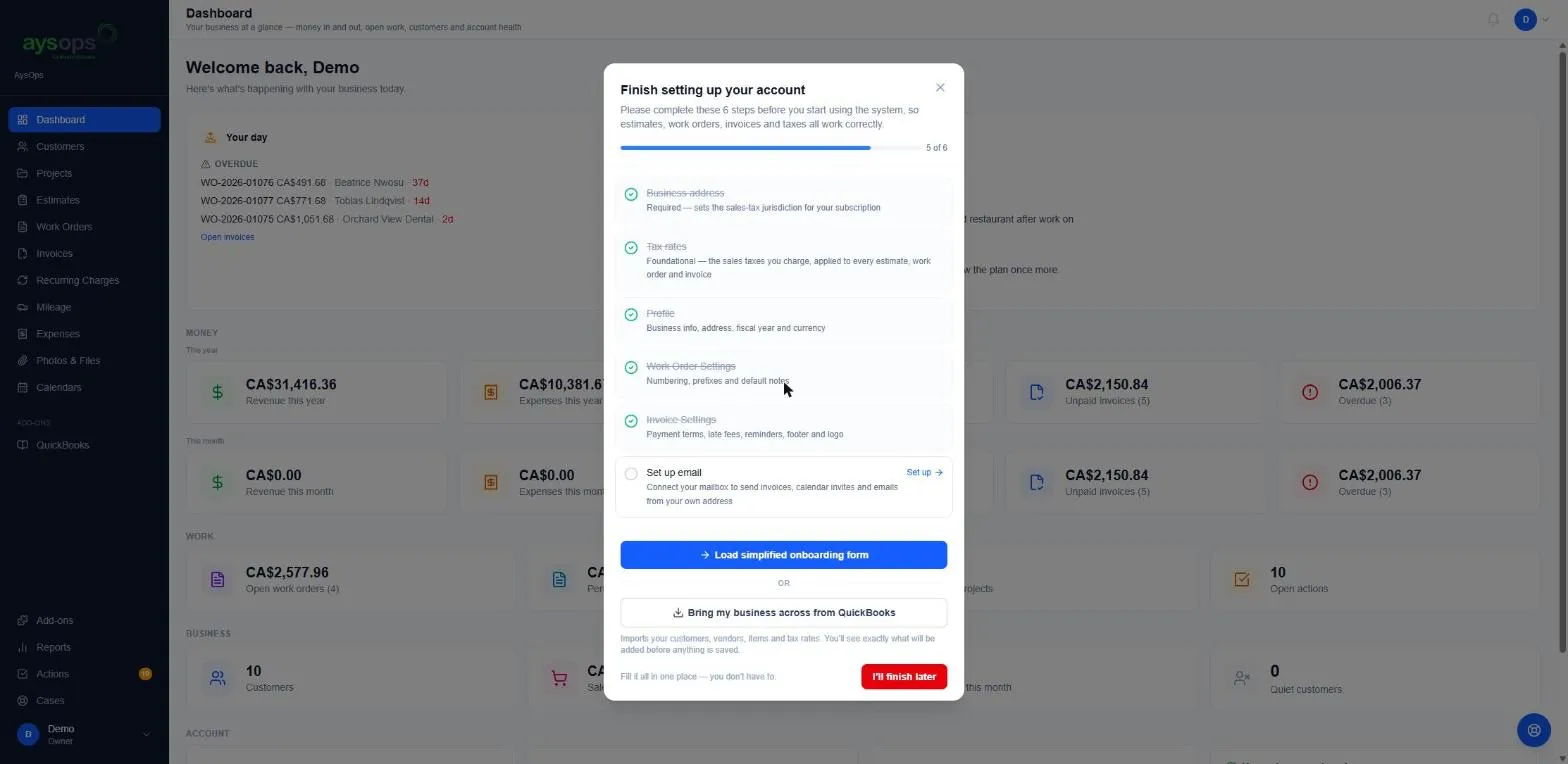
The six steps:
| Step | What it sets |
|---|---|
| Business address | Required. Sets the sales-tax jurisdiction for your subscription. |
| Tax rates | The sales taxes you charge, applied to every estimate, work order and invoice. |
| Profile | Business info, address, fiscal year and currency. |
| Work Order Settings | Numbering, prefixes and default notes. |
| Invoice Settings | Payment terms, footer and logo. (Late fees and reminders are shown as Coming soon.) |
| Set up email | Your own mailbox for sending invoices, calendar invites and emails (optional, see below). |
2. Choose how to fill it in
Section titled “2. Choose how to fill it in”You have three ways to finish:
- Set up next to any step opens that settings page directly.
- Load simplified onboarding form opens Quick setup: every step on one page (easiest for most people). Continue with step 3.
- Bring my business across from QuickBooks imports your customers, vendors, items and tax rates from QuickBooks Online. You’ll see exactly what will be added before anything is saved. See Import your business from QuickBooks.
3. Fill in Quick setup
Section titled “3. Fill in Quick setup”Quick setup has one section per step. Each section has its own save button, or you can use Save all & go to settings at the bottom.
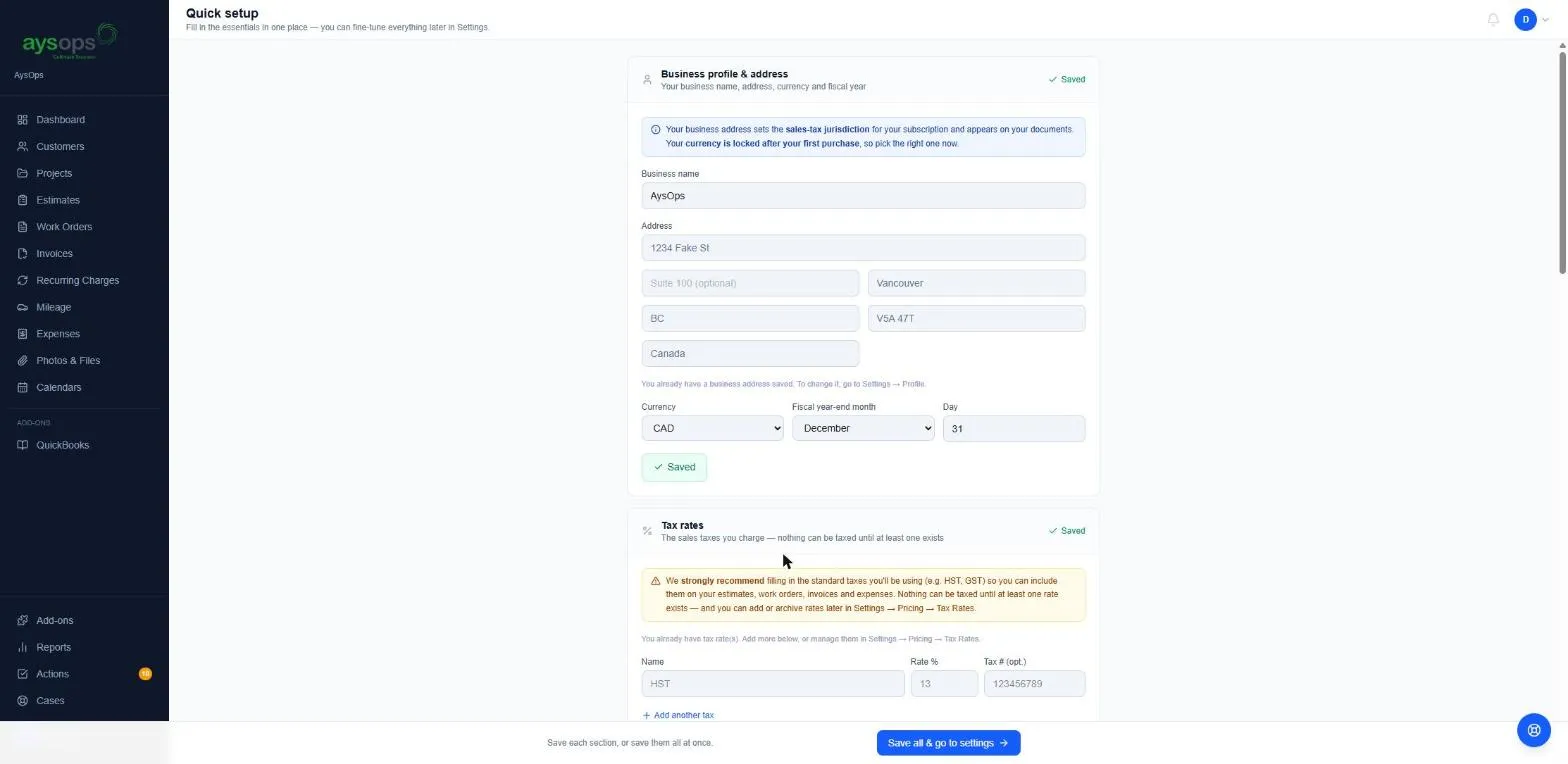
- Business profile & address: Business name, Address (street, suite, city, province/state, postal code, country), Currency (USD or CAD), and your Fiscal year-end month and Day. If an address is already saved, change it later in Settings → Profile.
- Tax rates: for each tax, enter a Name (for example HST), Rate % (for example 13) and optionally your Tax #. Click Add another tax for more. Nothing can be taxed until at least one rate exists. Manage them later in Settings → Pricing → Tax Rates.
- Work order settings: an optional Prefix (a label in front of the number), the Starting number, and optional Default notes. ⚠️ The starting number is locked once you create your first work order, so set it now. Once a prefix has been used it can only be archived, not deleted.
- Invoice settings: Default payment terms (Due on receipt, Net 15, Net 30, Net 60 or Custom) and an optional Invoice footer. These are defaults; you can change the terms and footer on any single invoice. Your logo is in Settings → Invoice Settings (late fees and payment reminders are listed there as Coming soon: nothing is sent or added yet).
- Email: optional. Until you connect your own mailbox, AysOps still sends your invoices, estimates and calendar invites from documents@aysops.com with your business name, and replies go to your own email address. To send from your own address, see Set up your email.
- Click Save all & go to settings, or save each section as you go.
What happens next
Section titled “What happens next”- Each finished step is ticked off. When all six are done, the checklist stops appearing.
- Until then it opens again each time you sign in. Closing it (the X, I’ll finish later, the Esc key, or clicking outside it) hides it until your next sign-in.
If something goes wrong
Section titled “If something goes wrong”- I can’t change the currency: it’s locked after your first purchase. Contact support using Help & feedback.
- The checklist doesn’t appear: you already finished all six steps, you closed it during this sign-in, or you’re not the owner.
- My first invoice had no tax: add a tax rate (step 2), then add the tax to the line.
Related articles
Section titled “Related articles”setup, set up, onboarding, getting started, checklist, finish setting up your account, quick setup, tax rates, business address, first steps