
Prices for one customer (the Pricing tab)
What this does
Section titled “What this does”Gives one customer their own prices: a special hourly rate, contract pricing on products, their own recurring charges, discounts or deposit presets. They’re offered in addition to your company-wide prices whenever you work on that customer’s estimates, work orders and invoices.
Before you start
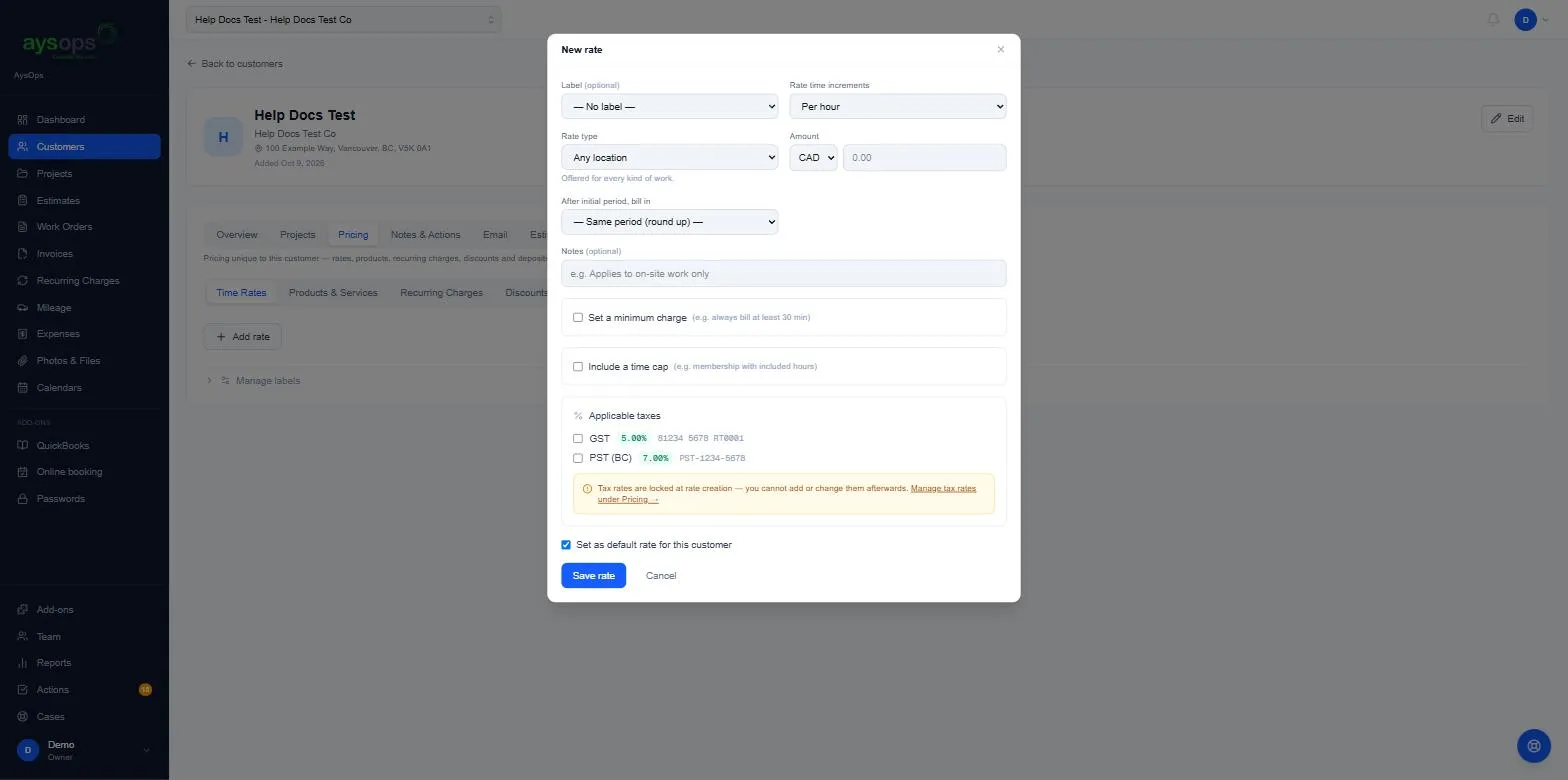
Section titled “Before you start”You need permission to manage pricing (owners, admins and managers by default). Two sub-tabs have their own rule: Recurring Charges needs the Create & stop recurring charges permission, and Deposits can only be changed by owners and admins. Without it you see the list but not the buttons. Set up your tax rates first: a rate’s taxes are chosen when you create it and can’t be changed afterwards.
- Open the customer and click the Pricing tab.
- Choose the kind of price: Time Rates, Products & Services, Recurring Charges, Discounts or Deposits.
- Click Add (for example Add rate) and fill in the form. It’s the same form as the company-wide one; each is explained in its own article:
- For a time rate, leave Set as default rate for this customer ticked if it should be listed first when you pick a rate on this customer’s documents.
- Save.
What happens next
Section titled “What happens next”The price is listed on the tab (a default rate is marked Default), with its taxes and an example (“30 min = …”) so you can check how it rounds. The star makes a rate the default; the archive box hides it from new work.
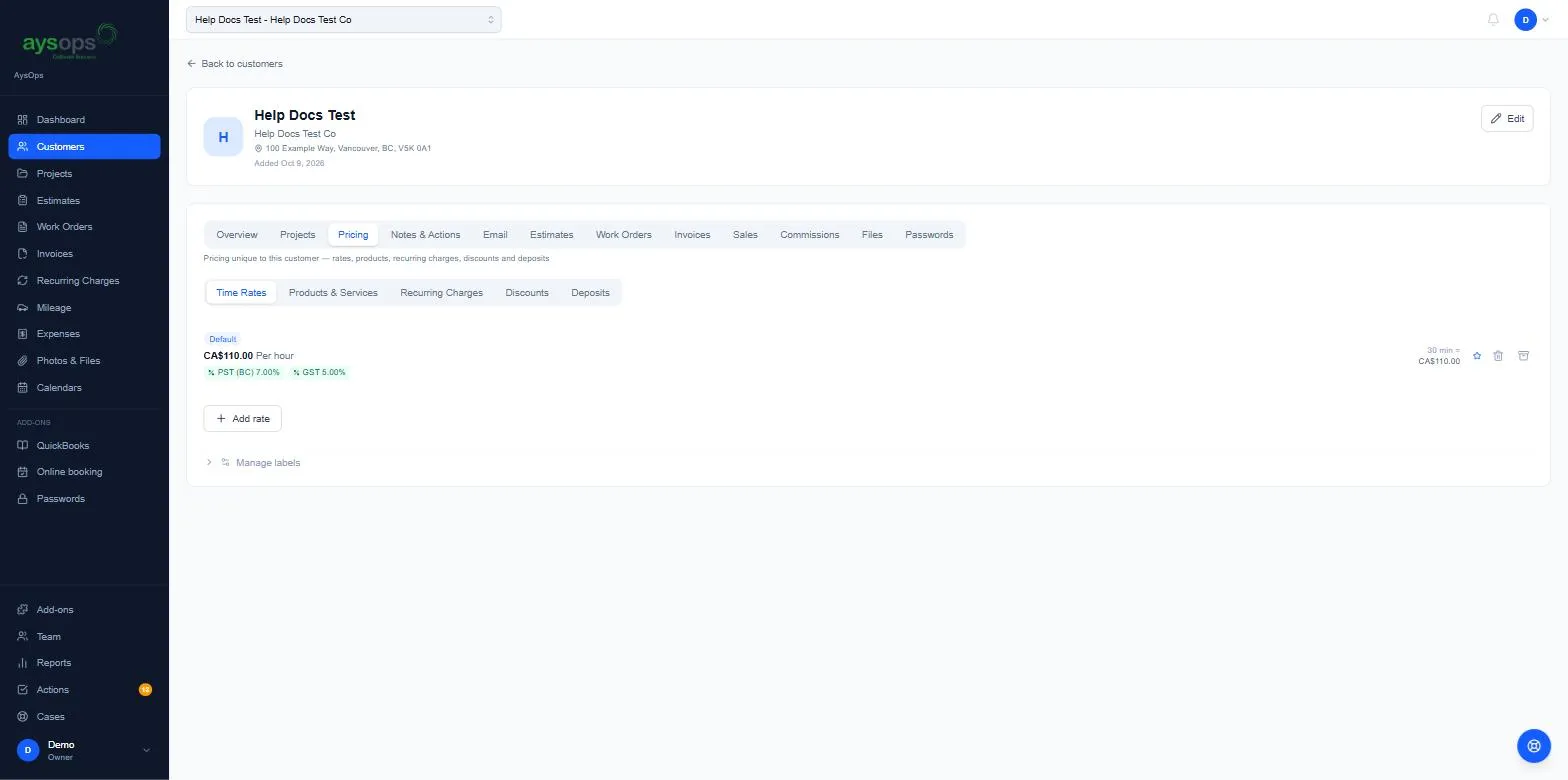
Once a price has been used on a document it can’t be deleted, only archived, so your billing history stays complete.