
Sign-in methods: Google, Microsoft and combining logins
What this does
Section titled “What this does”Lets you sign in to the same AysOps account in more than one way (email and password, Google, Microsoft), and bring together two separate AysOps logins you’ve ended up with.
Before you start
Section titled “Before you start”- The Google or Microsoft account you connect can use a different email address from your AysOps login.
- Combining logins doesn’t merge companies: each company keeps its own subscription and billing, and no data is moved between companies.
- Click your initial or photo at the top right → Settings, then More → Security. The Sign-in methods box lists the ways you can sign in now (for example Email & password with your address).
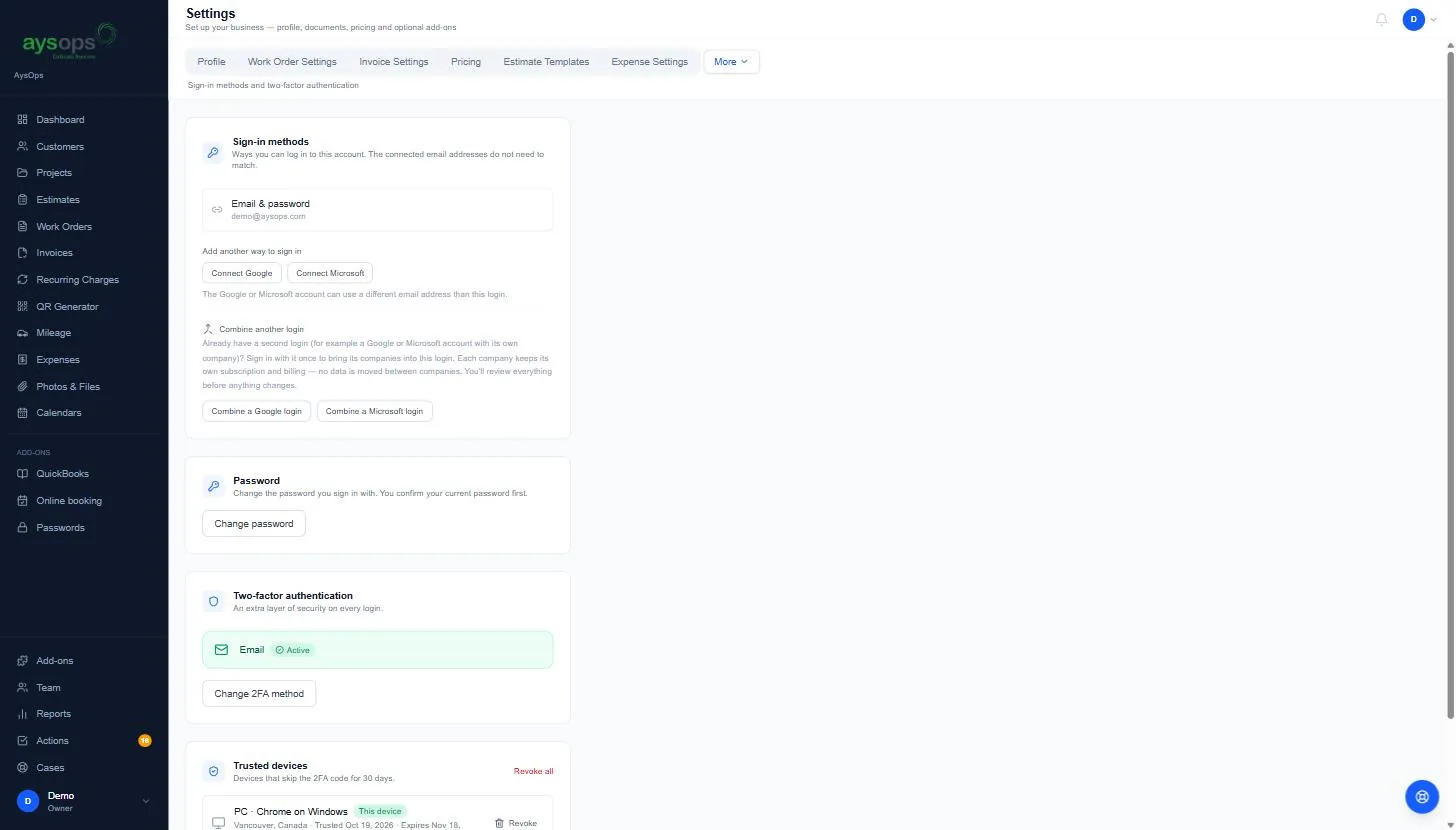
Add Google or Microsoft as another way to sign in
Section titled “Add Google or Microsoft as another way to sign in”- Under Add another way to sign in, click Connect Google or Connect Microsoft.
- Sign in to Google or Microsoft and approve. You’re brought back to the Security page, where the new method is listed.
- From now on you can use Continue with Google or Continue with Microsoft on the sign-in page.
Combine another login
Section titled “Combine another login”Use this if you have a second AysOps login, for example a Google or Microsoft login that created its own company, and you want everything under one login. 5. Under Combine another login, click Combine a Google login or Combine a Microsoft login. 6. Sign in with that other login once. AysOps shows you what will change; review everything before anything changes. 7. If that other login has two-step sign-in turned on, enter its code first: click Send code to its email address and type the code from that inbox, or type the code from the authenticator app that login uses. Then click Confirm code. 8. Click Combine logins. The other login’s email address gets a message saying it was combined.
Remove a way to sign in
Section titled “Remove a way to sign in”When you have more than one sign-in method, each one in the Sign-in methods box has a Disconnect link. Click Disconnect, then Confirm (or Cancel to keep it). You can’t remove your only sign-in method, so the link doesn’t show when there’s just one.
Connecting, removing and combining are protected: if you haven’t entered your password recently, a Confirm it’s you window asks for it first, then AysOps carries on.
What happens next
Section titled “What happens next”- After connecting, all your sign-in methods open the same account.
- After combining, the other login’s companies appear in your company list, and you can switch between them. See Switch between companies.
If something goes wrong
Section titled “If something goes wrong”- “Verify with your two-factor method first, then you can change your sign-in methods” (or “Please finish two-step sign-in first, then start combining logins again”): complete two-step sign-in for this visit (reload the page to be asked), then try again. See Two-step sign-in.
- Google/Microsoft signs me in to the wrong account: sign out of that Google or Microsoft account in your browser, then try again with the right one.
- “Could not start combining logins”: Google or Microsoft could not be reached for a moment. Wait a few seconds and click Combine again.
- “That code is not right”: the code must come from the OTHER login (its inbox or its authenticator app), not your current one. After 5 wrong codes, send a new one.
- “That code has expired”: codes last 10 minutes. Click Send a new code.
- “This request expired”: the whole combine request lasts 15 minutes. Start again from Combine a Google login or Combine a Microsoft login.
- I combined the wrong login: contact support using Help & feedback.