
Add lines to a work order
What this does
Section titled “What this does”Adds the labour, parts and other charges for the job. They become the lines of the invoice.
Before you start
Section titled “Before you start”- The work order must not be converted yet. Once it’s an invoice, you can’t add lines.
- Each line must be in the work order’s currency. See Currencies.
- Open the work order and click Add line item.
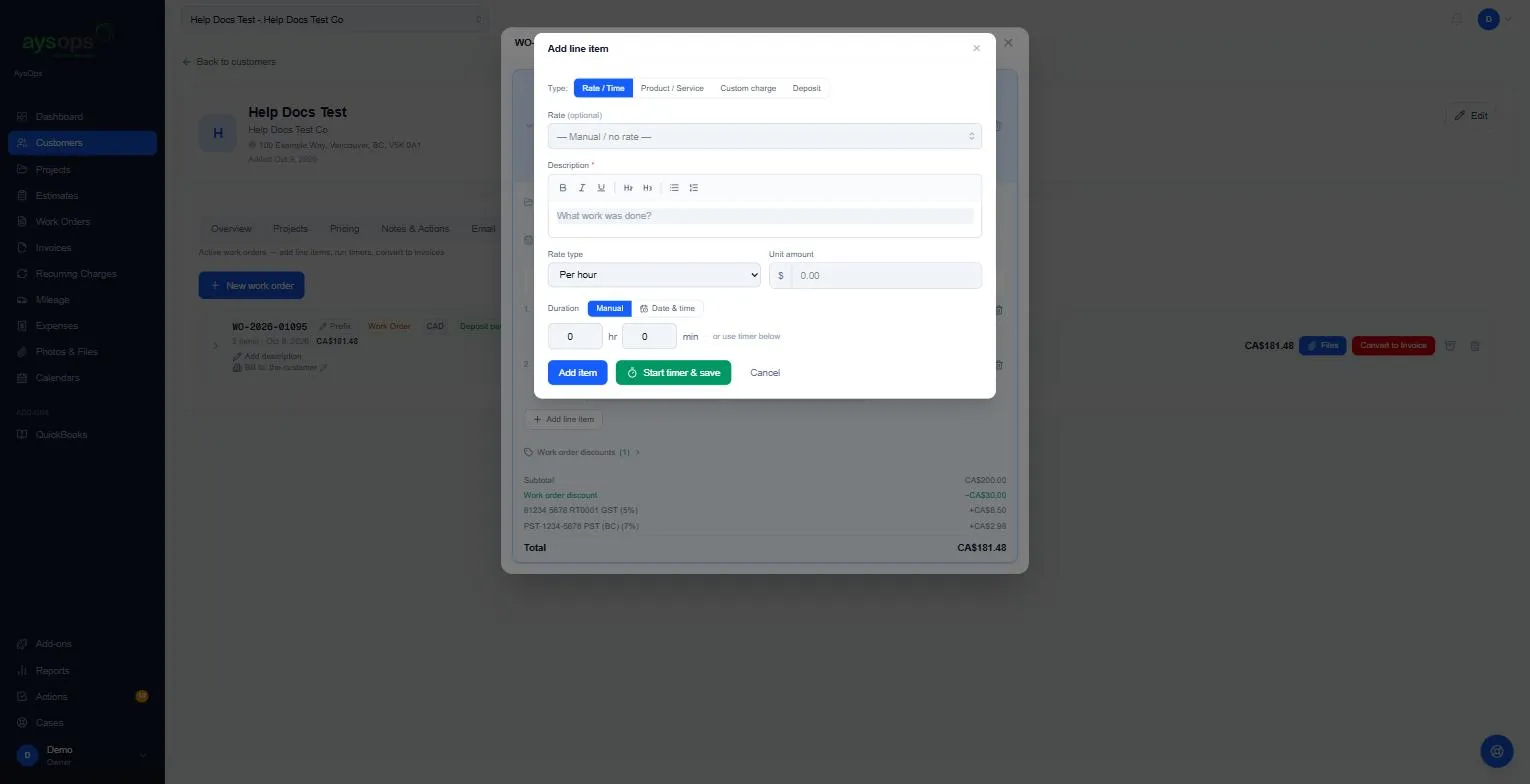
- Choose the Type, fill it in and click Add item. The four types work the same way as on an estimate (see Add lines to an estimate), with these differences:
| Type | On a work order |
|---|---|
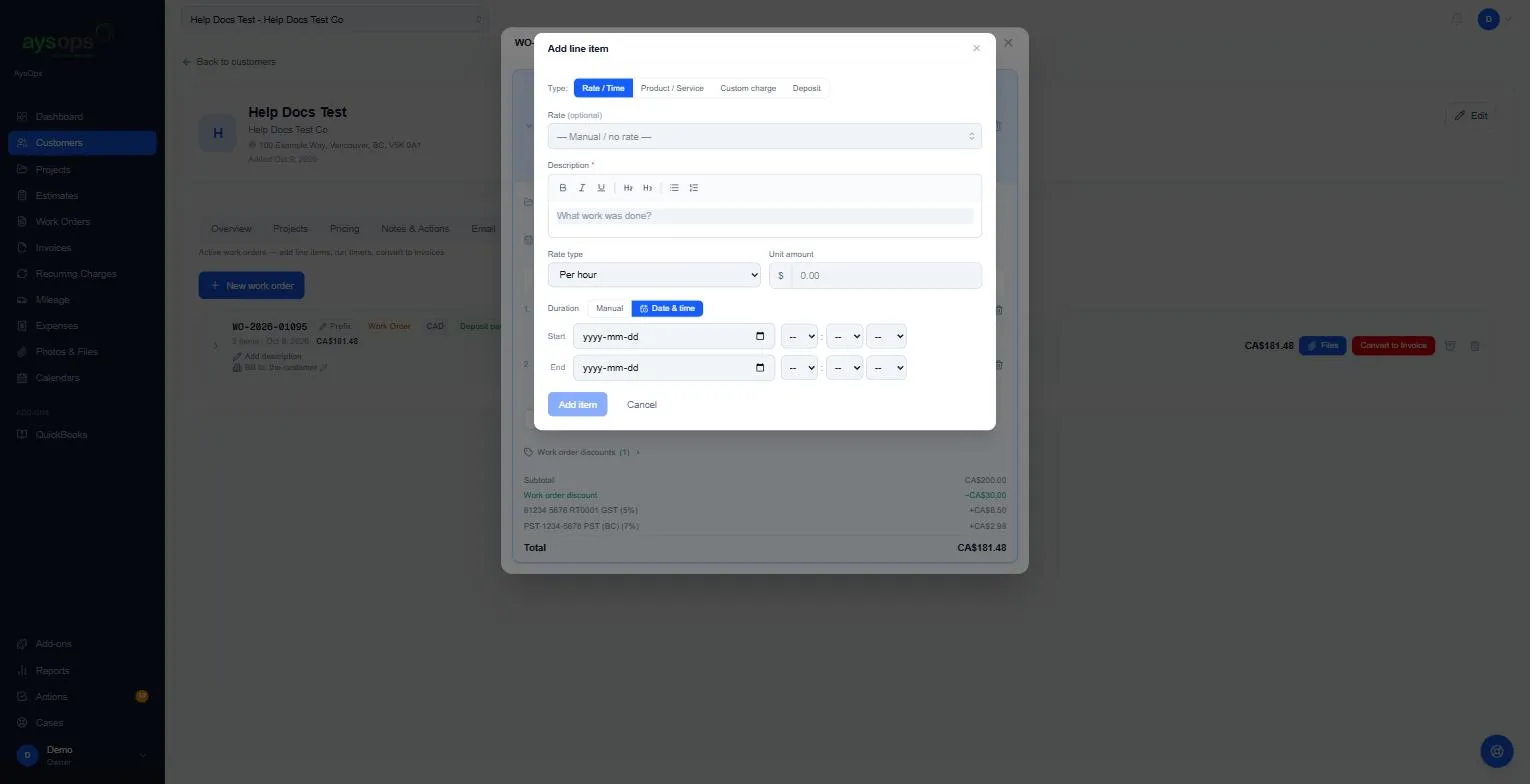
| Rate / Time | Duration is Manual (hr and min) or Date & time (start and end). There’s also Start timer & save. Description is required. With no rate picked (Manual / no rate), the Rate type and Unit amount you type are the line’s price: 2 hr at CA$80.00 Per hour is CA$160.00. Time is rounded up to the rate type’s period, so 1 hr 10 min Per hour also bills 2 hours. Leave Unit amount empty and the line has no price yet. See Track time. |
| Product / Service | Pick the product, set the Quantity. |
| Custom charge | Label and Description are both required. A CA$0.00 price is allowed, for example “Warranty visit, no charge”. |
| Deposit | Asks the customer for money up front. See Collect a deposit. |
Change or remove a line
Section titled “Change or remove a line”- Click the pencil beside a line’s description or quantity to change it.
- Click the gear icon (Discounts, taxes & options) to add a discount to just that line, or change its taxes. Tick Exclude from work order discounts there to keep a line at full price when you discount the whole work order, for example hardware you resell at cost.
- Click the bin icon to remove it.
Bill several time lines as one
Section titled “Bill several time lines as one”When a work order has two or more time lines at the same rate, a tick box appears beside each one (and the tip “Tip: select time items at the same rate to bill them as one merged charge.”).
- Tick the lines you want to combine.
- Click Merge 2 items (the number follows how many you ticked).
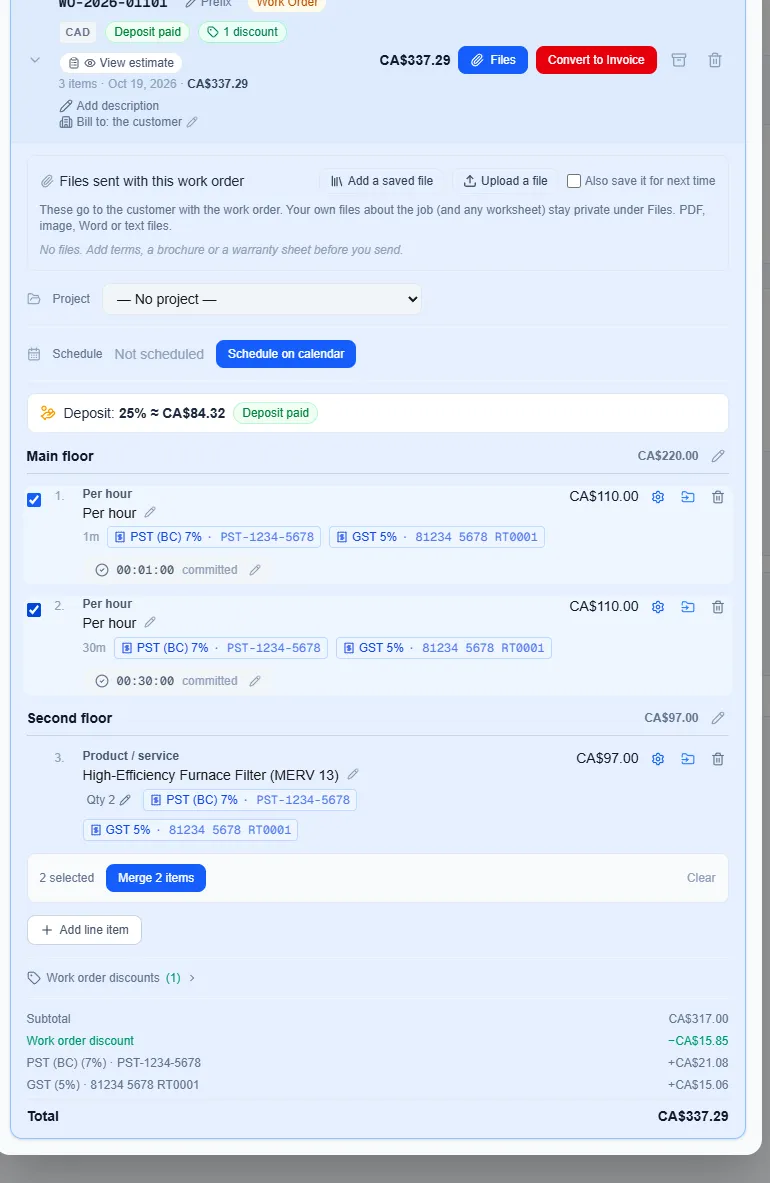
The lines are then shown in one box, Merged · 2 items billed together, each with its own time, and the total time is billed once at the rate, for example 31m raw → 1h billed on a rate that bills whole hours (two separate lines would each have been billed a full hour). To undo it, click Split on the merged line. Use the gear on the merged line to give it a discount.
Lines can only be merged when they:
- use the same rate (not a flat fee) and have the same taxes;
- are in the same section (see Organise lines into sections);
- have no discount of their own;
- have no timer running or paused: stop and commit the time first.
If something doesn’t fit, the bar says so, for example Items must use the same rate and have no discounts applied, or “These items have different taxes. Give them the same taxes before merging.”
Discounts
Section titled “Discounts”Click Work order discounts under the lines to add or remove a discount. See Add a discount.
Mileage and expenses
Section titled “Mileage and expenses”Billable trips and expenses are added from the Mileage and Expenses pages, where you link them to the work order.
What happens next
Section titled “What happens next”The work order’s total updates as you go. When the job is done, convert it. See Convert a work order to an invoice.