
Two-step sign-in (two-factor authentication)
What this does
Section titled “What this does”Adds a second check when you sign in: after your password, you enter a code. Even if someone learns your password, they can’t get in without the code.
Before you start
Section titled “Before you start”You can receive the code in one of two ways:
- Email: a code is sent to your sign-in email address.
- Authenticator App: a code from an app on your phone, such as Google Authenticator, Authy or 1Password. This works even without email access, and is the more secure choice.
Set it up
Section titled “Set it up”- When AysOps asks you to set up two-step sign-in (after signing in), choose Authenticator App
or Email and follow the instructions on screen:
- Authenticator App: scan the code shown with your app, then type the 6-digit code from the app to confirm.
- Email: AysOps emails you a code; type it in to confirm.
- Not ready yet? Click Skip for now — remind me in 7 days.
Sign in with a code
Section titled “Sign in with a code”- After your email and password (or Google/Microsoft), AysOps asks for your code. Type it in.
- On your own computer or phone, tick Trust this device for 30 days so you aren’t asked for a code on that device again for 30 days. Don’t tick it on a shared or public computer.
Change your method or manage trusted devices
Section titled “Change your method or manage trusted devices”- Click your initial or photo at the top right → Settings, then More → Security.
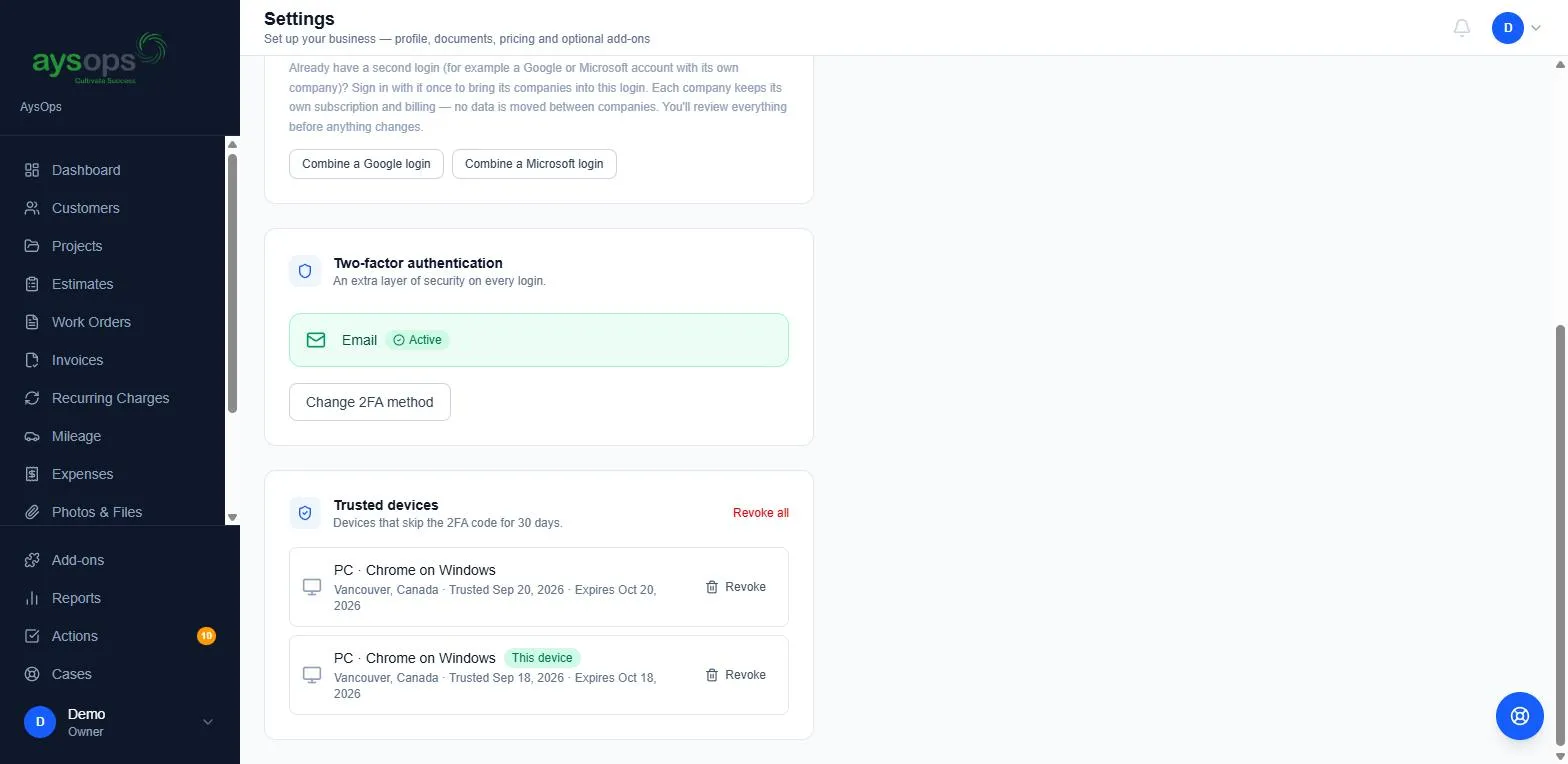
- Under Two-factor authentication you’ll see your current method (for example Email · Active). Click Change 2FA method to switch. You’re asked for your password first, then you pick the new method. Your current method keeps working until the new one is set up, and Cancel and keep takes you back without changing anything.
- Under Trusted devices you’ll see every device that skips the code, with its browser,
approximate location, the date it was trusted and when that expires. This device marks the
one you’re using.
- Click Revoke next to a device to make it ask for a code again. If you revoke the device you’re using, you’re asked for a code straight away.
- Click Revoke all to remove them all, for example if a device was lost.
What happens next
Section titled “What happens next”- Every sign-in asks for a code, except on trusted devices until their 30 days are up.
- Revoking a device takes effect the next time someone signs in on it.
If something goes wrong
Section titled “If something goes wrong”- The email code didn’t arrive: check spam or junk. Codes expire after a short time; ask for a new one.
- I lost my phone with the authenticator app: contact support using Help & feedback from a device you’re already signed in on, or ask your account owner for help.
- I keep being asked for a code: tick Trust this device for 30 days when you sign in. Clearing your browser’s cookies removes the trust.
Related articles
Section titled “Related articles”two-step, two factor, 2FA, MFA, verification code, authenticator, authenticator app, code by email, trusted device, trust this device, revoke device, security