
Work order numbering, prefixes and default notes
What this does
Section titled “What this does”Sets how your work orders (and so your invoices) are numbered, and the notes every new work order starts with. A work order keeps its number when it becomes an invoice.
Before you start
Section titled “Before you start”You need permission to manage settings (owners and admins by default).
- Click your initial or photo → Settings → Work Order Settings (or Settings under Work Orders in the left menu).
Numbering and prefixes
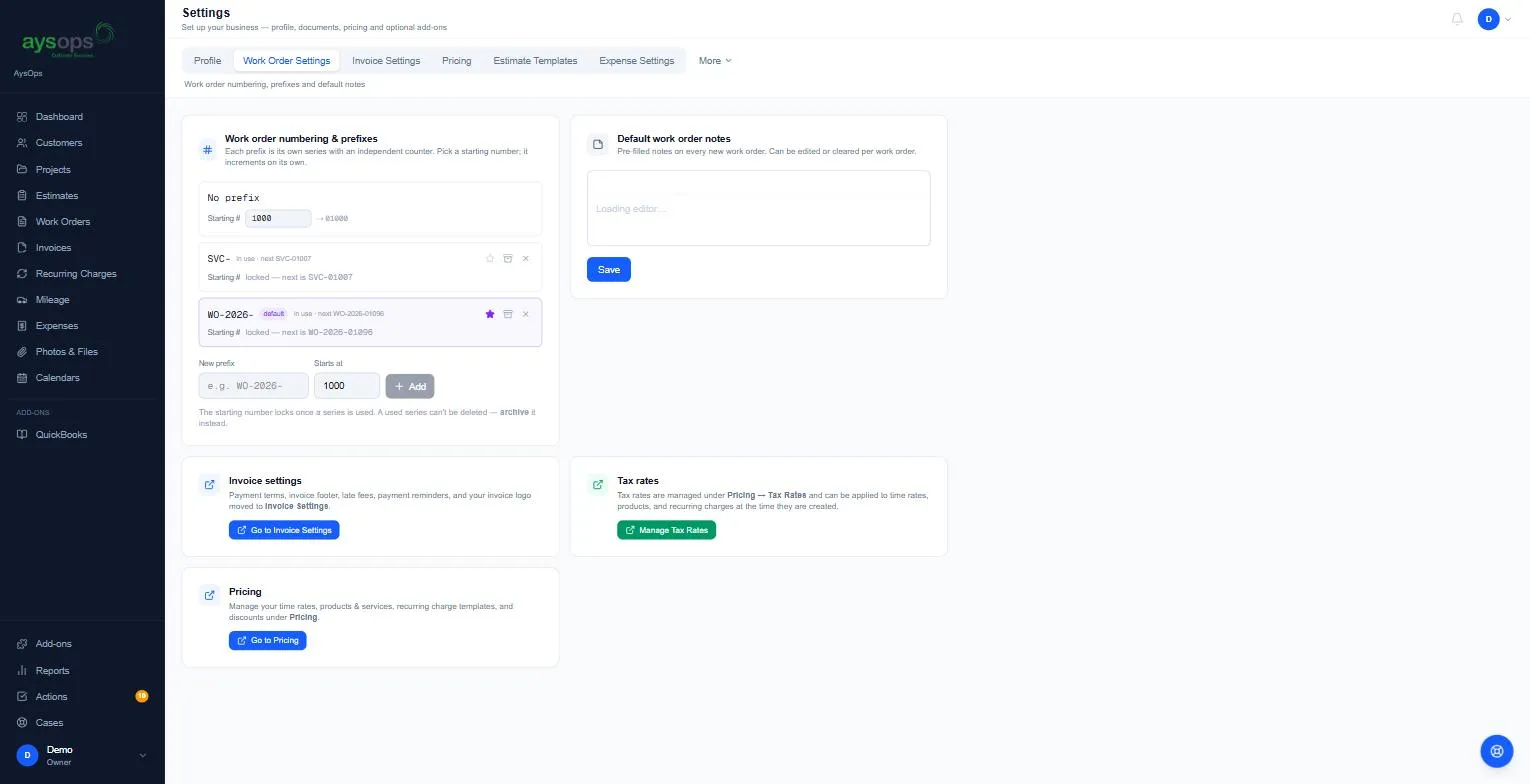
Section titled “Numbering and prefixes”Each prefix (for example WO-2026- or SVC-) is its own series with its own counter. No prefix is a series too.
- The list shows each prefix with in use · next WO-2026-01096, so you can see the next number.
- The star marks your default prefix (the one new work orders start with). Click another prefix’s star to make it the default.
- Add a prefix: type it under New prefix, set Starts at (for example 1000), and click Add.
- The starting number locks once a series is used. A used series can’t be deleted: use the archive icon instead.
Default work order notes
Section titled “Default work order notes”Type the notes every new work order should start with (for example “Payment is due within 30 days. We accept card, e-transfer and cheque.”) and click Save. You can change or clear them on each work order.
What happens next
Section titled “What happens next”New work orders use your default prefix (you can pick another when creating one). Payment terms, the invoice footer, reminders and your logo are in Invoice Settings. See Invoice settings.
Related articles
Section titled “Related articles”work order number, invoice number, numbering, prefix, WO-, SVC-, starting number, next number, default notes, work order settings, series