
Booking rules: notice, limits, cancellation and travel
What this does
Section titled “What this does”Sets the rules for your online booking page: how much notice you need, how far ahead people can book, your cancellation policy, how far you’ll travel, and how many bookings one person can make. The rules apply to every service.
Before you start
Section titled “Before you start”Only owners and administrators can change these. Online Booking must be on.
- Click Online booking in the left menu, then Booking settings.
- Change a section, then click that section’s own Save. Each section saves separately.
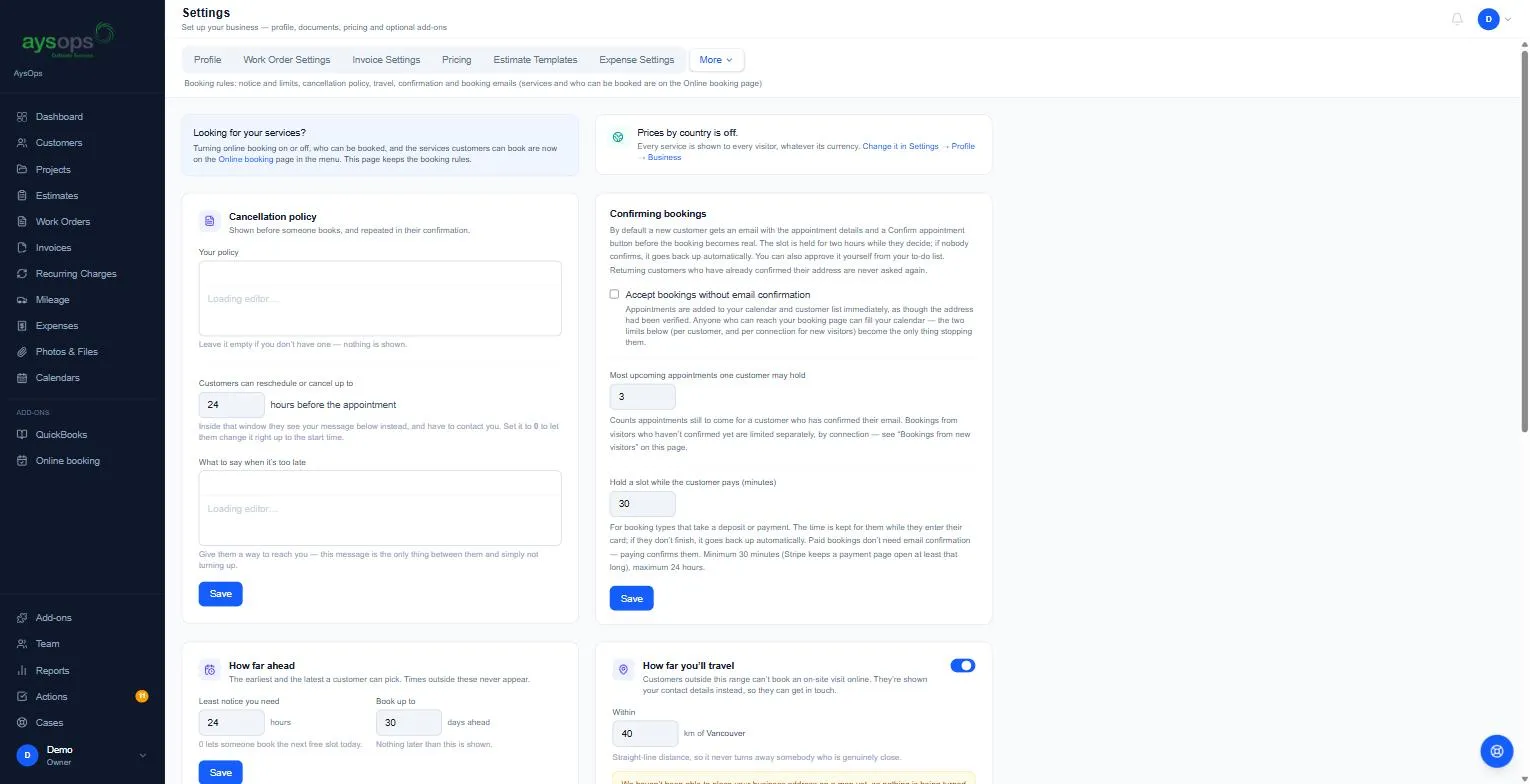
The sections
Section titled “The sections”Cancellation policy
Section titled “Cancellation policy”- Your policy: shown to customers before they book and repeated in their confirmation. Leave it empty if you don’t have one.
- Customers can reschedule or cancel up to [24] hours before the appointment. Inside that window they can’t change it themselves. Set 0 to let them change it right up to the start.
- What to say when it’s too late: shown instead, inside that window. Include how to reach you.
Confirming bookings
Section titled “Confirming bookings”By default a new customer gets an email with a Confirm appointment button. The time is held for two hours; if nobody confirms, it goes back up for anyone to book. You can also approve it yourself from your to-do list. Customers who have confirmed before are never asked again.
- Accept bookings without email confirmation: books straight away without the email. Anyone who can reach your page could then fill your calendar, so leave this off unless you need it.
- Most upcoming appointments one customer may hold: starts at 3.
- Hold a slot while the customer pays (minutes): for paid services, how long the time is kept while they enter their card. 30 minutes to 24 hours; starts at 30.
How far ahead
Section titled “How far ahead”- Least notice you need: starts at 24 hours. 0 lets someone book the next free slot today.
- Book up to: starts at 30 days ahead. Nothing later is shown.
How far you’ll travel
Section titled “How far you’ll travel”For on-site services. With the switch on, customers further than Within [40] km of your business address can’t book online; they’re shown your contact details instead. It’s a straight- line distance.
How many bookings one customer can reserve
Section titled “How many bookings one customer can reserve”Slots per booking starts at 1 (one slot, one appointment). Raise it to let someone pick several times in one go.
Travel and turnaround
Section titled “Travel and turnaround”Time kept free after an appointment so nothing is booked while you’re still travelling or writing up:
- After an on-site visit: driving back. Usually needs a real number.
- After a remote appointment: write-up time. 0 is fine.
Each team member can set their own in their profile.
Bookings from new visitors
Section titled “Bookings from new visitors”Most unconfirmed bookings from one connection starts at 2. Until a visitor confirms their email, their bookings are counted by the internet connection they used. Raise it if many customers book from one shared office connection.
Who booking emails come from
Section titled “Who booking emails come from”Booking confirmations and cancellations come from AysOps on your behalf until you connect your own mailbox. See Send email from your own address. Notices to your team always come from AysOps.
If something goes wrong
Section titled “If something goes wrong”- “We haven’t been able to place your business address on a map yet”: the travel limit can’t work until your business address is found on a map. Check it under Settings → Profile. Until then, nobody is turned away.
- Customers can’t see times for tomorrow: check Least notice you need.