
Add a vehicle (and read the odometer from a photo)
What this does
Section titled “What this does”Registers a vehicle so you can log trips in it. Adding your first vehicle turns on the Mileage section in the left menu.
Before you start
Section titled “Before you start”You need permission to manage settings (owners and admins by default).
- Click your initial or photo → Settings → More → Vehicles. (On the Mileage page, Add vehicle takes you here too.)
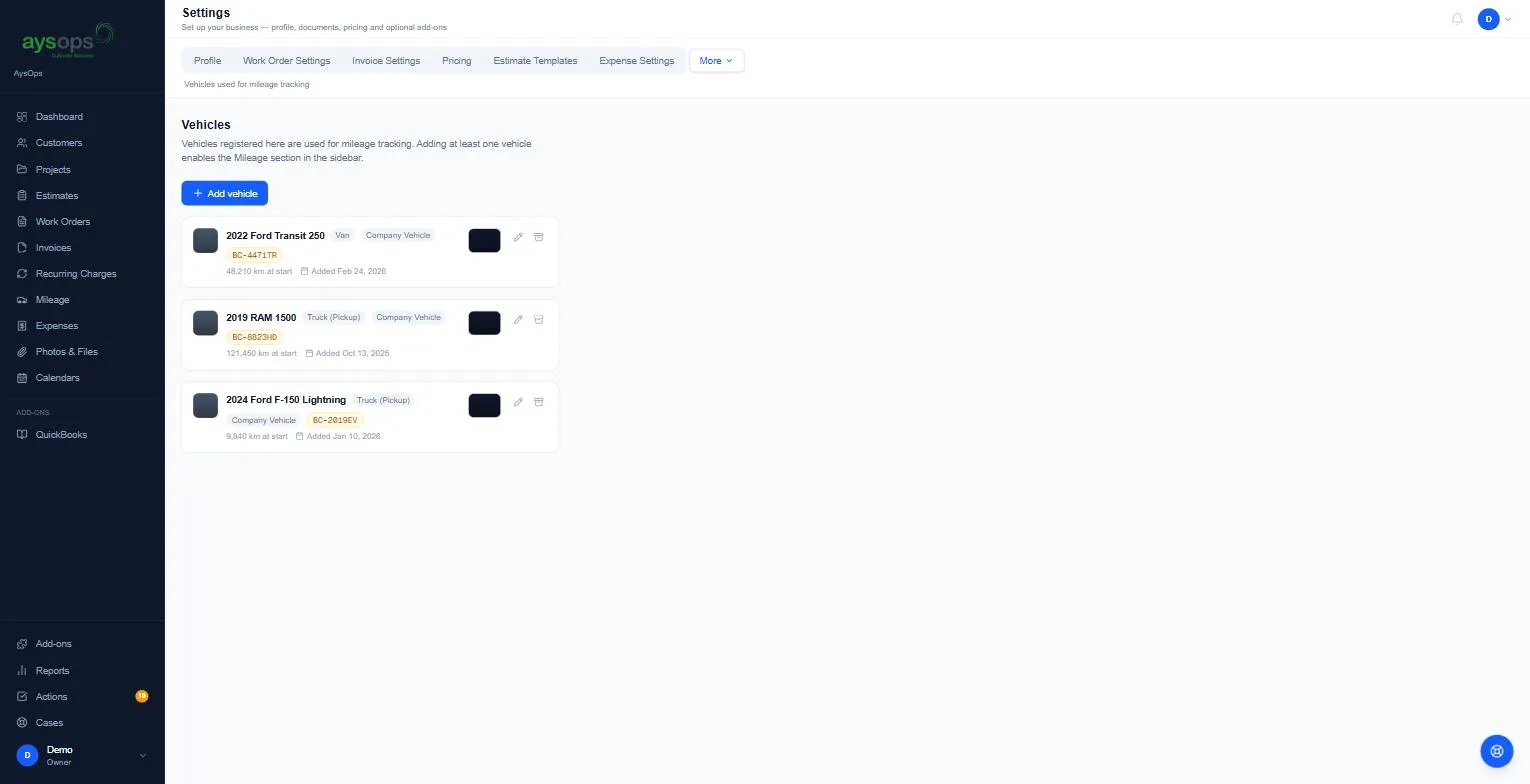
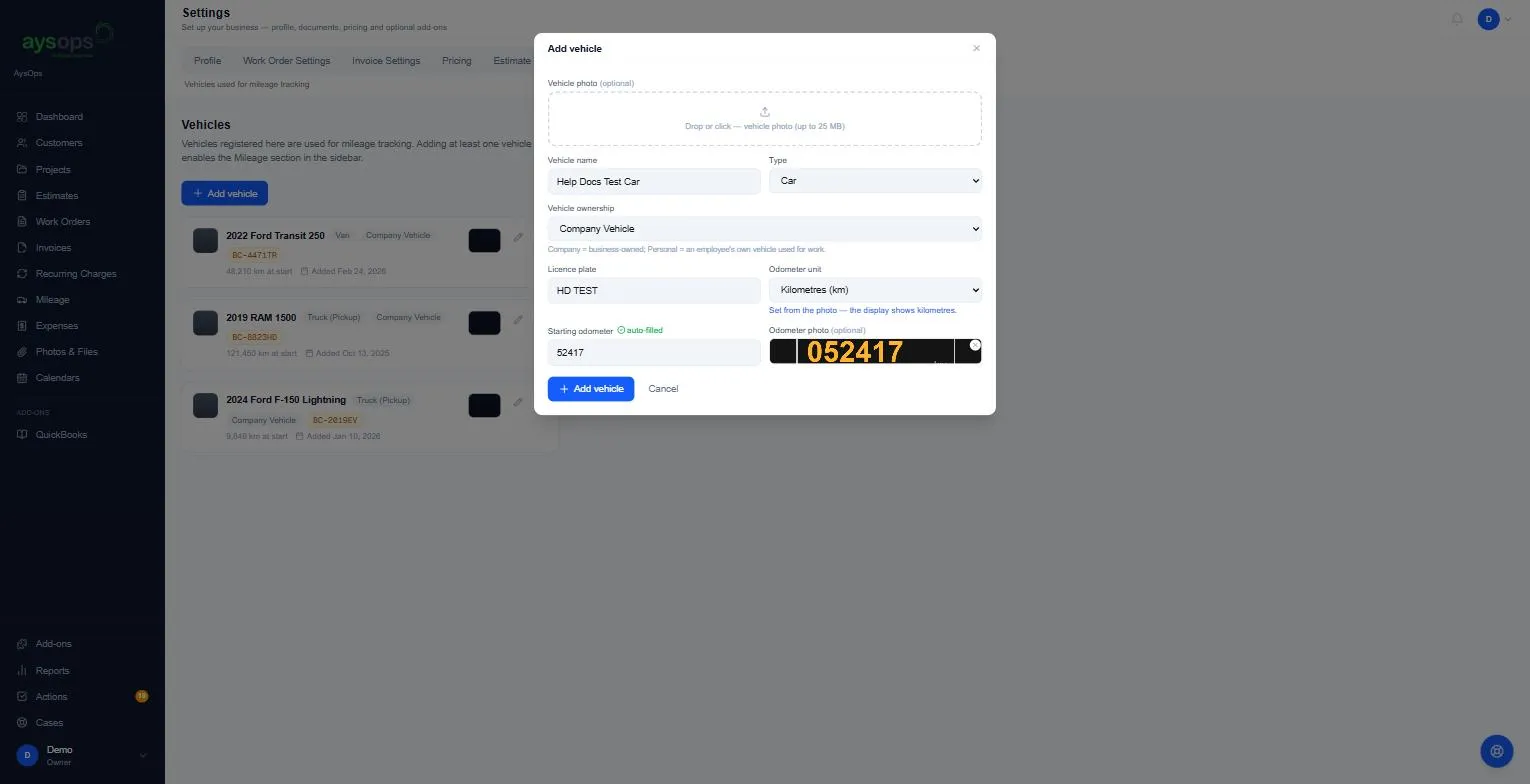
- Click Add vehicle and fill in:
- Vehicle photo (optional).
- Vehicle name: for example “2019 Ford F-150”.
- Type: Car, Truck (Pickup), SUV, Van, Motorcycle, Commercial Truck or Other.
- Vehicle ownership: Company Vehicle (owned by the business) or Personal Vehicle (an employee’s own vehicle used for work).
- Licence plate.
- Odometer unit: Kilometres (km) or Miles (mi).
- Starting odometer: the reading today.
- Odometer photo (optional): drop a photo of the dashboard. With AysOps AI, the reading fills in Starting odometer for you (marked auto-filled) and sets the unit (for example “Set from the photo, the display shows kilometres”). Check the number.
- Click Add vehicle.
What happens next
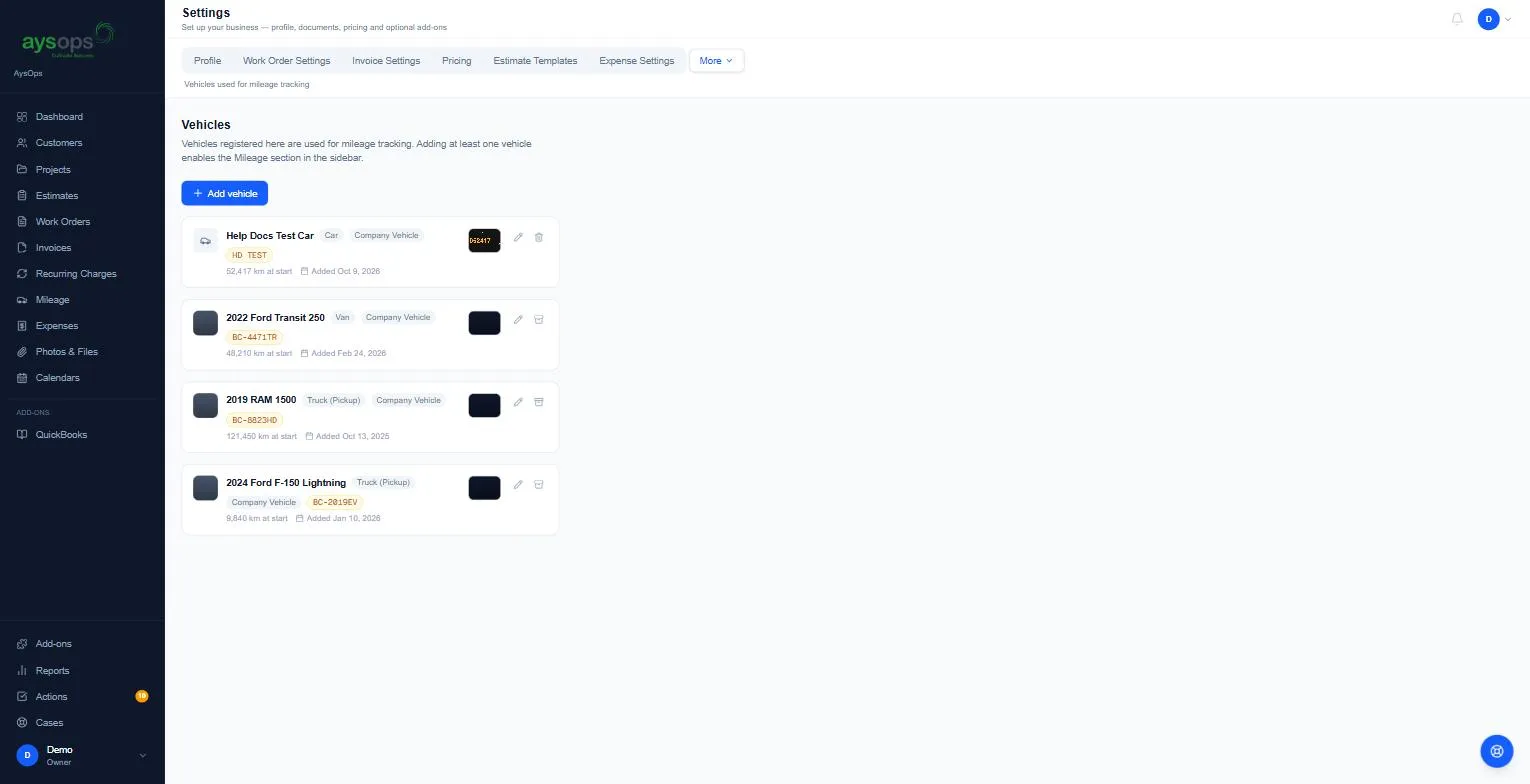
Section titled “What happens next”The vehicle appears in the list with its type, ownership, plate, starting reading and the date added. Use the pencil to edit it, and the photo beside it (View odometer photo) to see the odometer picture. A vehicle with trips can be archived (box icon); one with no trips can be deleted (bin icon, then Yes under Delete?).
Archived vehicles are listed under N archived below your vehicles. Click it, then Restore beside a vehicle to bring it back into the list and the mileage form, with its trips and costs as they were.
Related articles
Section titled “Related articles”vehicle, add vehicle, car, truck, van, licence plate, odometer, starting odometer, odometer photo, kilometres, miles, company vehicle, personal vehicle, archive vehicle