
Add a contact or another address to a customer
What this does
Section titled “What this does”A contact is a person at the customer: the office manager, the accounts person, the site lead. The billing contact is who invoices are sent to by default. A customer can also have several addresses (office, worksite, mailing…).
Before you start
Section titled “Before you start”You need permission to manage customers.
Add a contact
Section titled “Add a contact”- Open the customer. On the Overview tab, under Contacts, click Add Contact (or Add another contact if there’s already one).
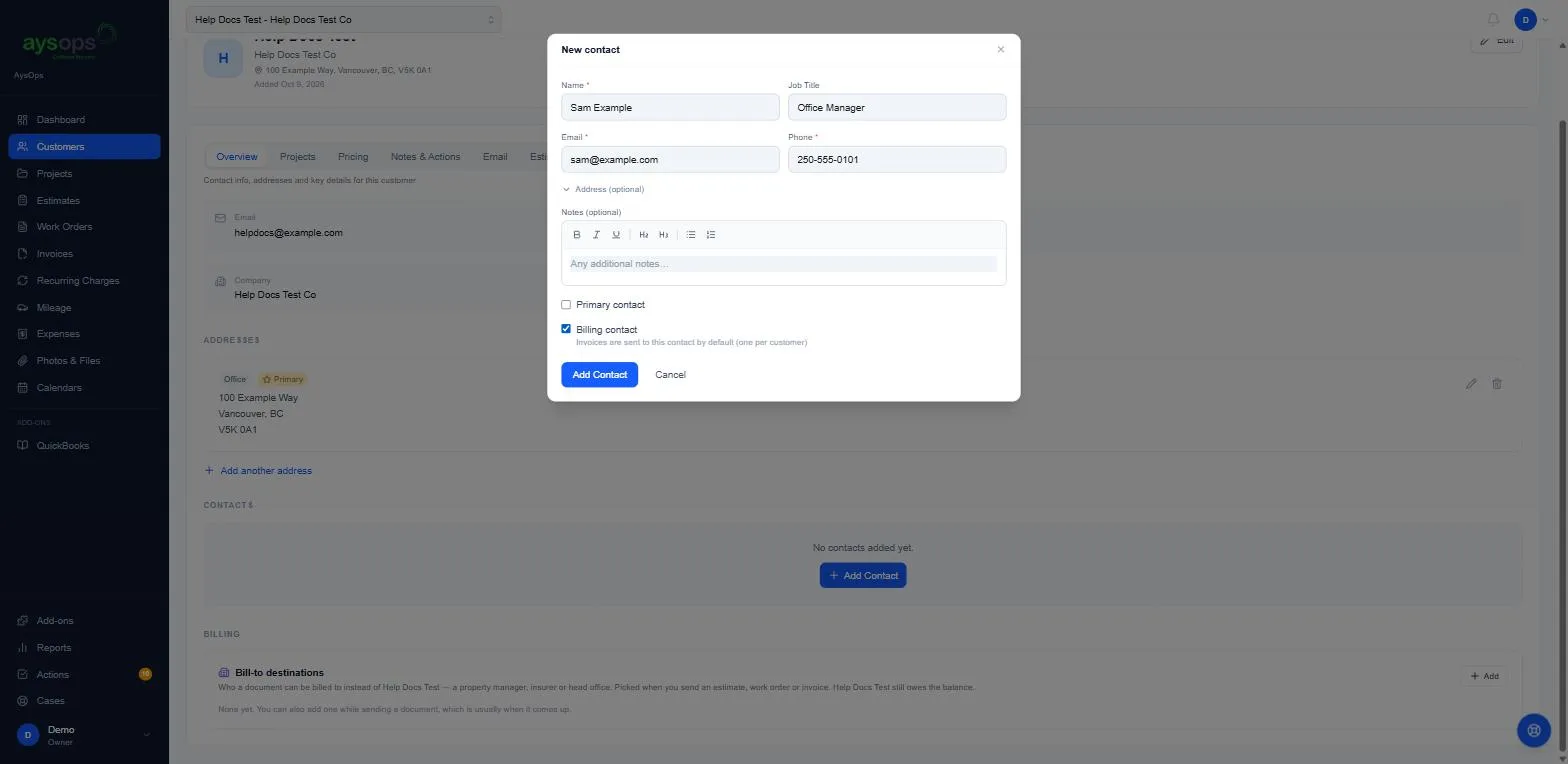
- Fill in:
- Name (required) and Job Title (for example “Office Manager”).
- Email (required) and Phone (required).
- Address (optional), and Notes (optional).
- Tick the roles that apply:
- Primary contact: the main person you deal with.
- Billing contact: “Invoices are sent to this contact by default (one per customer).”
- Click Add Contact.
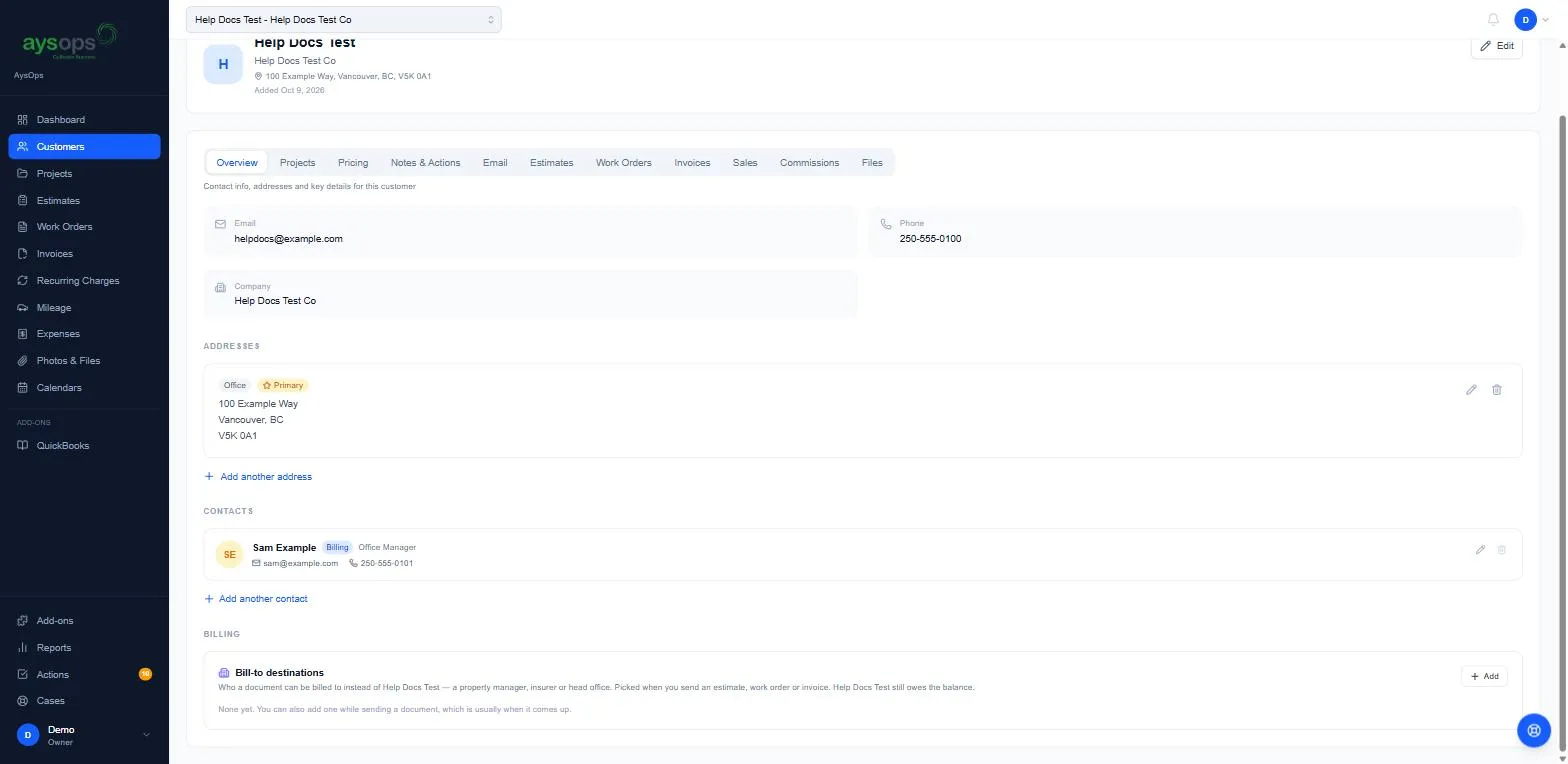
The contact appears in the list, with a badge such as Billing, their job title, email and phone. Use the pencil icon to edit a contact.
Add another address
Section titled “Add another address”- On the Overview tab, under Addresses, click Add address (Add another address if the customer already has one). The Add address window opens. Choose the Type (Billing, Mailing, Office, Worksite or Other), add an optional Label (for example “Head Office”), fill in the address, and click Save address.
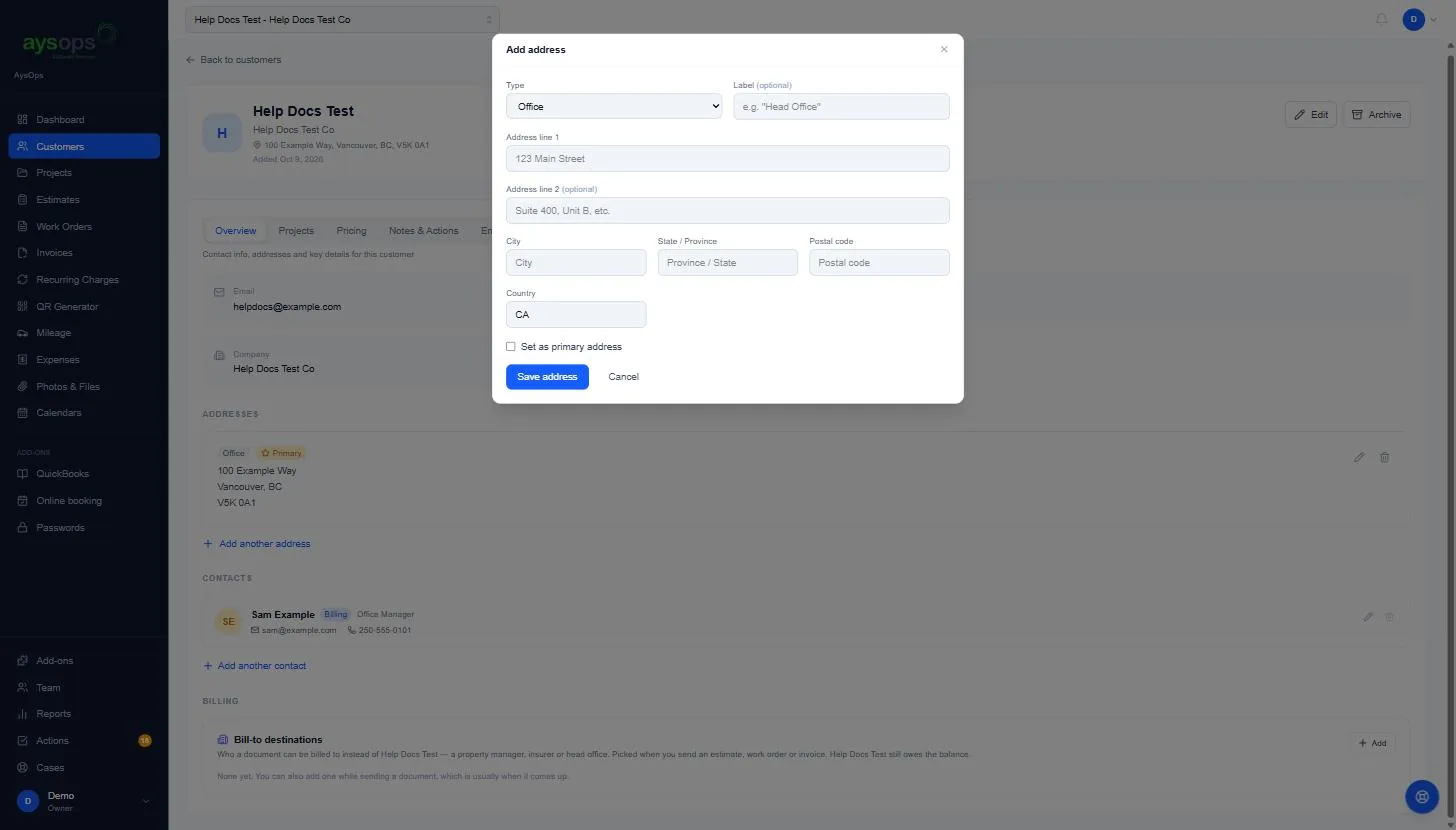 6. Use the pencil icon to edit an address and the bin icon to remove one. The first address you
add becomes the Primary one; tick Set as primary address on another to change it.
6. Use the pencil icon to edit an address and the bin icon to remove one. The first address you
add becomes the Primary one; tick Set as primary address on another to change it.
What happens next
Section titled “What happens next”“Added contact” is recorded in the customer’s Notes & Actions history. New invoices go to the billing contact unless you choose otherwise when sending.
If something goes wrong
Section titled “If something goes wrong”- I can only tick Billing contact on one person: a customer has one billing contact. Tick it on the new person to move it.
- The invoice should go to a different company (a property manager, insurer or head office): use a bill-to destination instead of a contact.
Related articles
Section titled “Related articles”contact, add contact, contact person, billing contact, primary contact, job title, second address, another address, worksite address