Add an expense
What this does
Section titled “What this does”Records something your business paid for: parts, fuel, software, insurance. You can attach the receipt, record the tax you paid (so it can be netted against the tax you collect), and link a job cost to the customer, project or work order it was for, so you can see what each job really cost.
Before you start
Section titled “Before you start”- You need permission to enter expenses (everyone except view-only members by default). Staff and Limited members see only their own expenses.
- Set up your categories and vendors first if you like. You can also add a vendor while entering an expense. See Expense settings.
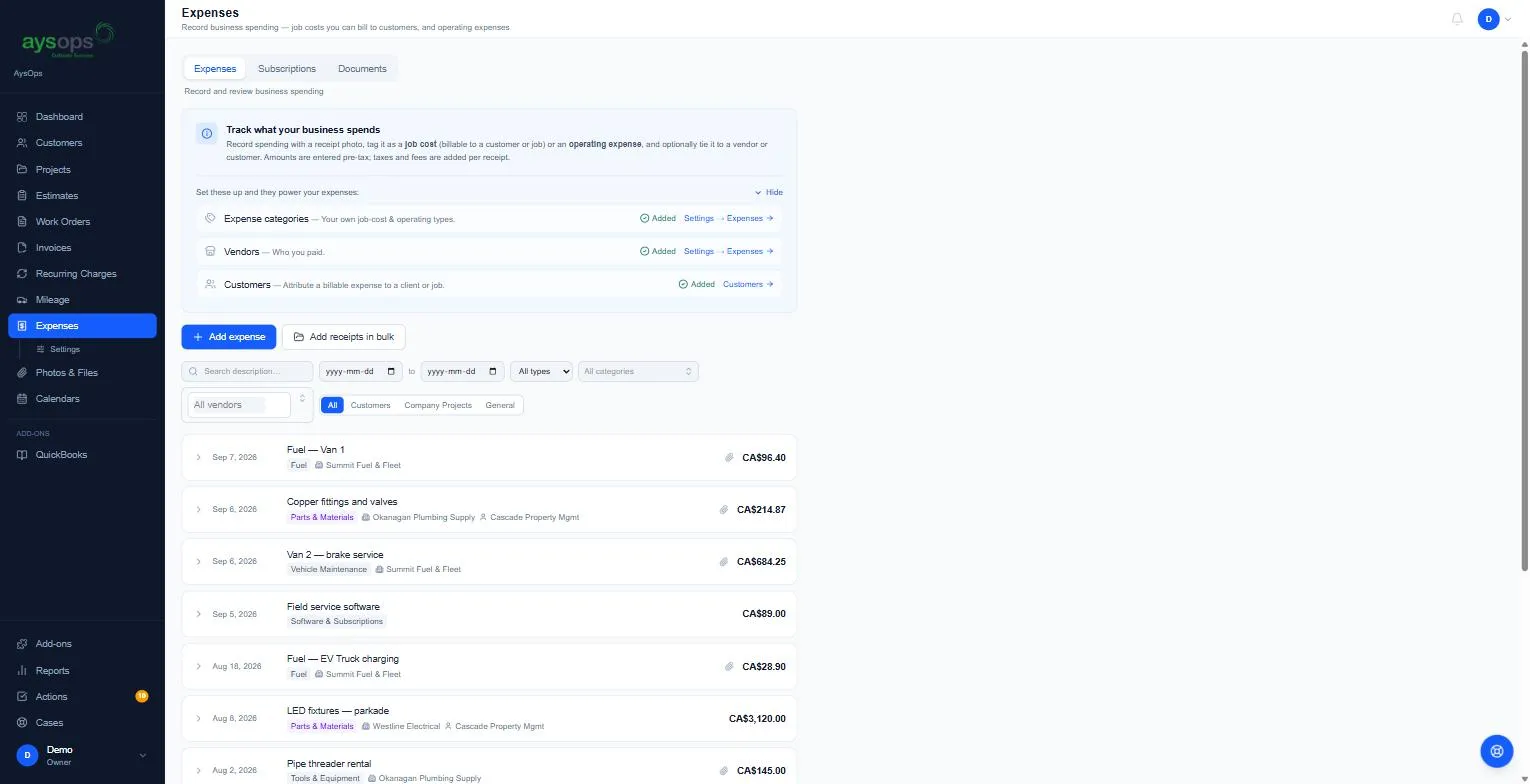
- Click Expenses in the left menu, then Add expense.
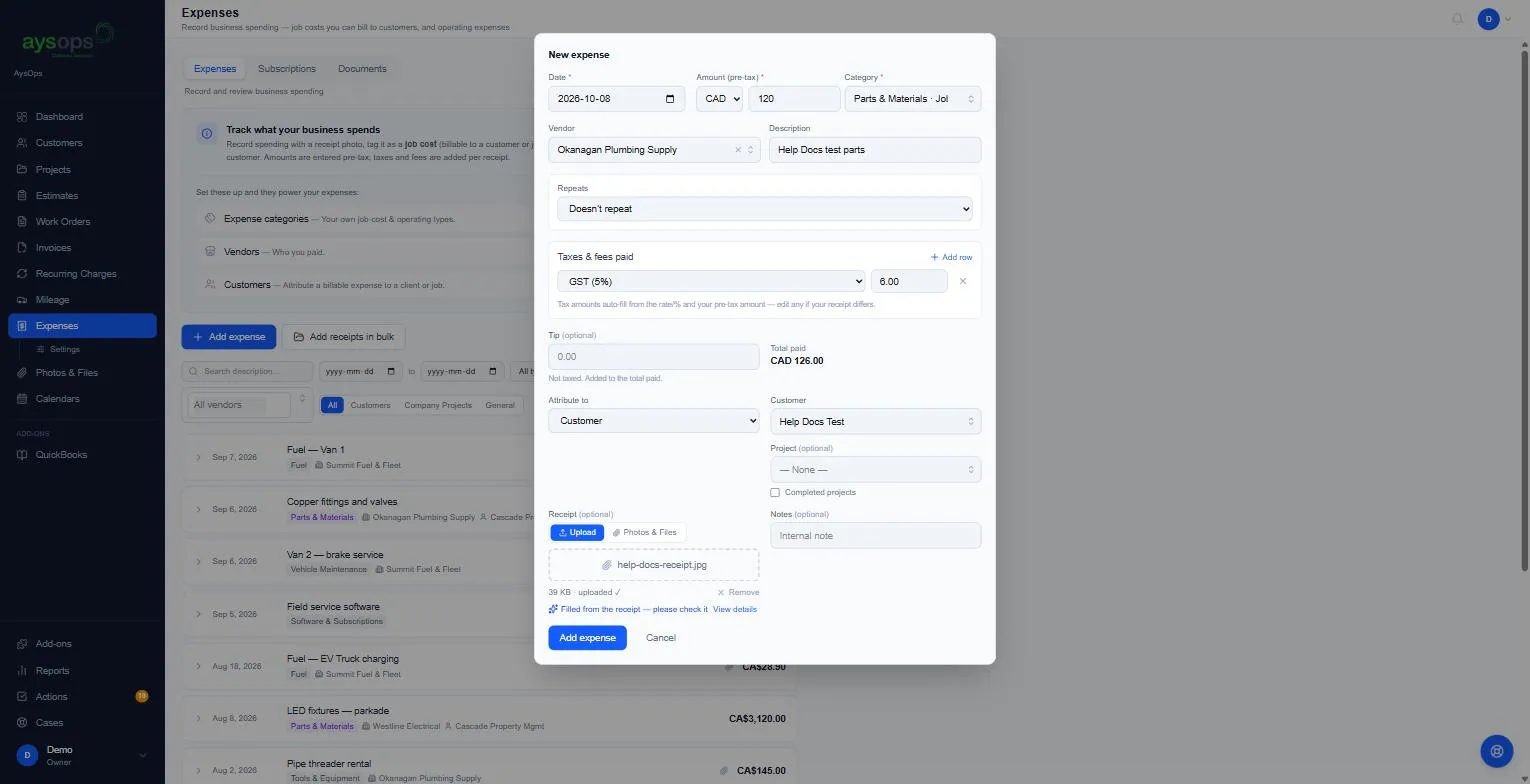
- Fill in New expense:
- Date (required).
- Amount (pre-tax) (required) and its currency. Enter the amount before tax.
- Category (required). Each one is marked Job cost (for a customer’s job) or Operating (running the business).
- Vendor: who you paid. Pick one, or + Add new vendor…. If you start typing a name that is not in your list yet, + Add new vendor… stays at the bottom of the list so you can add it.
- Description: for example “Printer ink”.
- Repeats: leave Doesn’t repeat, or choose how often it recurs (for software, insurance, rent). See Expense subscriptions.
- Taxes & fees paid: click Add row and pick a tax (for example GST (5%)). The amount fills itself in from your pre-tax amount; change it if your receipt differs. Choose Custom… for a one-off fee.
- Tip (optional): not taxed, added to the total paid.
- Attribute to: General expense, Customer, Company project or Work order. Choosing one shows a box to pick which (and, for a customer, an optional Project). The project list shows open projects only; tick Completed projects to pick a finished one, and narrow it with the Completed between dates.
- Receipt (optional): Upload a photo or PDF, or pick one already in Photos & Files. Picking from Photos & Files needs permission to view files, and only lists files that aren’t already the receipt for someone else’s expense. Without that permission the picker shows no files; uploading still works. If AysOps AI is on, it reads the receipt for you. See Scan a receipt with AI.
- Notes (optional): for you only.
- Check Total paid and click Add expense.
On a phone, the search box stays at the top and the other filters fold behind Filters: tap Show to open them.
What happens next
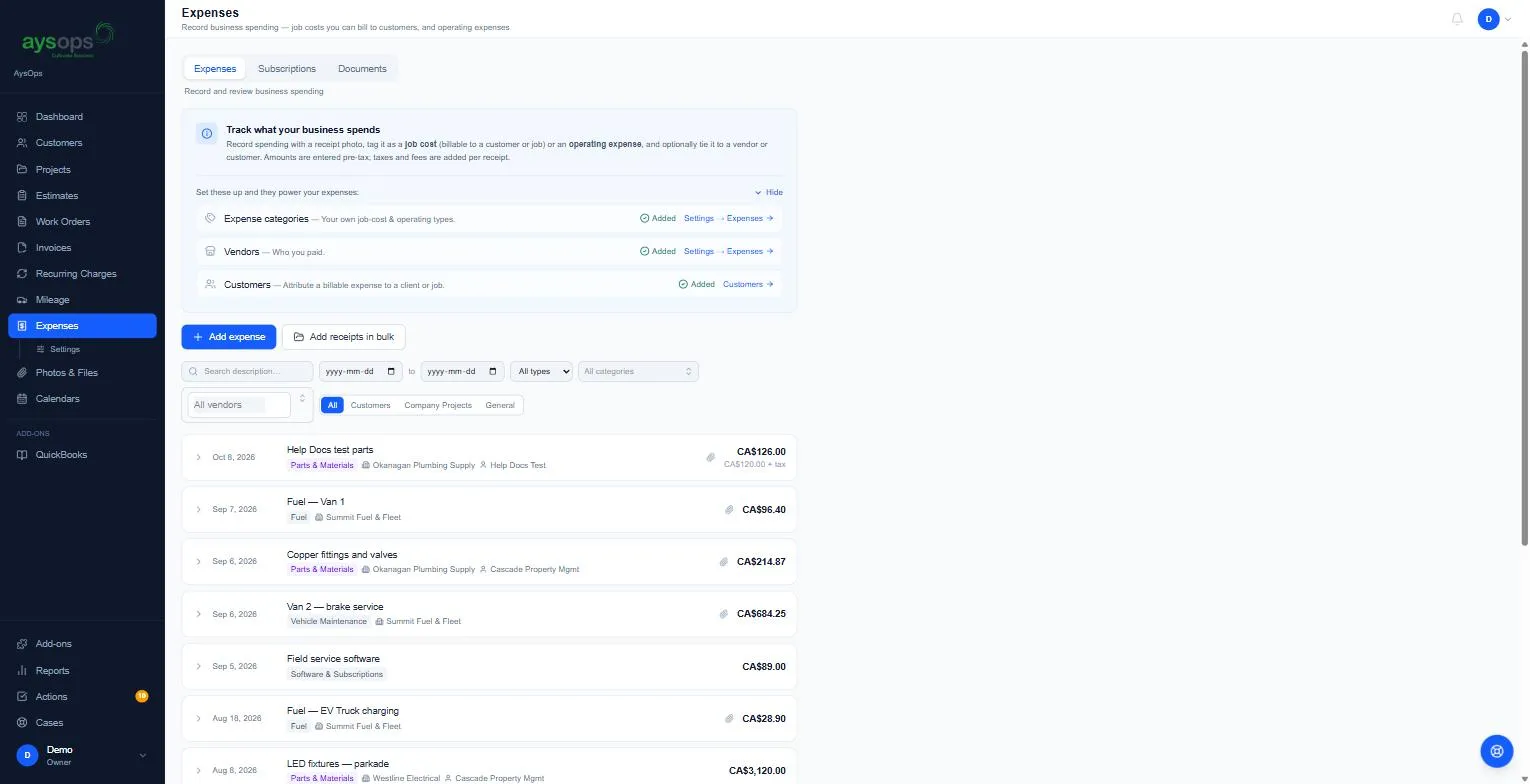
Section titled “What happens next”The expense appears at the top of the list with its category, vendor and customer, the total and “CA$120.00 + tax”, and a paperclip if it has a receipt.
Click it to see the amounts and taxes, View receipt, a link to the customer (for example View Help Docs Test →), Edit and Delete. Delete asks once more: click Confirm delete (or Cancel).
Charging the customer for it
Section titled “Charging the customer for it”Linking an expense to a customer or work order doesn’t add it to their invoice: it shows what the job cost you. To bill the customer for the parts, add a line to their work order (see Add lines to a work order).
Find expenses
Section titled “Find expenses”Use the search box, the date range, All types (Job costs / Operating), categories, vendors, and All / Customers / Company Projects / General. Type in the search box and press Enter to search; the other filters apply as soon as you pick them.