
Your profile, photo and work contact
What this does
Section titled “What this does”Sets how you appear in AysOps and to customers: your name, your photo, the work email and phone shown on documents, and a short introduction for your public booking page. This is your personal profile. Your business’s name, address and currency are on the Business tab (see Business profile).
Before you start
Section titled “Before you start”Everyone has their own personal profile and can change it.
- Click your initial or photo at the top right, then Settings. You’ll land on Settings → Profile, on the Personal tab.
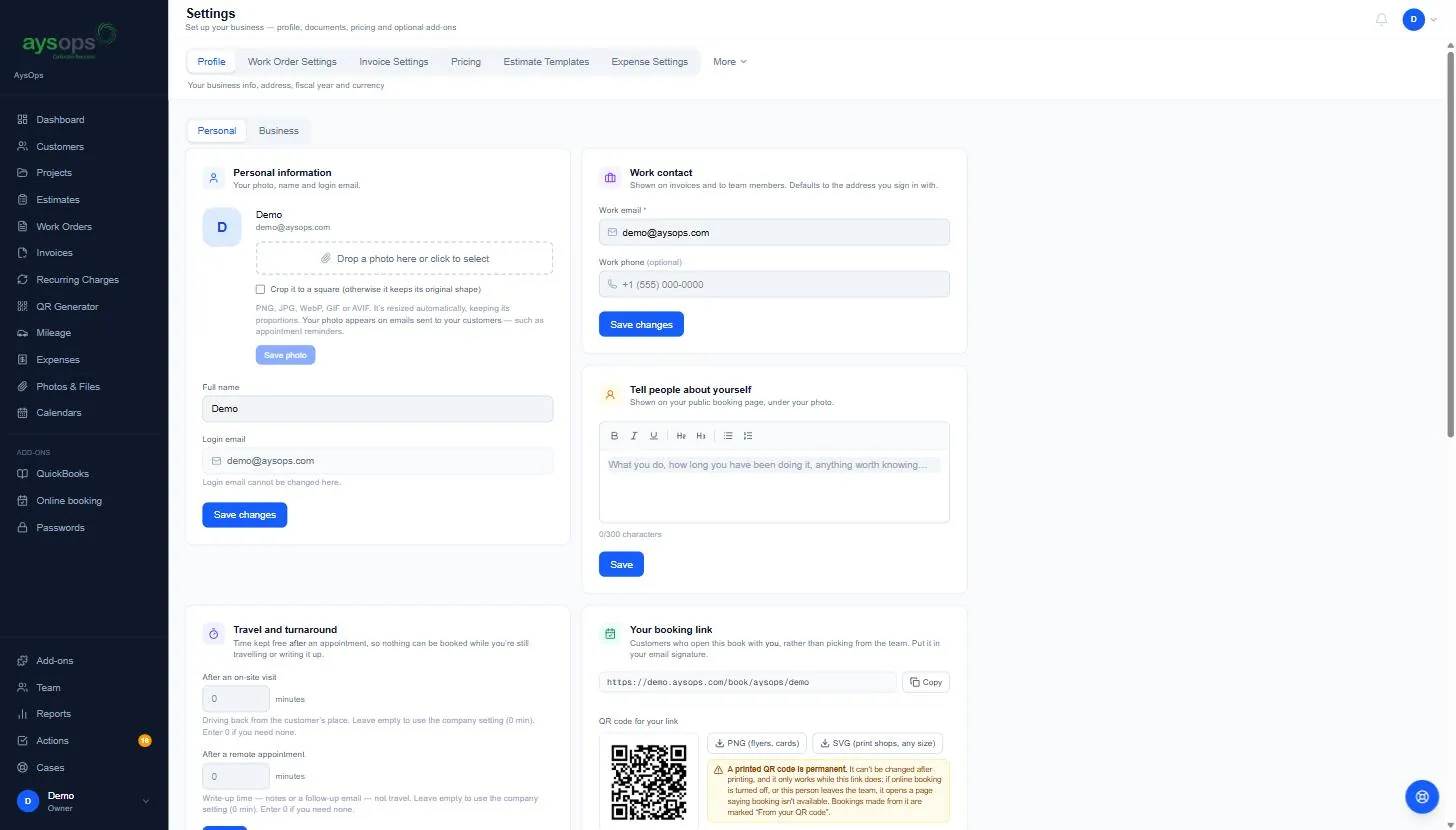
Your photo and name (Personal information)
Section titled “Your photo and name (Personal information)”- Drag a photo onto Drop a photo here or click to select, or click it to choose one.
PNG, JPG, WebP, GIF or AVIF. It’s resized automatically.
- Tick Crop it to a square if you want a square photo; otherwise it keeps its original shape.
- Click Save photo. Your photo appears on emails sent to your customers, such as appointment reminders.
- Change Full name if needed and click Save changes. Your Login email is shown but can’t be changed here.
Work contact
Section titled “Work contact”- Work email (required) and Work phone (optional) are shown on invoices and to your team members. They start as the address you sign in with; change them if customers should use a different one.
- Click Save changes in the Work contact box.
Tell people about yourself
Section titled “Tell people about yourself”- Write a short introduction (up to 300 characters): what you do, how long you’ve been doing it, anything worth knowing. You can use bold, italics, headings and lists.
- Click Save. It appears on your public booking page, under your photo (only if your business uses Online Booking).
Travel and turnaround
Section titled “Travel and turnaround”After an on-site visit and After a remote appointment keep time free after your appointments (in minutes), so nothing is booked while you’re still driving back or writing up. Leave a box empty to use the company setting, or enter 0 if you need none, then click Save. See Booking rules.
If your business uses Online Booking, Your booking link on this page also has a QR code to download. If it says No QR code yet, add your Full name and save: your link becomes permanent and the QR code appears. See QR codes for your booking links.
Further down the same page are Personal hours and Morning itinerary. See Set your working hours and days away and The morning itinerary email.
What happens next
Section titled “What happens next”Each box saves on its own: changes in one box aren’t saved by another box’s button.
If something goes wrong
Section titled “If something goes wrong”- I want to change the email I sign in with: it can’t be changed on this page. Contact support using Help & feedback.
- My photo looks stretched: upload it again with Crop it to a square ticked, or use a photo that’s already square.