
Business hours and closures
What this does
Section titled “What this does”Sets when the business is normally open, and the days it’s closed (holidays and one-offs). AysOps uses these to work out which appointment times can be offered. Anyone on your team who hasn’t set their own personal hours follows these.
Before you start
Section titled “Before you start”Only people who can change business settings (owners and admins by default) can change business hours. Each person can still set personal hours: see Set your working hours and days away.
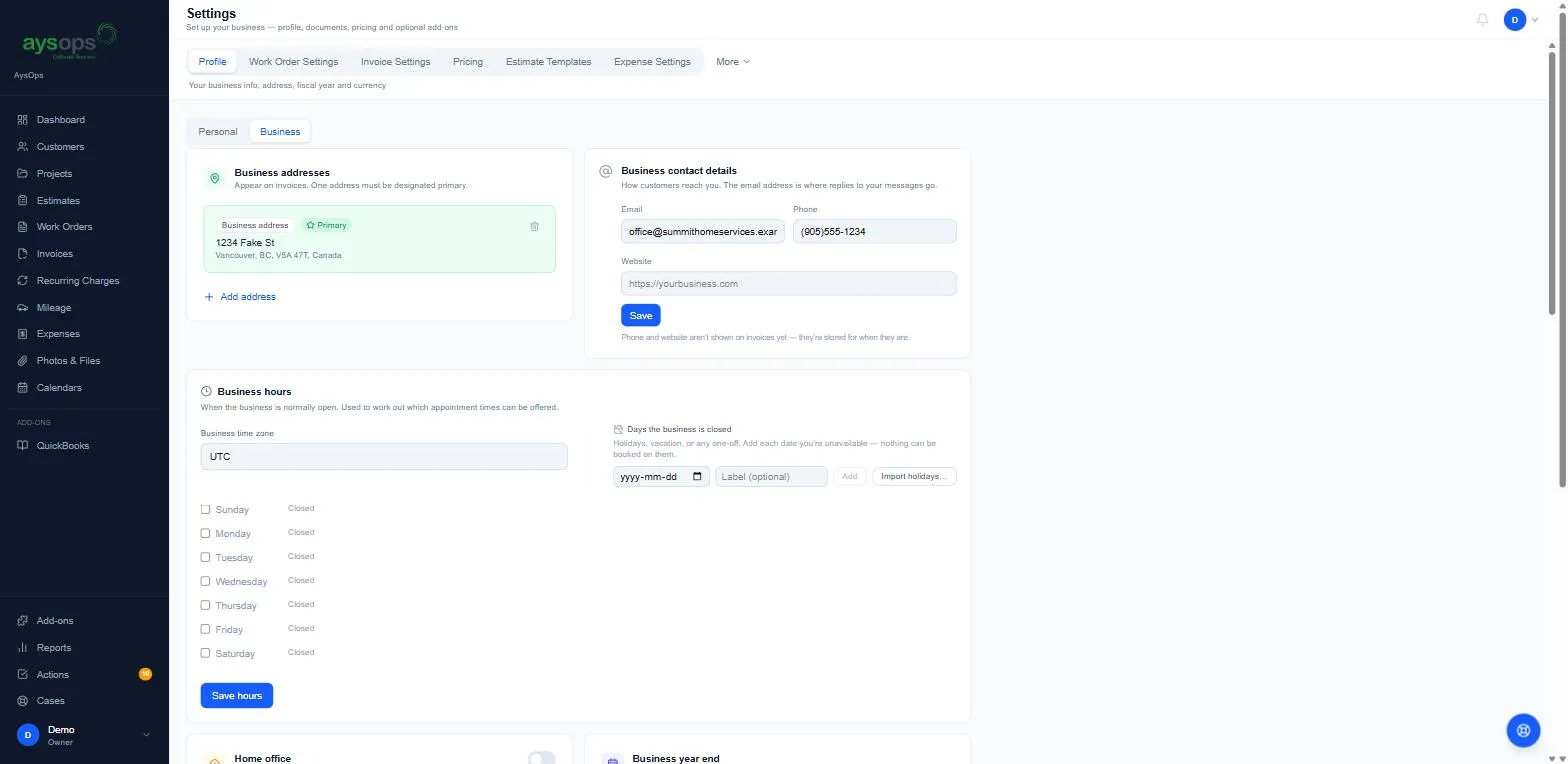
- Click your initial or photo at the top right → Settings, then the Business tab. Find Business hours.
- Set the Business time zone. The line underneath shows the current time there; check it’s right. If the time zone was never set, AysOps sets it the first time an owner or admin opens the app, using that computer’s time zone, and shows a notice: “Your business time zone is now …”. Click Keep, or Change to come here and pick another one. If that computer is set to UTC, nothing is set automatically: choose your time zone here yourself. Dates on documents, recurring charges and reports follow this time zone.
- Tick each day you’re open and set the opening and closing times (they start at 9:00 AM to 5:00 PM). Choose which visits you take at those times: On-site, At our location, Remote. Use + to add a second range, for example after lunch.
- Click Save hours.
- Under Days the business is closed, add one-off dates with an optional label and click Add, or click Import holidays… to pick from your area’s public holidays for the next 12 months. Untick days you stay open, then click Add [number] closures.
What happens next
Section titled “What happens next”Online bookings only offer times inside these hours (or a team member’s personal hours) and never on a closed day.
If something goes wrong
Section titled “If something goes wrong”- Booking times are offered at odd hours: check Business time zone.
- Nothing can be booked at all: every day is Closed, or no visit type is ticked on the open days.
Related articles
Section titled “Related articles”business hours, opening hours, open hours, closed, holidays, statutory holidays, stat holiday, closure, business time zone, import holidays