
Start recurring billing from a work order
What this does
Section titled “What this does”Bills a customer for the first cycle (plus any one-off charges, like a setup fee) on an ordinary invoice, and starts the schedule so the next cycles bill automatically.
Before you start
Section titled “Before you start”Create the recurring charge first. See Create a recurring charge.
- Create a work order for the customer (see Create a work order) and click Add line item.
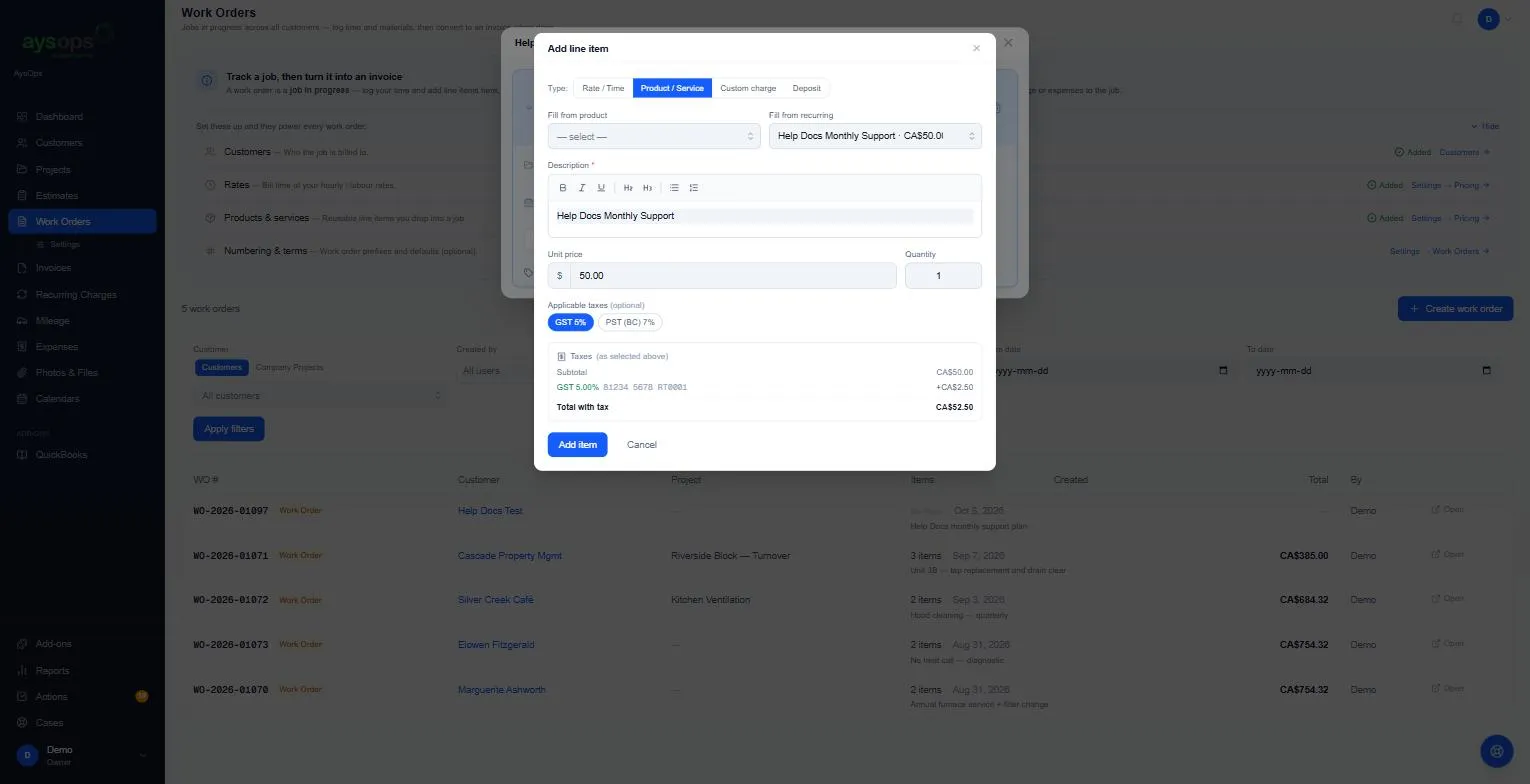
- Choose Product / Service, then pick your charge under Fill from recurring. The description, price and taxes fill in. A charge set up only for this customer is listed as This customer’s own: followed by its name and price. Click Add item.
-
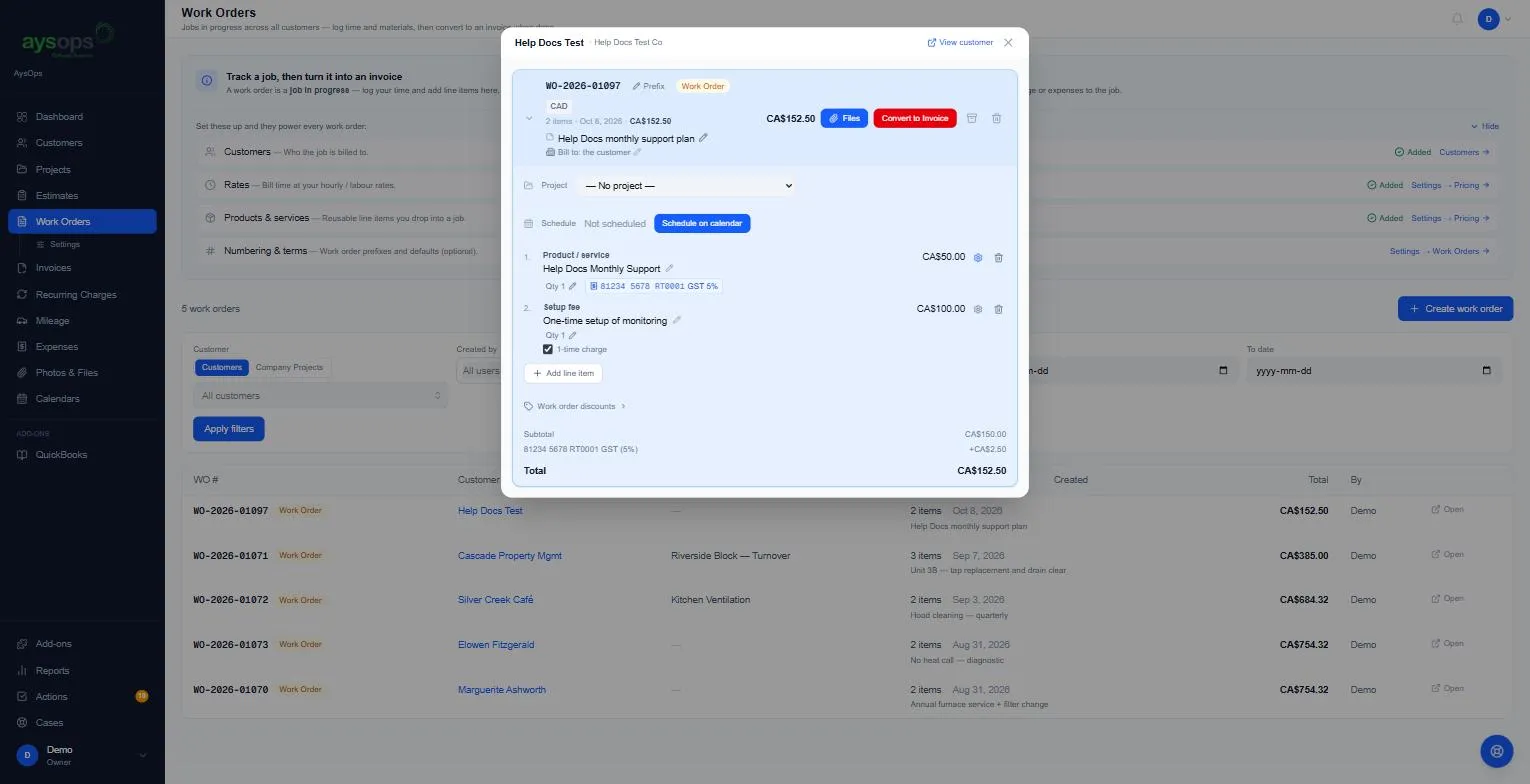
Add any other lines, for example a setup fee.
-
⚠️ Tick “1-time charge” under every line that should be billed only once. On a work order with a recurring line, every other line shows this box, and any line left unticked is billed again every cycle.
If the work order has two or more recurring charges, each other line shows a list instead of the box. Choose 1-time charge, or which charge the line should repeat with (each is shown by how often it bills, for example Monthly or Every 90 days).
- Convert the work order to an invoice and send it. See Convert a work order to an invoice and Send an invoice.
What happens next
Section titled “What happens next”- Sending the invoice starts the schedule. The charge appears on the Recurring Charges page with the First charge date and the Next charge one cycle later (for example sent Oct 8, next charge Nov 8). It keeps the same day of the month after that.
- On each due date AysOps creates the next invoice with the recurring lines. If Auto-send is on it’s emailed automatically; otherwise it waits under Ready to Send for you.
- If the customer saves their card when paying, later invoices can be charged automatically. See Autopay for recurring charges.
If something goes wrong
Section titled “If something goes wrong”- The setup fee appeared again on the next invoice: its 1-time charge box wasn’t ticked.
- The charge isn’t on the Recurring Charges page: the invoice hasn’t been sent yet, or the recurring item was added with Fill from product instead of Fill from recurring.
- The tick box doesn’t change straight away: wait a few seconds; it saves, then updates.
Related articles
Section titled “Related articles”start recurring, fill from recurring, recurring line, 1-time charge, one-time charge, setup fee, first invoice, start the clock, anchor day, subscription start