
Let customers pay invoices online
What this does
Section titled “What this does”Adds a pay link to your invoice emails so customers can pay by card. The money goes to your own Stripe account, and the payment is recorded on the invoice for you.
The green Pay this invoice online button appears at the top of the email, with the total, and again at the bottom. A long invoice (more than 25 lines) lists each section’s total in the email instead of every line; every line is in the attached PDF.
Before you start
Section titled “Before you start”A pay link is included only when all of these are true:
- the AysOps Payments With Stripe add-on is active,
- your Stripe account is connected and able to take payments,
- the invoice is for more than CA$0.00 (or US$0.00) and has been sent, and
- the pay link hasn’t been turned off for that invoice (with Don’t offer online payment on this invoice when you send it; the invoice then shows No online payment).
Otherwise the email is sent without one, and you record payments yourself (see Record a payment).
What your customer sees
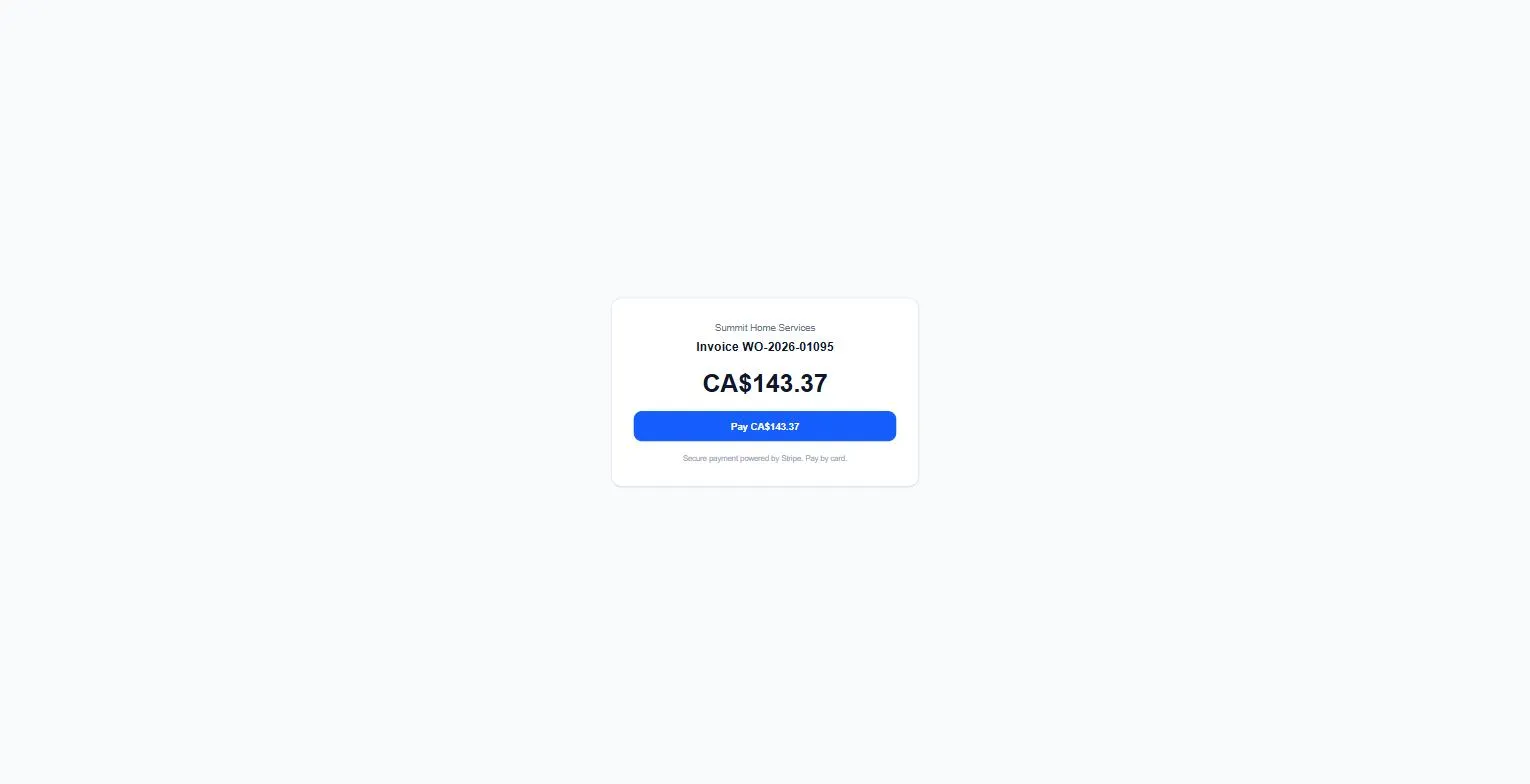
Section titled “What your customer sees”The link opens a simple page with your business name, the invoice number, the amount and a Pay CA$… button, with the note “Secure payment powered by Stripe. Pay by card.”
What happens next
Section titled “What happens next”When the customer pays, the payment is added to the invoice automatically and the invoice becomes Paid (or Partially Paid). If payment receipts are on, the customer is emailed a receipt.
An online payment can’t be deleted from the invoice. To give money back, use Refund. See Refund a payment.
Take a card payment yourself (Collect Payment)
Section titled “Take a card payment yourself (Collect Payment)”When a customer gives you their card details over the phone or at the counter, you can charge the invoice yourself:
- Open the customer’s Invoices tab and click the sent invoice.
- Click Collect Payment.
- In Collect payment, invoice WO-…, enter the customer’s card in the secure Stripe form and click Charge with the amount.
- You’ll see Payment received. The invoice shows as paid once Stripe confirms, usually in a few seconds.
Collect Payment appears on invoices that have been sent and aren’t fully paid, when the add-on is active and your Stripe account can take payments, for people who can send invoices and record payments (owners, admins and managers by default). It works even when online payment was turned off for that invoice. The card details go straight to Stripe; AysOps never sees them.
When a card is declined
Section titled “When a card is declined”If an online or automatic card payment is declined, the invoice shows a red Card declined label (with the number of tries, for example Card declined ×2). Point at it to see when the last try was. The invoice stays unpaid: the customer can pay with the pay link, or you can record or collect the payment another way.