
Online bookings and confirmations: what happens when a customer books
What this does
Section titled “What this does”Explains each step after a customer books on your booking page, what you see in AysOps, and when you need to do something.
The customer’s side
Section titled “The customer’s side”- They pick a time and press Continue, then fill in Your name, Email, and optionally Phone and Anything we should know, and press Confirm booking.
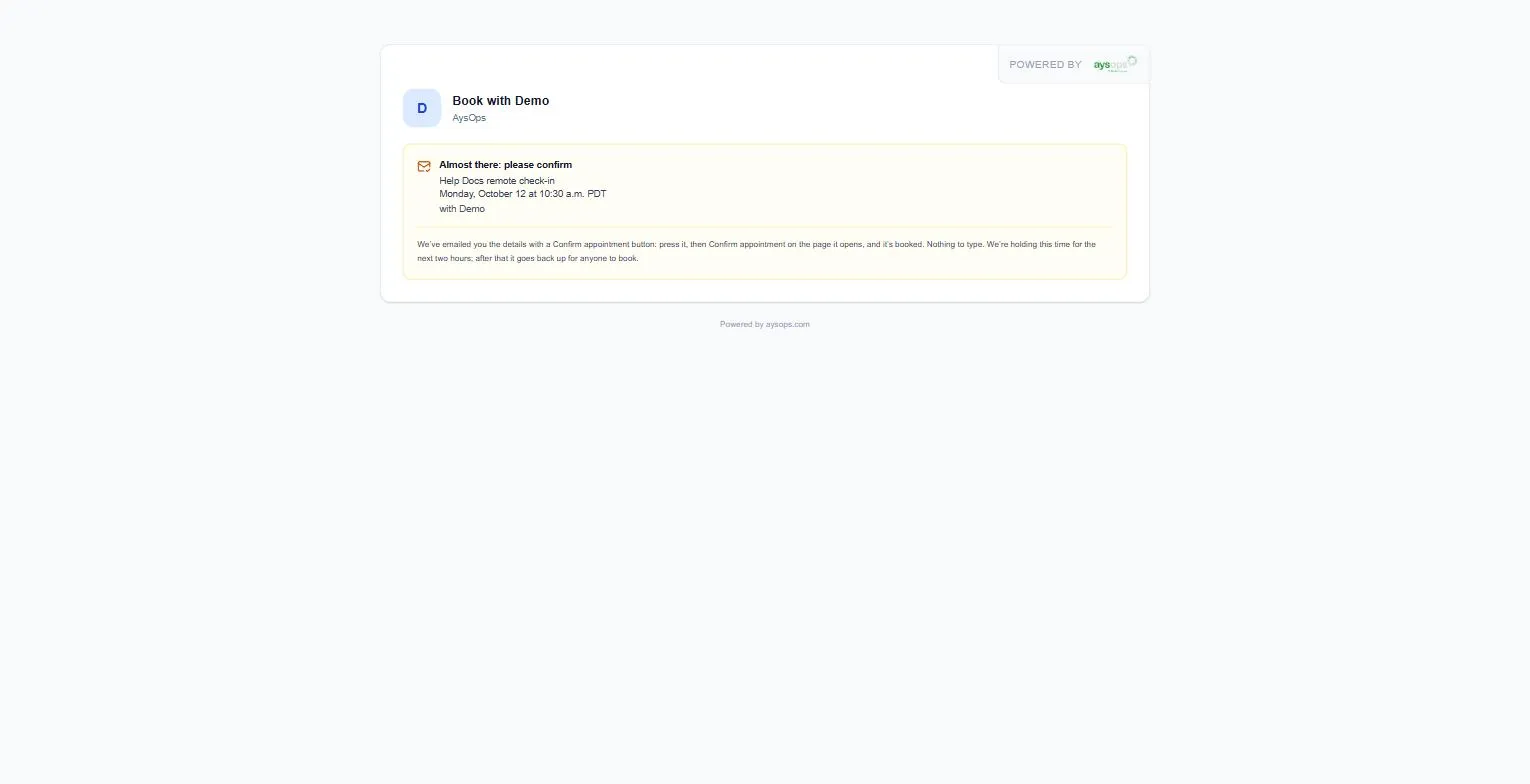
- A new customer sees “Almost there: please confirm”. They’re emailed the details with a Confirm appointment button. The time is held for two hours; if they don’t confirm, it goes back up for anyone to book.
- When they press Confirm appointment in the email, a small Confirm your appointment page opens and they press Confirm appointment once more. (This second press stops email security scanners from confirming bookings on their own.) They then see their booking with That’s confirmed. Thank you, and get a confirmation email with the appointment attached for their own calendar.
- From that email they can pick a new time or cancel, as long as it’s outside your cancellation window (see Booking rules). Inside the window they see your “too late” message instead.
Customers who have confirmed their email before skip step 2.
Your side
Section titled “Your side”On the to-do list
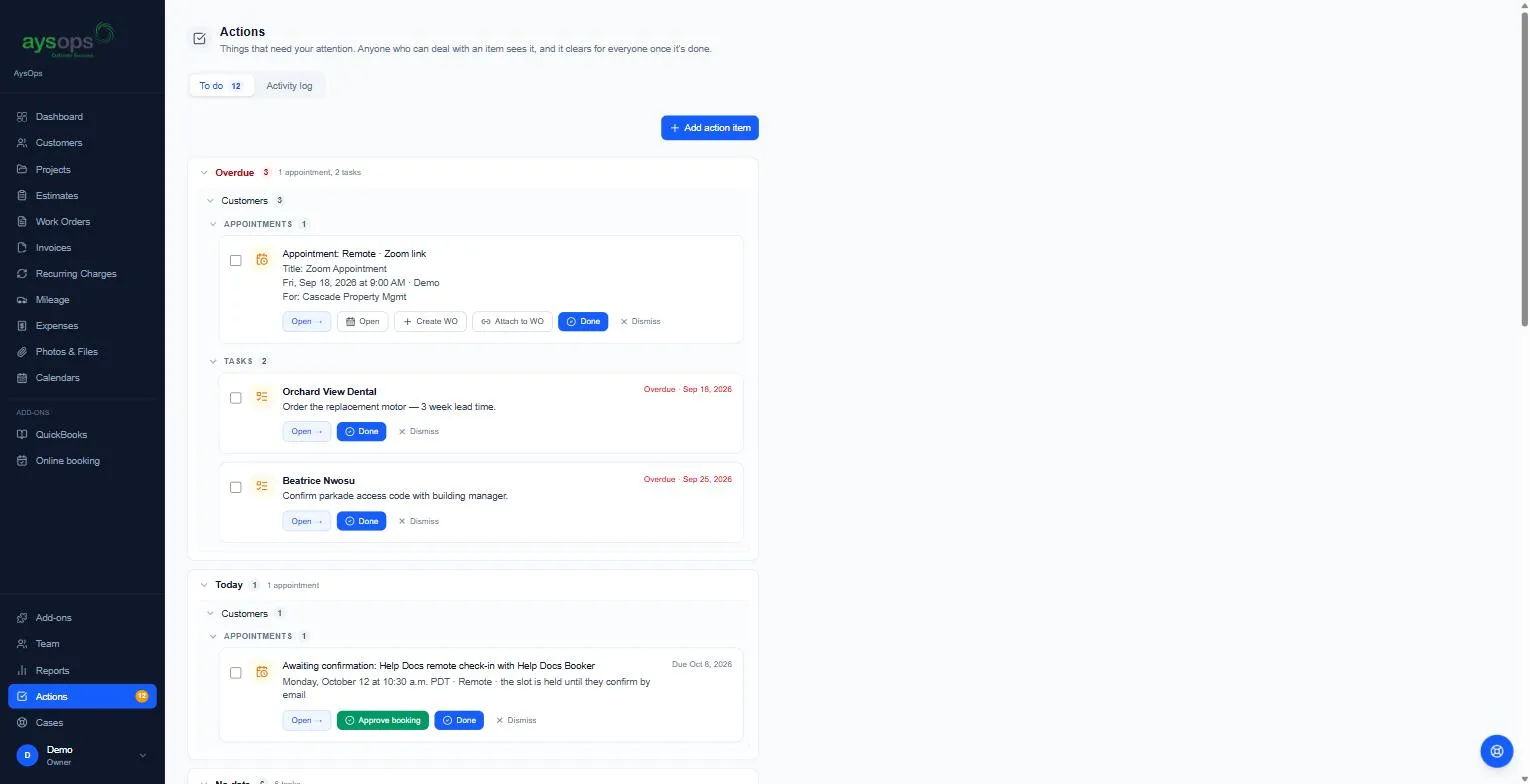
Section titled “On the to-do list”- Awaiting confirmation: [service] with [name]: the slot is held until they confirm by email. If you know the person (or just spoke to them), click Approve booking to confirm it without waiting. It then clears from the list.
- New booking: [service] with [name]: due on the day of the appointment, so it gets followed up.
On the calendar
Section titled “On the calendar”The appointment appears on the calendar of the person who was booked, titled “[service] — [name] (online booking)”, with what the customer wrote.
On the Online booking page
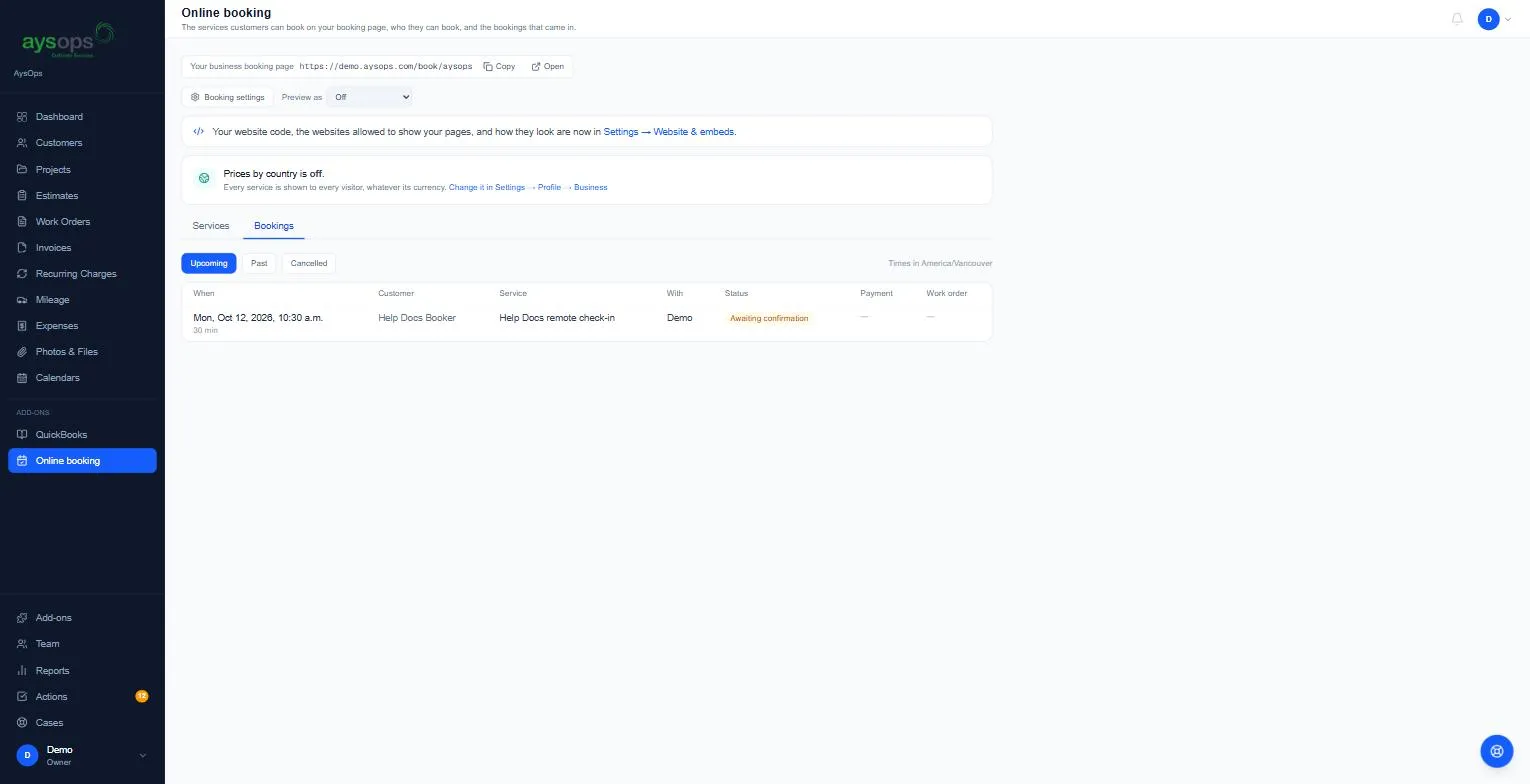
Section titled “On the Online booking page”Click Online booking, then the Bookings tab. Upcoming, Past and Cancelled list each booking with the time, customer, service, who it’s with, Status (Awaiting confirmation until it’s confirmed, then Confirmed), payment and work order. A booking made from one of your QR codes shows From your QR code under the service.
The customer record
Section titled “The customer record”When the customer confirms their email, AysOps looks for them in your customers:
- Not found: a new customer is created from what they typed, and the booking is linked to it.
- Found once: the booking is linked to that customer.
- More than one possible match: nothing is guessed. You get a to-do to choose the right customer, and the booking still goes ahead.
If you approve a booking before the customer confirms, it isn’t linked to a customer yet, because their email hasn’t been proven. When you create a work order from the appointment, you choose who it’s for.
If a customer cancels
Section titled “If a customer cancels”The time frees up straight away and you’re told in your activity feed. For a paid booking you get a to-do to decide on a refund; nothing is refunded automatically.
If something goes wrong
Section titled “If something goes wrong”- The customer says they never got the email: check the spelling of the address on the booking. You can approve it yourself from the to-do list.
- A booking disappeared: if nobody confirmed it within two hours, the hold was released. It shows under Cancelled.