
Show booking on your own website (Website & embeds)
What this does
Section titled “What this does”Lets customers book you (or sign up for group sessions) without leaving your own website, and makes your booking pages match your website’s look. You can also make a Book now button for your website.
Before you start
Section titled “Before you start”- Only owners and administrators can change this.
- You need Online Booking (or AysOps Group Sessions) on. Until then, this page only shows the look of your pages.
- You’ll need to be able to edit your own website (or ask whoever looks after it) to paste in code.
Click Settings, then More, then Website & embeds.
1. Make it look like your website (Appearance)
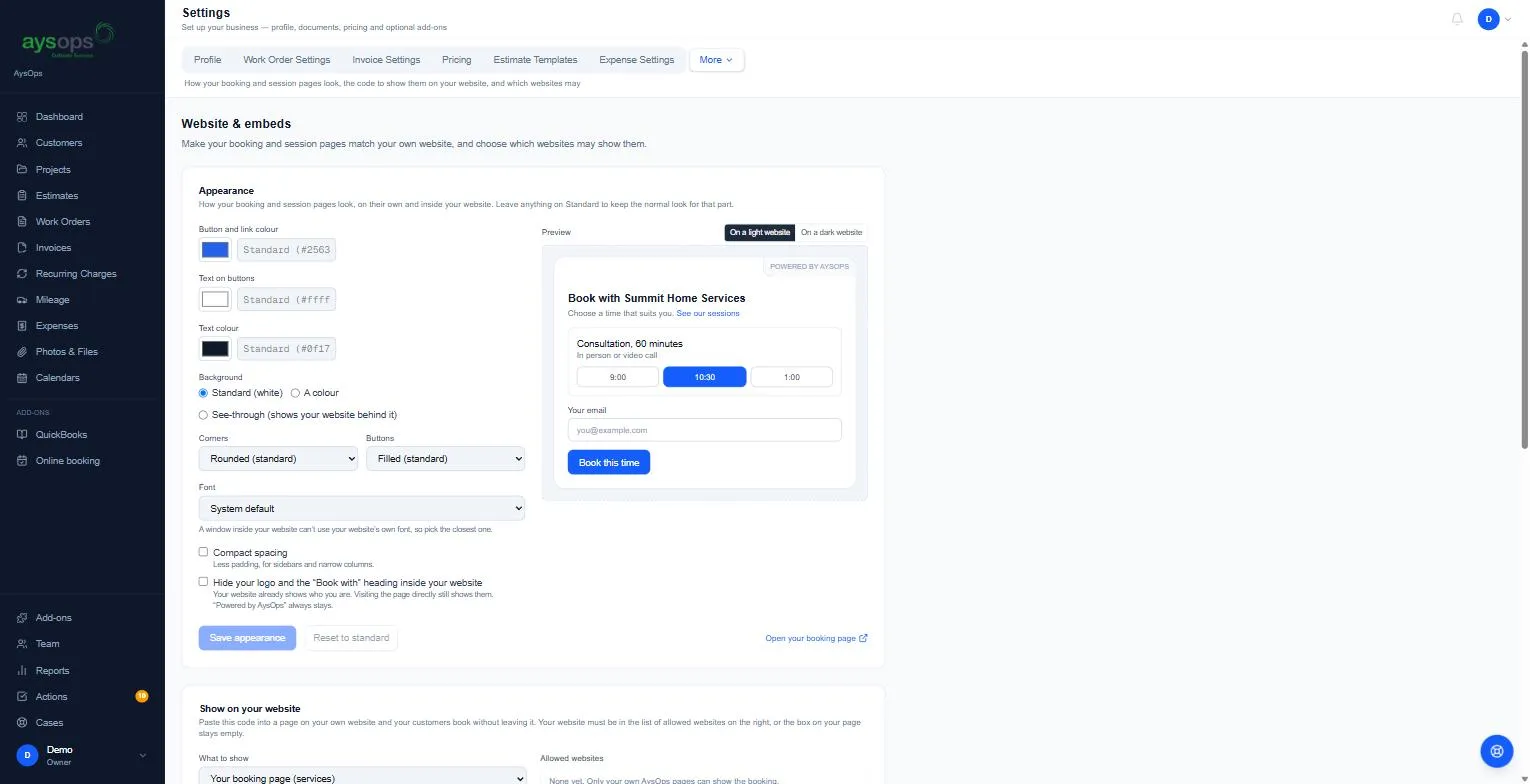
Section titled “1. Make it look like your website (Appearance)”- Set Button and link colour, Text on buttons and Text colour.
- Choose a Background: Standard (white), A colour, or See-through (shows your website behind it).
- Pick Corners (Square, Rounded, Pill buttons), Buttons (Filled or Outline) and a Font. A window inside your website can’t use your website’s own font, so pick the closest.
- Optional: Compact spacing for narrow columns, and Hide your logo and the “Book with” heading inside your website. “Powered by AysOps” always stays.
- Watch the Preview (switch between On a light website and On a dark website), then click Save appearance. Reset to standard puts everything back.
2. Allow your website
Section titled “2. Allow your website”Under Allowed websites, type your website’s address (it must start with https, for example https://www.yoursite.com), click Add, then click Save allowed websites. Adding a site also adds the same site with or without “www” (a note says so); remove either one with its x if your site doesn’t use it. You’ll see “Saved. It can take up to a minute to reach your website.”
🔴 Your website must be on this list, or the booking box on your page stays empty.
3. Put booking on your website
Section titled “3. Put booking on your website”- Under Show on your website, choose What to show (for example Your booking page (services)).
- Click Copy next to Code to paste, and paste it into a page on your website where the booking should appear.
The booking runs in a frame from aysops.com: your website can’t see what customers type. If your website shows a cookie notice, mention that bookings are handled by aysops.com.
4. Or add a button
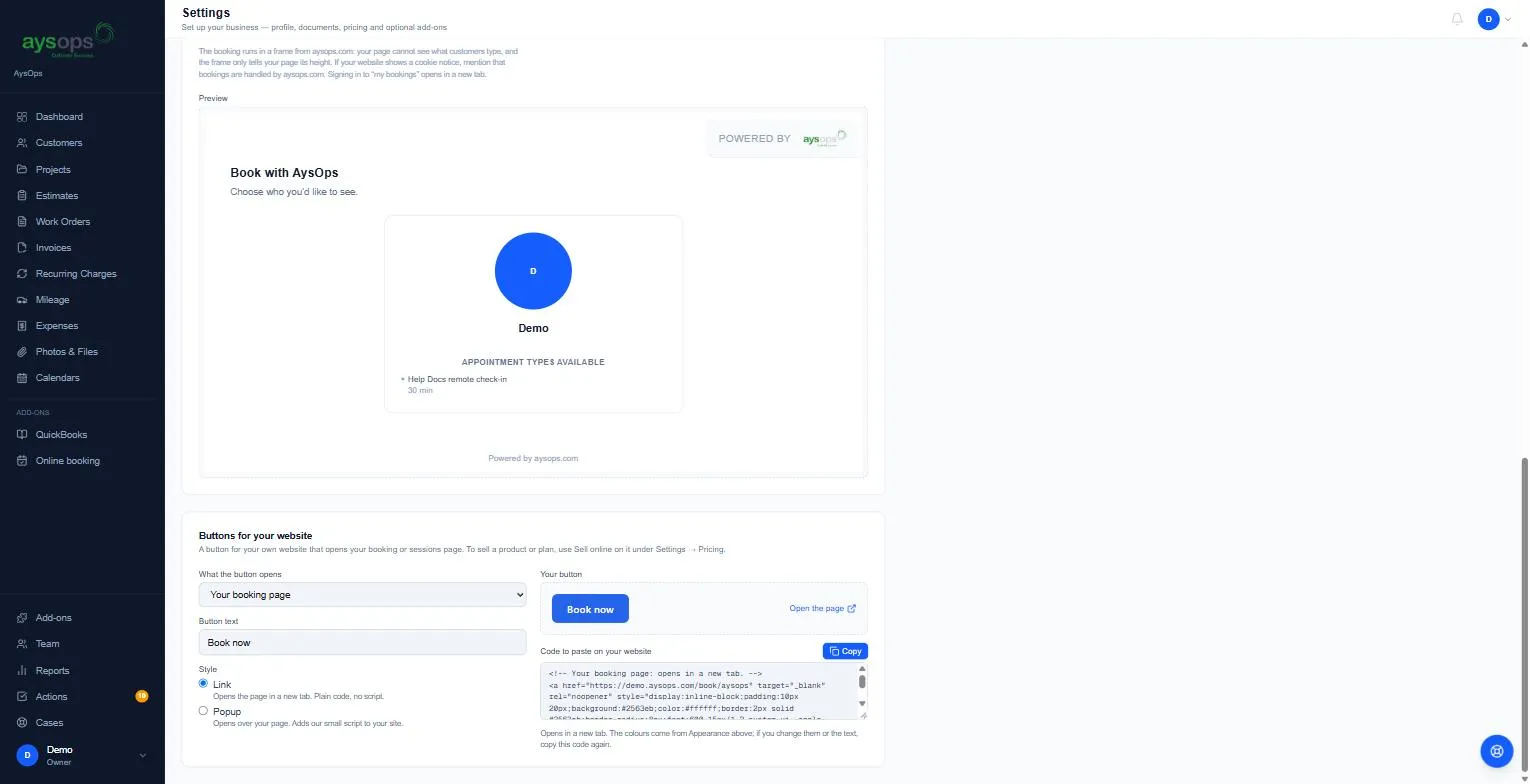
Section titled “4. Or add a button”Under Buttons for your website:
- Choose What the button opens and type the Button text (for example “Book now”).
- Choose a Style: Link opens the page in a new tab (plain code, no script) or Popup opens it over your page (adds a small AysOps script to your site).
- Click Copy and paste the code into your website.
The colours come from Appearance. If you change them or the text, copy the code again.
To sell a product or plan with a Buy button, see Sell online.
5. Take requests from your website
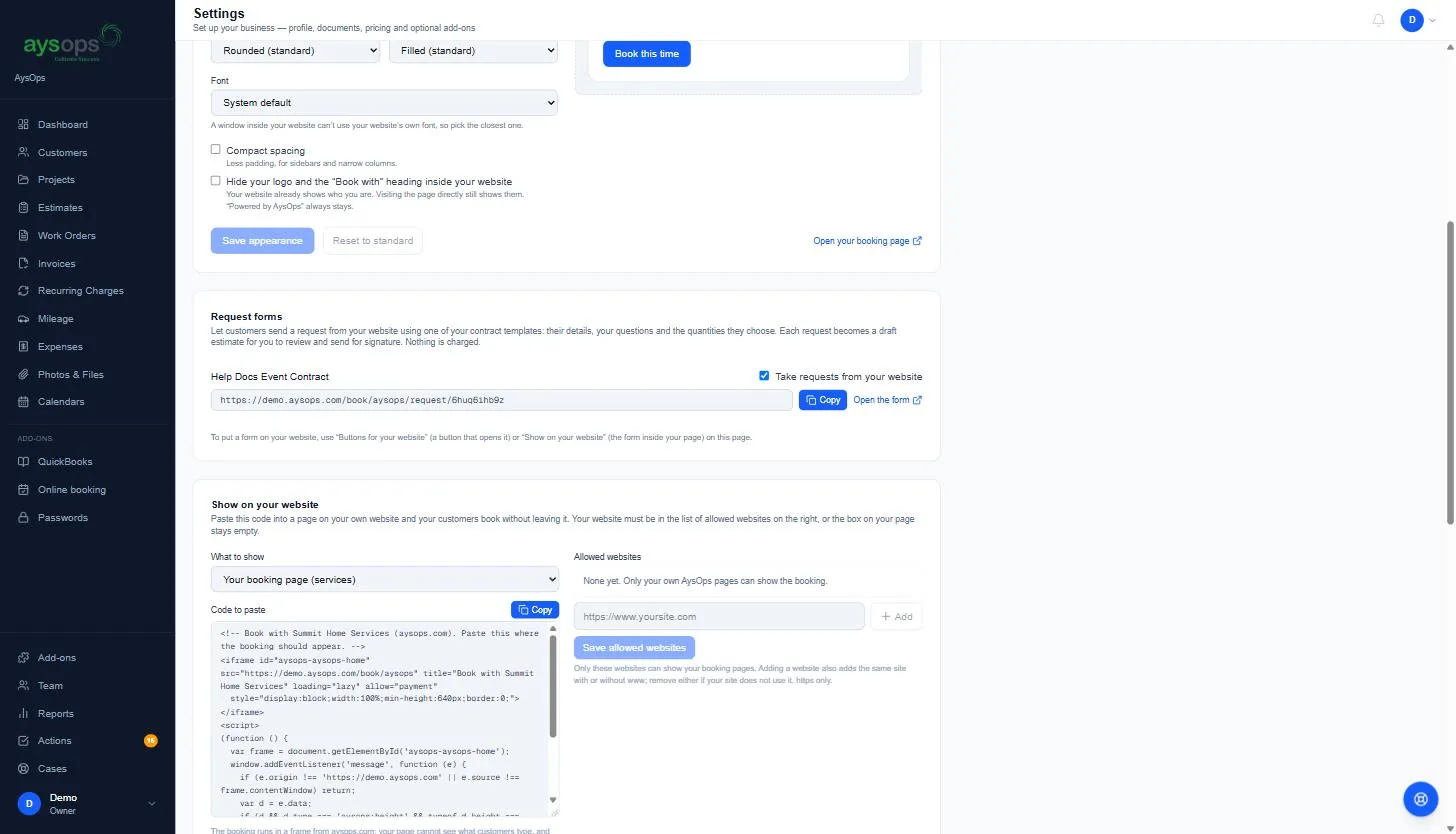
Section titled “5. Take requests from your website”If you have a contract template, Request forms lists it. Tick Take requests from your website to get a form your customers can send you; it works without Online Booking. A request form button always opens in a new tab. See Contracts. Once it’s ticked, the form’s link shows with Copy, Open the form and Embed. Click Embed for the code that shows the form inside a page of your website (you can also pick the form under Show on your website).
If something goes wrong
Section titled “If something goes wrong”- The booking box on my website is empty: your website isn’t in Allowed websites, or it’s listed without (or with) “www” when your site uses the other.
- My website changed colour but the button didn’t: copy the button code again (Link style).
- I only see the Appearance section: turn on Online Booking or Group Sessions first.